
WhatsApp Business (Idea)
Idea stage: WhatsApp Business is a concept and is not available to turn on yet. This guide describes planned behavior and may change before release.
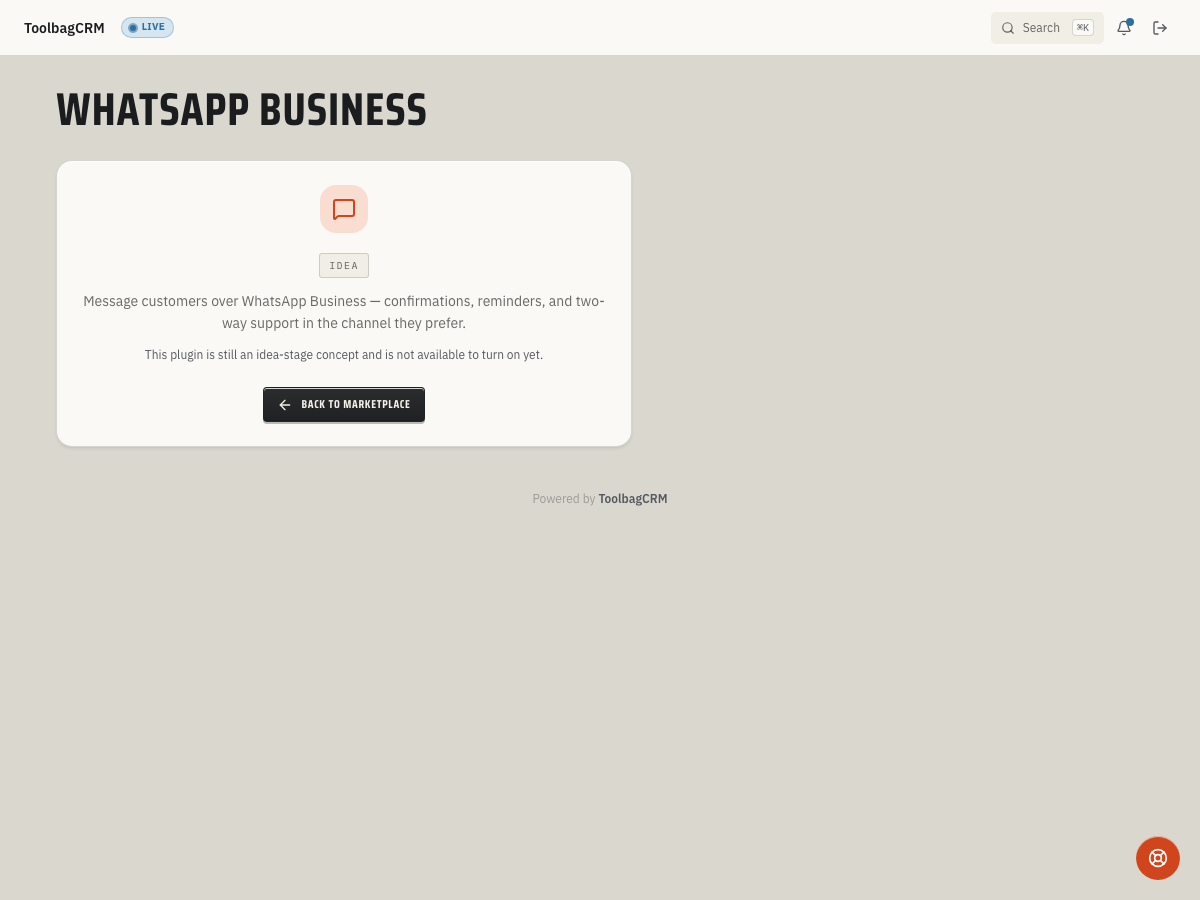
WhatsApp Business will let office staff continue customer conversations from the WhatsApp channel inside ToolbagCRM once the plugin is available.
When to use this
Use WhatsApp Business when customers already prefer WhatsApp for scheduling questions, job updates, estimate follow-ups, or quick support conversations and your team wants those messages tracked with the rest of the customer relationship.
Before you start
- Confirm the plugin has moved out of Idea for your account.
- Make sure your company has an approved WhatsApp Business presence and messaging policy before inviting customers to use the channel.
- Decide which office users should answer WhatsApp conversations and which customer-facing messages need manager review.
Expected workflow
When the plugin becomes available, a typical rollout will look like this:
- Prepare this step for rollout; WhatsApp Business is not available to enable while it remains at the idea stage.
- Connect or confirm the WhatsApp Business channel with your account administrator.
- Choose the team members who can view, send, and manage WhatsApp conversations.
- Queue an approved customer message, such as an appointment reminder or estimate follow-up, with the customer's WhatsApp-ready phone number.
- Review message status and failures before expanding the channel to every customer-facing workflow.
Planned message lifecycle
The planned message queue uses these statuses:
- Queued — the message has been accepted by ToolbagCRM and is waiting for provider delivery.
- Sent — the provider has accepted the message for delivery.
- Delivered — the message reached the customer's WhatsApp account.
- Read — the provider reported that the customer opened the message.
- Failed — the provider rejected or could not deliver the message; the failure reason is stored for review.
Messages can be associated with a customer record, a sending number, an optional template name, and the message body. Treat the status lifecycle as preview behavior until the live workspace exposes the finished conversation UI.
Current availability
Accounts without the active WhatsApp Business workspace will show an idea-stage placeholder. There is no active workflow or settings screen to use yet, so this page stays limited to the idea-stage placeholder and planned message lifecycle instead of fabricated conversation data.
Tips
- Keep customer opt-in and communication preferences clear before launching a new messaging channel.
- Start with office-managed reminders and follow-ups before allowing broad team access.
- Keep template names plain and purpose-specific, such as appointment reminders, arrival updates, or quote follow-ups.
- Review failed messages before resending so invalid phone numbers or provider policy issues do not create duplicate outreach.
- Use your announcement workflow for one-to-many messages; use WhatsApp Business for direct customer conversations and follow-ups.
Troubleshooting
The WhatsApp Business page still says Idea
The account page may show only the idea-stage placeholder while WhatsApp Business is at the idea stage. There is no active conversation screen or settings page to use yet while the feature remains unavailable.
A message will not queue
Messages need a recipient phone number and message body before they can queue. Before retrying, confirm the customer has a WhatsApp-ready E.164 phone number on file and that the message text is not blank.
A message shows Failed
Check the stored failure reason before sending again. Common next steps are confirming the customer phone number, reviewing WhatsApp opt-in or template requirements, and asking your ToolbagCRM administrator whether the channel connection is active.