
AI Photo Estimate (Idea)
Idea stage: AI Photo Estimate is a concept and is not available to turn on yet. This guide describes planned behavior and may change before release.
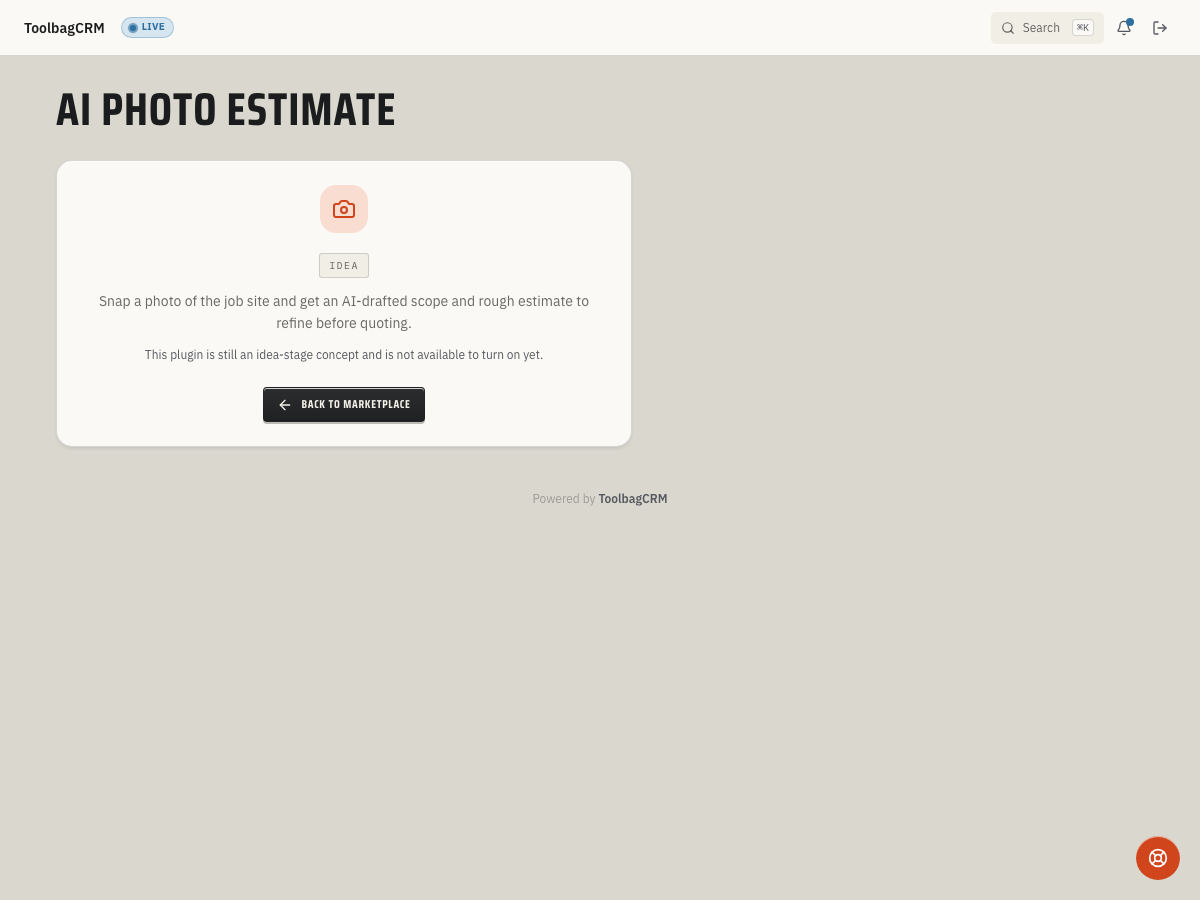
AI Photo Estimate will help your team turn job-site photos into a reviewed rough scope and estimate range before a full quote is written.
Accounts without the active AI Photo Estimate workspace will see an idea-stage placeholder instead of the photo upload, AI analysis, draft quote, or settings workflow, so this guide explains the planned workflow and what to prepare now.
When to use this
Use AI Photo Estimate when your office wants a faster first response for photo-friendly jobs such as roofing, concrete, siding, landscape, gutters, driveway work, or general repairs.
Planned uses include:
- Letting a customer or technician submit photos of the work area.
- Capturing the job category, address, notes, and customer context before a site visit.
- Producing a rough estimate range that a human reviews before sending anything to the customer.
- Turning a reviewed estimate into a normal ToolbagCRM quote when the scope is ready.
- Keeping assumptions and low-confidence items visible so the team knows where manual review is required.
Before you start
- Confirm the plugin is available for your account. It may not appear in navigation until preview access is enabled.
- Make sure customer records are clean; ToolbagCRM rejects a photo-estimate request if no customer is selected.
- Decide which job categories your team would trust for photo-based triage versus jobs that still require an in-person visit.
- Keep pricing catalog items current if you plan to use the future draft-quote workflow.
- Set an office policy that AI output is a starting point, not a binding quote.
Planned photo-estimate workflow
When the active workflow ships, the expected process is:
- Open AI Photo Estimate from ToolbagCRM.
- Start a request for a customer and job category.
- Add photos of the work area, notes, and the site address.
- Run or wait for the analysis step.
- Review the identified scope, confidence, assumptions, and suggested low/high estimate range.
- Edit the scope or pricing before sharing anything externally.
- Promote the reviewed draft into a ToolbagCRM quote when it is accurate enough for the customer.
Until the active UI exposes these steps, use the idea-stage page as the source of truth for availability and do not promise customers an instant estimate from ToolbagCRM.
Planned request states
The planned request model uses these states so your team can separate new photo requests from reviewed estimates:
- Pending — ToolbagCRM has accepted the customer, job category, photo list, and optional notes, but analysis has not completed.
- Analyzing Images — images are being reviewed before an estimate summary is ready.
- Completed — the request has a reviewed summary plus low/high estimate range and can be compared with your normal quote workflow.
- Failed — the request could not be completed; use the failure reason to decide whether to ask for better photos, add missing details, or schedule a site visit.
Human review rules
AI Photo Estimate is intended to speed up triage, not replace estimator judgment. Before a rough number becomes a customer-facing quote, review:
- Whether the photos show the whole job area or only a partial view.
- Missing access, safety, permit, disposal, or site-condition details.
- Material quantities and labor assumptions.
- Any low-confidence analysis notes.
- Whether the job requires a site visit before pricing can be trusted.
For risky or complex work, keep the AI result internal and schedule a normal estimate.
What to prepare now
- Build a simple checklist for the photos your team needs: wide shot, close-up, access path, damage/detail area, and any measurement reference.
- Standardize job categories so estimate requests are not scattered across inconsistent labels.
- Keep customer phone, email, and service address information current.
- Review pricing catalog coverage for common materials, labor, trip charges, and disposal fees.
- Decide who can approve a photo-based rough estimate before it is converted into a quote.
Tips
- Use this as a speed-to-lead tool: reply quickly, then clearly label numbers as rough until reviewed.
- Keep assumptions visible in the customer conversation so the estimate does not look more certain than it is.
- Do not use photo estimates for jobs where hidden conditions drive most of the cost.
- Watch for Failed requests once the workflow is enabled; a failure should trigger a better-photo request or a normal estimate visit, not an automatic customer-facing quote.
- Pair the workflow with normal quote review so accepted work still lands in your standard sales process.
Troubleshooting
The page only shows Idea
That is expected in the idea stage. Accounts without the active AI Photo Estimate workspace will still see an idea-stage placeholder, and the active photo-estimate screen is not available yet.
I do not see an upload or analysis button
The upload and analysis workflow is not generally available yet. Do not promise customers an instant photo estimate until the upload, review, and draft-quote controls are visible in your account.
A request cannot be saved without a customer
ToolbagCRM requires each photo-estimate request to be tied to a customer. Create or clean up the customer record first, then retry when the active workflow is available.
The estimate range looks too broad
Treat a wide range as a review signal. Ask for better photos, add missing scope details, or schedule a site visit before sending a quote.