
Deposits
Deposits helps you see invoices where a customer has already made a partial payment but still has a remaining balance. It is useful for contractors who collect money up front before ordering materials, booking a crew, or starting a larger job.
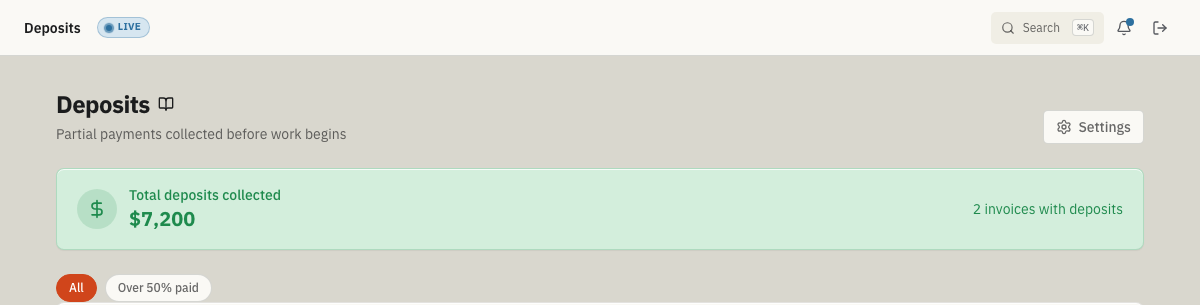
Open Deposits from the main navigation after the plugin is enabled in Settings → Features.
When to use this
Use Deposits when your business collects money from a customer before the full job is finished:
- You require a percentage up front for large jobs that need materials or crew scheduling.
- A customer has already paid part of an invoice and you need a quick view of what is still owed.
- The office wants a focused worklist of partially paid invoices instead of searching through every invoice.
- You want deposit rules applied automatically when a customer accepts a quote.
Before you start
- Enable Deposit Workflow from Settings → Features.
- Confirm that Invoices and Payments are also enabled — Deposits depends on both.
- Open the deposit settings page and set the default deposit percent, the required above amount (the invoice total that triggers a deposit requirement), and whether the deposit is due on quote accept or job start. Use these defaults to standardize when deposits are requested across your account; payment entry still happens from the related invoice.
- Make sure your team knows how to record payments against invoices, since the Deposits page is a read-only worklist that links back to the invoice for payment entry.
What appears on the Deposits page
The Deposits page is a read-only view of invoice and payment activity. An invoice appears here when:
- the invoice is not fully paid, and
- the invoice has at least one completed payment recorded against it.
ToolbagCRM groups those invoices into a simple worklist so you can follow up on the remaining balance without manually comparing every invoice and payment.
What you can review
For each deposit invoice, the page shows:
- the customer name,
- the related job title when the invoice is tied to a job,
- the invoice total,
- how much has already been deposited,
- the remaining balance, and
- the percent collected so far.
The summary card at the top shows the total deposits collected across the invoices currently in the list and how many invoices have partial payments.
Filter deposits
Use the filter chips near the top of the page to switch between:
- All — every invoice with a completed partial payment.
- Over 50% paid — invoices where more than half of the total has already been collected.
This can help you spot jobs that are close to being paid off or separate early deposits from near-complete invoices.
Record another payment
The Deposits page does not create payments directly. To update a balance:
- Open Deposits.
- Find the customer or job.
- Select Record Payment.
- ToolbagCRM opens the related invoice.
- Record the additional payment from the invoice page.
After a payment is completed, the deposit worklist reflects the updated amount paid and remaining balance. Once the invoice is fully paid, it no longer appears as an outstanding deposit.
View the invoice
Select View Invoice on a deposit card to open the invoice detail page. Use this when you need to review the invoice line items, customer, job, or existing payment history before following up.
Tips
- Use deposits for large jobs where materials or scheduling require money up front.
- Review the list before ordering special parts or dispatching a crew.
- Use Over 50% paid to find invoices that may only need a final payment reminder.
- Keep recording payments on the invoice itself so the deposit list stays accurate.
Troubleshooting
The deposit page is empty
Depends on invoice and payment records. If there are no partially paid invoices yet, the page will show an empty state until a completed partial payment is recorded. Use the Go to Invoices button on the empty state to navigate to your invoices and record a partial payment.
A payment was recorded but the deposit does not appear
Deposits only include invoices that have at least one payment with a Completed status. Pending or failed payments are not counted. Open the invoice and confirm the payment status is Completed. If the payment is still Pending, wait for processing or manually mark it complete from the invoice page.
"Over 50% paid" filter shows no results
The Over 50% paid filter only shows invoices where more than half of the total has been collected. If no invoices meet that threshold, the filter returns an empty list. Switch to All to see every invoice with a partial payment.