
Sales Tax (Coming Soon)
Coming Soon: Sales Tax is a public-preview plugin. Accounts without the active Sales Tax workspace enabled will see a coming-soon placeholder, so the active tax setup and invoice-calculation screens are not available yet.
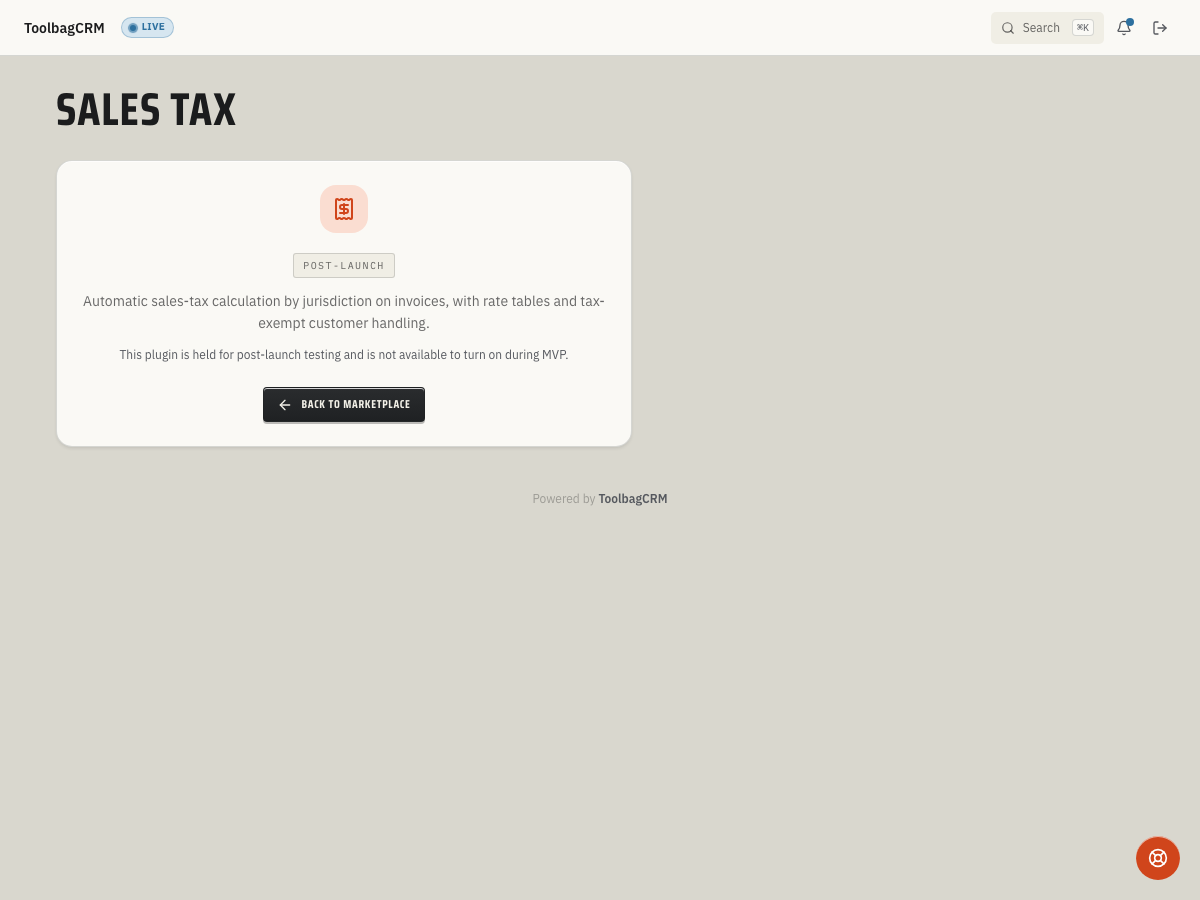
Sales Tax will help contractors apply jurisdiction-aware tax to invoices without relying on a guessed flat percentage.
It is planned for teams that need taxable and exempt invoice handling, service-address rate lookup, and cleaner liability reporting before filing with a bookkeeper or tax provider.
When to use this
Use Sales Tax when your office needs to:
- Charge tax based on the customer's service address instead of one account-wide rate.
- Keep jurisdiction rates separate from invoice totals so each invoice can explain how tax was calculated.
- Handle tax-exempt customers or jobs without changing every line item by hand.
- Review collected tax before month-end filing or bookkeeper handoff.
Current availability
Accounts without the active Sales Tax workspace enabled will still see a coming-soon placeholder. The planned Sales Tax workflow includes tax jurisdictions and invoice-subtotal calculations, but the customer-facing setup page is not generally available yet.
Until the full workflow ships, continue using your current tax process and have your bookkeeper or CPA confirm which labor, material, travel, and disposal charges are taxable in each jurisdiction you serve.
Planned workflow
- Enable Sales Tax after it becomes available for your account.
- Add or confirm the jurisdictions your company serves, including each jurisdiction code and rate.
- Review which invoice items should be taxable, exempt, or handled by a special rule.
- Apply the calculated tax while creating or issuing invoices.
- Review collected tax before filing, exporting, or reconciling with your accounting process.
What to prepare now
- A list of cities, counties, or special districts where you regularly perform work.
- Your current tax rates and any service categories your accountant treats differently.
- Tax-exempt customer documentation, such as resale certificates or nonprofit/government exemptions.
- A month-end report format your bookkeeper already trusts.
Tips
- Treat tax settings as an accounting-control area, not a field-technician setting.
- Keep exemption documents current before marking customers or jobs as exempt.
- Compare the first few calculated invoices against your current accounting workflow before relying on automated totals.
- Recheck rates when you expand into a new city, county, or state.
Troubleshooting
I only see a coming-soon page
That is expected until Sales Tax is enabled for customer workspaces. The public-preview placeholder means you should not rely on ToolbagCRM for tax setup or invoice tax calculation until the active workspace appears in your account.
I need to charge tax today
Keep using your existing accounting or invoicing process until the Sales Tax workflow is released for your account. ToolbagCRM should not be the source of record for tax collection until your active setup screen and invoice calculation behavior have been verified.
My jurisdiction has special labor or exemption rules
Document those rules before rollout. Sales-tax requirements can differ by state, county, city, service type, and customer exemption status, so avoid using a single flat percentage unless your tax advisor has approved it.
A planned tax calculation rejects the subtotal
The planned calculation endpoint rejects negative invoice subtotals. Review the invoice subtotal before calculating tax; credits, refunds, and write-offs should follow your accounting process instead of being entered as a negative taxable subtotal.