
Documents & Photos
Documents & Photos keeps customer files, job photos, signed forms, permits, contracts, and other reference material attached to the records where the work happens.
When to use this
Use Documents & Photos when files are currently scattered across email threads, phones, shared drives, or paper folders. It is especially useful for keeping signed agreements, site photos, permits, warranty paperwork, before/after images, and inspection documents visible to the office and field team.
Before you start
- Confirm the plugin is included in your plan.
- Open Settings → Features and make sure Documents & Photos is enabled.
- Decide which file categories your team will use, such as Permit, Contract, Before Photo, After Photo, Warranty, or Invoice Backup.
- Have at least one customer or job ready before uploading. Each document must be attached to a customer, a job, or both.
How to use Documents & Photos
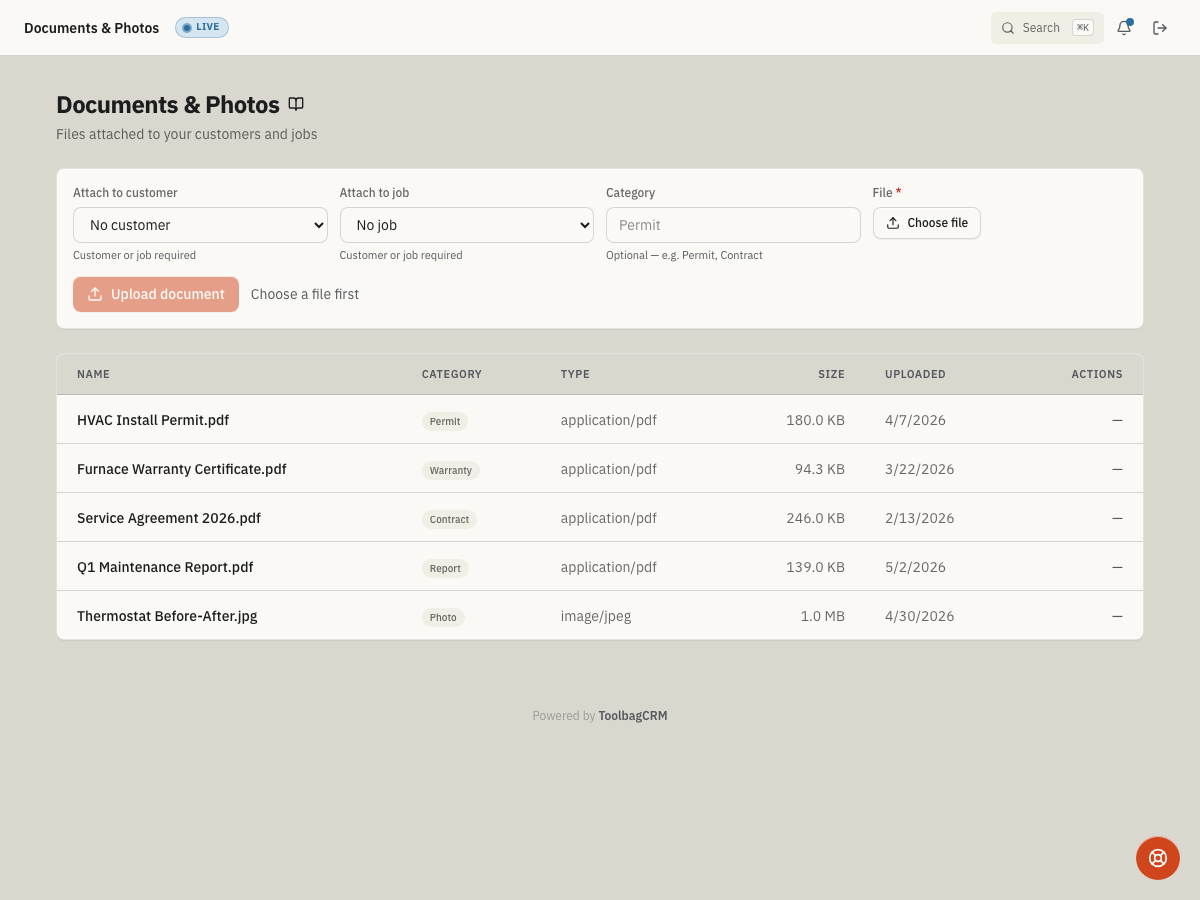
Open Documents & Photos from the main navigation. The page shows an upload panel first, followed by the document list. Choose the customer or job the file belongs to, add an optional category, select the file, and upload it.

- Choose Attach to customer when the file belongs to a customer account.
- Choose Attach to job when the file belongs to a specific job. A job-only attachment is supported, so you can leave the customer field blank when the file only belongs with that job.
- Enter a Category if your team uses one, such as Signed contract, Permit, or Site photo.
- Click Choose file and select the document or photo from your device.
- Click Upload document.
- Use the document list to confirm the file name, category, type, size, upload date, and download action.
If you open Documents & Photos from a job detail card with Add documents or Upload documents, ToolbagCRM opens the upload panel with that job preselected so the file stays attached to the correct work order.
The Upload document button stays disabled until you choose a file and select either a customer or a job. After a successful upload, the new file appears at the top of the list. The Download action appears only for files that have stored content available.
Empty document list
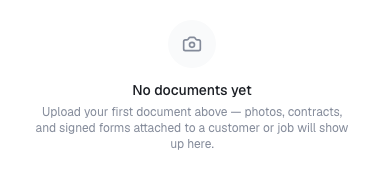
If the page says No documents yet, the plugin is enabled but no files have been uploaded for the current account. Use the upload panel above the message to add the first customer or job file.
Tips
- Pick a small set of category names and use them consistently. Too many one-off labels make files harder to search later.
- Attach job-specific photos and signed work forms to the job, not only the customer, so technicians and dispatchers see the right files in context.
- Use clear filenames before upload when possible, such as
smith-water-heater-before.jpgorjones-signed-contract.pdf. - Avoid uploading sensitive personal documents unless your team has a clear reason and permission to store them.
- The Download action only appears for files whose content was successfully stored. If a document row shows no download button, the file metadata was saved but the bytes did not upload — re-upload the file to replace the incomplete entry.
- The document list table is hidden on small screens; mobile users see card-style rows instead with the same file details and download action.
- A document can be attached to a customer, a job, or both. Use job-only attachments for site-specific files like permits or inspection photos that do not belong on the customer account broadly.
Troubleshooting
The page says the plugin is disabled
Open Settings → Features and enable Documents & Photos. The upload panel and document list do not appear until the plugin is turned on.
The Upload document button stays disabled
The button requires a file selection and at least one attachment — either a customer or a job. Choose a file and select a customer or job from the dropdowns before uploading.
Upload failed
The upload creates a metadata row first, then posts the file bytes. If the byte upload fails, the metadata row is automatically cleaned up so the list stays honest. Try again; if the problem persists, check that the file is not empty and that your network connection is stable.
No Download button on a document
The Download action appears only when the file content was stored successfully. If the document row was created but the bytes did not upload, no download is available. Re-upload the file to create a complete entry.
I uploaded a document but it does not appear in the list
Refresh the page. Newly uploaded files appear at the top of the list. If the file still does not show, confirm that the upload completed without an error message.