
Live Chat (Idea)
Idea stage: Live Chat is a concept and is not available to turn on yet. This guide describes planned behavior and may change before release.
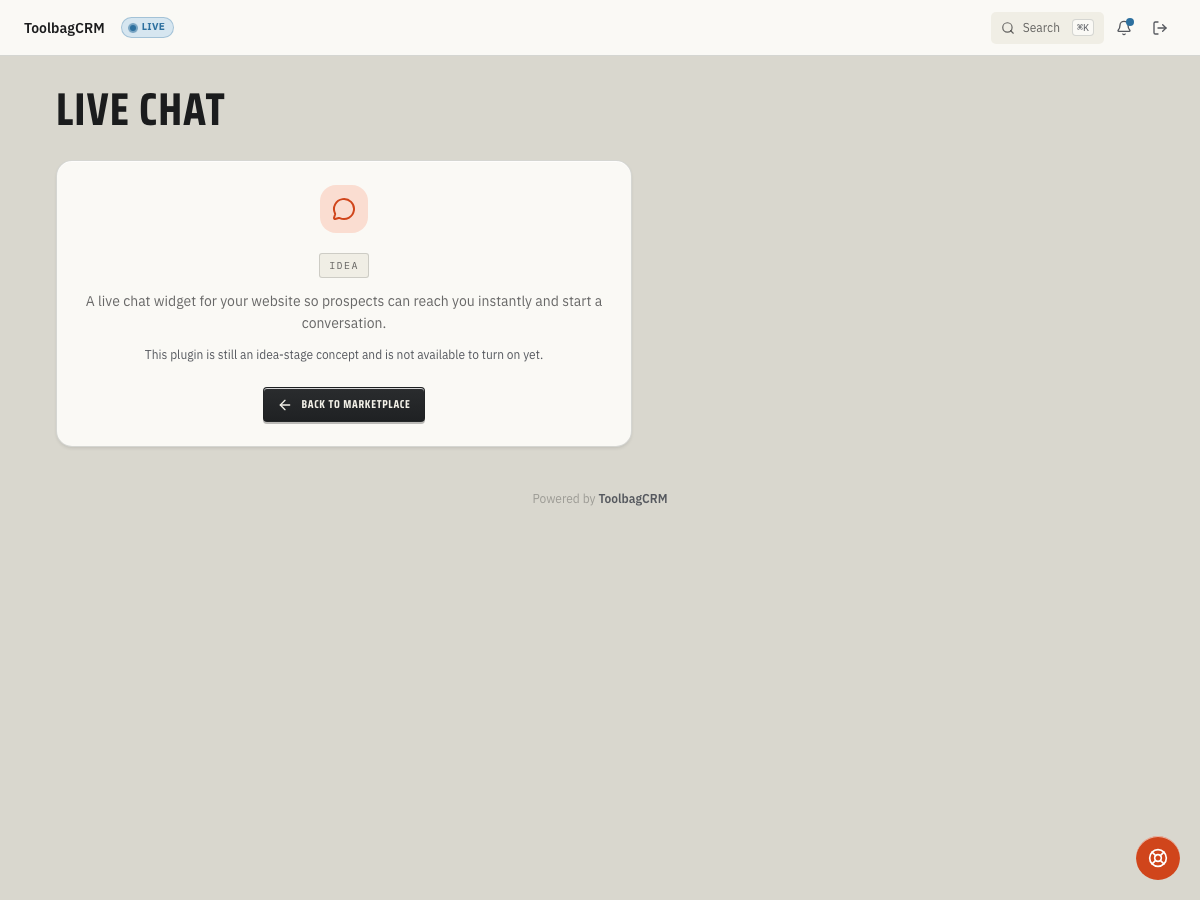
Live Chat will give your website visitors a quick way to ask questions from your site while keeping the conversation inside ToolbagCRM for follow-up.
When to use this
Use Live Chat when prospects or customers often have quick questions before they are ready to call, submit a form, or book a job. It is designed for website conversations such as service-area questions, scheduling questions, invoice questions, and after-hours lead capture.
Before you start
Because Live Chat is not generally available yet, there is no live settings screen or verified customer workflow to configure today. When it is released, plan to confirm:
- Live Chat is included in your ToolbagCRM plan.
- Your website domain is approved for the chat widget.
- Staff members who answer chats are active in ToolbagCRM.
- Your office hours, offline behavior, and customer follow-up process are agreed on before the widget goes live.
Planned workflow
- Prepare this step for rollout; Live Chat is not available to enable while it remains at the idea stage.
- Configure the website widget title, welcome message, brand color, and placement.
- Add the approved website domains where the widget is allowed to load.
- Copy the embed snippet into your website or ToolbagCRM public site.
- Review new conversations from the Live Chat inbox.
- Reply to visitors, assign conversations to staff, link the visitor to an existing customer, or convert the conversation into a lead.
- Resolve the conversation once the question has been answered or the follow-up has moved into another ToolbagCRM workflow.
Planned conversation states
ToolbagCRM's planned Live Chat workflow tracks each session through three practical states:
- Open — a visitor has started a chat and the conversation still needs attention.
- Closed — your team has answered the question or moved the follow-up into another ToolbagCRM workflow.
- Abandoned — the visitor left before the conversation was completed, so the chat should be reviewed for possible follow-up.
Visitor experience
The planned website widget is a small chat bubble on your public site. Visitors can start a conversation without searching for a phone number or waiting for an email reply. During business hours, staff can respond from ToolbagCRM. Outside business hours, the widget can collect contact information so your team has a lead to follow up on later.
Staff experience
The planned staff console is expected to show open conversations, visitor identity details when available, linked customer context, message history, canned replies, and actions to convert a chat into a lead or link it to an existing customer record.
Tips
- Decide who owns incoming chats before enabling the widget.
- Keep the welcome message short and practical, such as asking what service the visitor needs and where they are located.
- Use the offline message to set expectations about when someone will reply.
- Review unresolved conversations daily so website leads do not sit unanswered.
- Treat abandoned chats as follow-up opportunities when the visitor left enough contact information to identify them.
Troubleshooting
I only see an Idea placeholder
Live Chat has not been released for general use yet. Do not publish a chat widget or promise real-time chat availability until the plugin is enabled for your account and the settings screen is available.
Live Chat does not appear in navigation
Live Chat is not available to enable while it remains at the idea stage. Use the current placeholder as an availability notice, not a setup prompt.
A test chat cannot be started
The planned chat session requires a visitor identifier, such as a browser/session id from the widget. If the visitor identifier is blank, ToolbagCRM rejects the chat instead of creating an anonymous session that your team cannot follow up on.
A reply cannot be sent
Message replies need body text and can only be posted while the session is Open. If the body is blank, enter the response text before sending. If the session is already Closed or Abandoned, keep that history intact and continue follow-up through the linked customer or lead instead.