
VoIP Phone (Idea)
Idea stage: VoIP Phone is a concept and is not available to turn on yet. This guide describes planned behavior and may change before release.
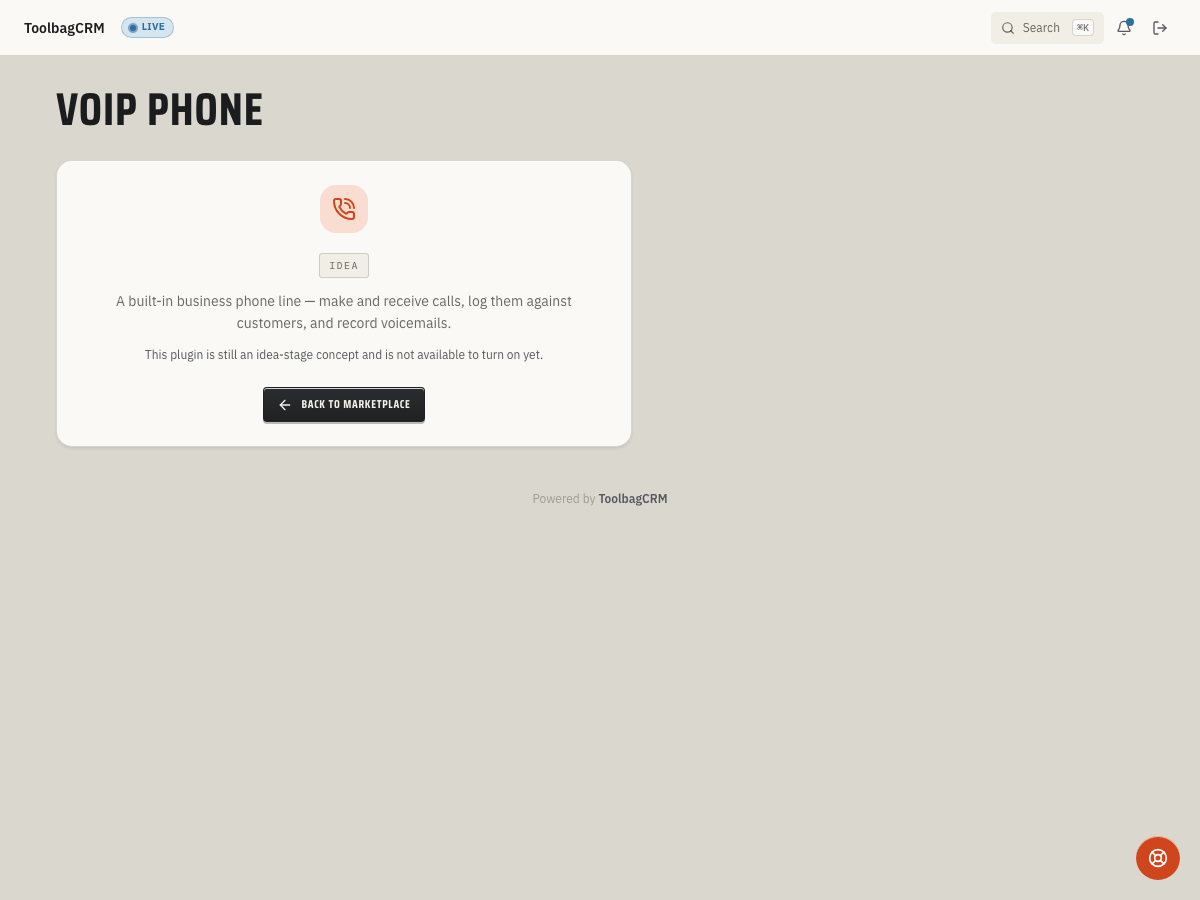
VoIP Phone turns ToolbagCRM into a business phone system — provisioned business numbers, per-team-member extensions, ring groups, after-hours routing, voicemail-to-text, call recording, and an in-app softphone. Every inbound and outbound call is pinned to the right Customer and Job record automatically.
This is distinct from AI Receptionist, which acts as a substitute when nobody answers. VoIP Phone is the business calling system that replaces a separate PBX entirely.
When to use this
Use VoIP Phone when your team needs:
- A shared business phone number instead of personal cell phones.
- Ring groups that dispatch calls to the right person (e.g., "ring all dispatchers").
- After-hours routing to an on-call technician or voicemail box.
- Call recordings linked to customer and job records for dispute resolution.
- Voicemail-to-text transcripts so office staff can triage missed calls quickly.
- An in-app softphone with click-to-dial on every customer phone number.
Before you start
- Confirm the plugin is included in your plan.
- Make sure Customers, Team, and Communications are available in your account; VoIP Phone depends on all three.
- Decide which team members need extensions and whether calls should ring their cell, the in-app softphone, or both.
Planned workflow
When the plugin becomes available, the planned workflow is:
- Provision a business number — buy a new number or port in an existing one.
- Set up extensions — assign each team member a 3–4 digit extension with ring targets (cell, softphone, or both).
- Create ring groups — group extensions with a strategy like Ring All, Sequential, or Longest Idle.
- Configure routing rules — set business-hours targets, after-hours targets, and emergency keyword routing per number.
- Make and receive calls — use the in-app softphone or let calls ring through to team members' devices.
- Review call history — every call is logged with direction, duration, disposition, and an optional recording.
- Check voicemail — voicemails appear in an inbox with transcripts, mark-as-read, and assignment to a user.
Call history and recordings
The planned call log records each call with:
- Direction (inbound or outbound)
- Caller and recipient phone numbers
- Which extension or ring group handled the call
- Start time, answer time, and end time
- Disposition: Answered, Missed, Voicemail, Forwarded, or Failed
- Optional recording and transcript
- Automatic linking to the matching Customer and Job records
Call recordings are useful for resolving disputes — "she said we could install on Tuesday" is settled in 30 seconds when the recording is pinned to the job.
Voicemail
Voicemail boxes can be shared (e.g., "Main" or "After Hours") with multiple team members receiving notifications. Each voicemail includes:
- Transcript via speech-to-text
- Read/unread status and assignment to a specific user
- Notification via email, SMS, or push
After-hours routing
Routing rules support per-number business-hours policies. During off-hours, calls can route to:
- An on-call technician
- A static fallback number
- An after-hours voicemail box
Emergency keyword detection can escalate calls when the voicemail transcript mentions terms like "leak," "no heat," or "no power."
Tips
- Store phone numbers in E.164 format (e.g.,
+15551234567) on customer records. Automatic call-to-customer linking depends on caller ID matching, and E.164 formatting gives the best match rate. - Disable a number instead of deleting it. Business numbers have an Active flag — set it to off to stop routing calls without losing historical call logs tied to that number.
- Check call outcomes for staffing insights. The call log records each call as Completed, Missed, Voicemail, or Failed. A high Missed rate during business hours usually means the ring group needs more members or a different strategy.
- Use recordings to resolve disputes. Every answered call can include a recording pinned to the linked Customer and Job. When a customer says "your tech promised Tuesday," the recording settles it in seconds.
- Review who handled each call. Each call log entry tracks the team member who handled it (
HandledByUserId) and the matched customer (LinkedCustomerId), so you can audit response quality and accountability. - Don't modify the provider reference ID. The telephony provider (e.g., Twilio) assigns a reference ID when you provision a number. ToolbagCRM stores it automatically — editing it manually can break call routing.
Current availability
Accounts without the active VoIP Phone workspace will still see an idea-stage placeholder. The preview includes a marketplace card in Settings → Features, but number provisioning, call logs, voicemail management, and the customer-facing workspace are not generally available yet.
If you see the idea-stage screen, that is expected. Do not replace your current phone system until your ToolbagCRM account shows the enabled workspace.
Troubleshooting
I only see an Idea message
VoIP Phone has not been released for your account yet. Check Settings → Features for the plugin card and confirm with your ToolbagCRM contact before planning a rollout.
A customer's call history is not linking to their record
Automatic customer matching depends on caller ID matching the phone number on the customer's record. Make sure customer phone numbers are stored in E.164 format (e.g., +15551234567) for the best match rate.
Call recordings are not appearing
Recording requires the call to have been answered. Missed calls and calls routed directly to voicemail produce voicemail entries instead of call recordings.