
Job Costing
Job Costing helps your office track each job's revenue, labor, materials, subcontractor costs, and other expenses so you can see profit and margin before the month is over.
Open Job Costing from the main navigation after the plugin is enabled in Settings → Features.
When to use this
Use Job Costing when you want to answer questions like:
- Which jobs are profitable this month?
- Are labor, materials, outside labor, equipment, permits, or other costs eating into the quote?
- Has invoiced revenue been pulled into the job's cost summary?
- Which jobs need cleanup before you review margins with the owner or office manager?
Job Costing is most useful for companies that already use ToolbagCRM jobs and invoices, then want a simple margin view without maintaining a separate spreadsheet.
Before you start
- Make sure Jobs is available, because cost summaries are tied to job records.
- Make sure your team is creating invoices in ToolbagCRM if you want to sync revenue automatically.
- Decide who is allowed to add or remove cost entries. Start with office admins or managers until the workflow is consistent.
- Enable Job Costing from Settings → Features if it is included in your plan.
Read the Job Costing dashboard
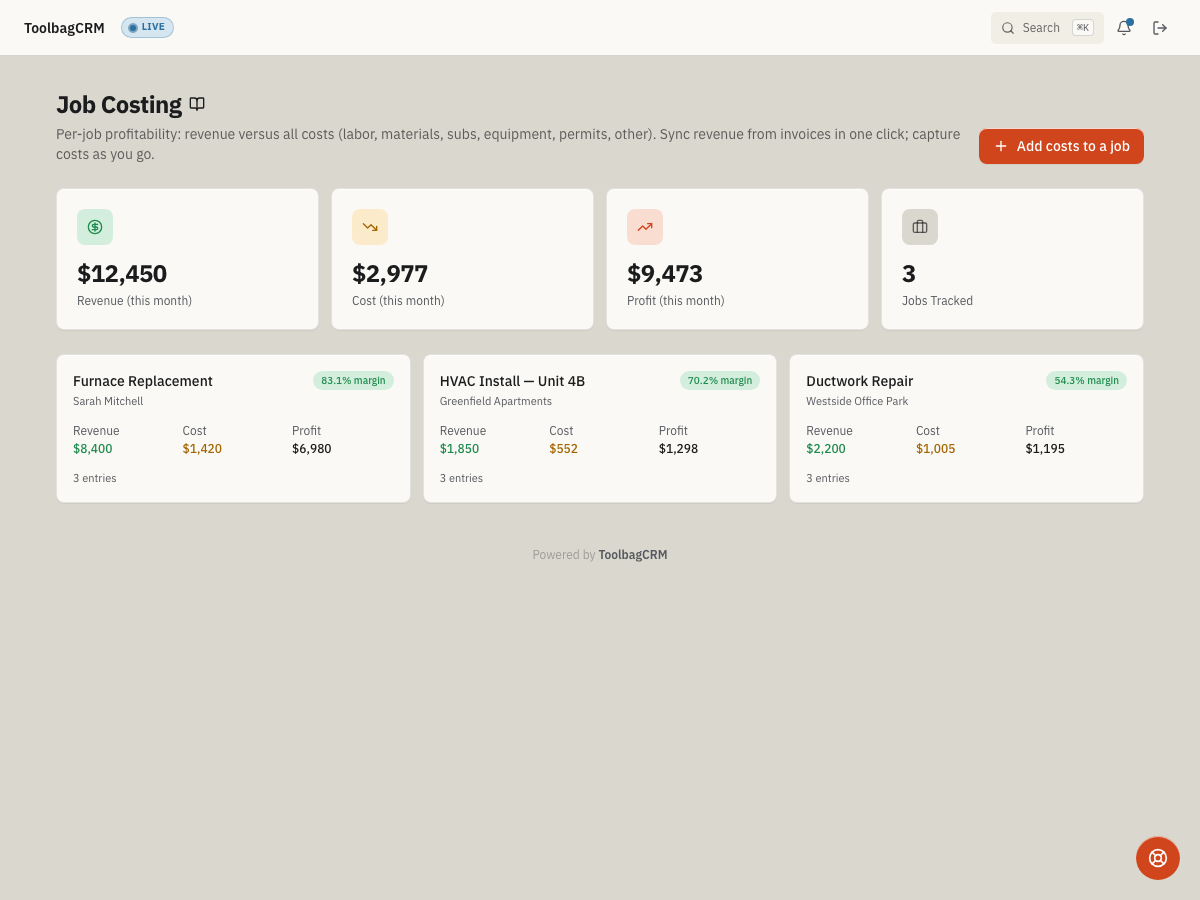
The top of the page summarizes the current month:
- Revenue — invoiced revenue that has been synced or entered for tracked jobs.
- Cost — labor, material, subcontractor, equipment, permit, and other cost entries.
- Profit — revenue minus cost.
- Jobs Tracked — jobs with at least one costing entry.
Below the summary, each costed job appears as a card with revenue, cost, profit, entry count, and a margin percentage. Jobs with no costing entries do not appear in the rollup list until you add the first entry.
Add costs to a job
- Open Job Costing.
- Select Add costs to a job.
- Search for the job by title or customer name.
- Choose the job you want to cost.
- Select Add Entry.
- Enter the amount, cost type, date, and a short description.
- Save the entry and review the updated job summary.
The product currently supports manual entries for revenue and costs. Common cost entries include labor, materials, outside labor, equipment, permits, and other job-specific expenses.
Sync revenue from invoices
Use Sync from invoices on a job's cost detail view when invoices already exist for that job.
ToolbagCRM imports eligible invoice totals as revenue entries for the selected job. The sync is designed to be idempotent: running it again should not duplicate the same invoice revenue entries.
Draft invoices are not counted as synced revenue. Send or finalize invoices through your normal invoice workflow before relying on them in job-costing totals.
Review a job's margin
- Open a job card from the Job Costing dashboard.
- Compare Revenue, Cost, Profit, and Margin at the top of the detail view.
- Review the individual entries to confirm the amounts and descriptions are correct.
- Remove incorrect entries and add corrected ones when needed.
- Use the margin percentage as a quick signal, then review the underlying entries before making business decisions.
Tips
- Add costs as work happens instead of waiting until the end of the month.
- Use clear descriptions such as
8h labor,Condenser pad, orSubcontractor electrical rough-inso later reviews make sense. - Treat Job Costing as an operating margin tool, not a replacement for bookkeeping or payroll reports.
- Review low-margin jobs regularly to catch quoting, parts, or labor-estimate problems early.
Troubleshooting
I do not see a job in the dashboard
Only jobs with costing entries appear as rollup cards. Use Add costs to a job to open any job, including jobs that have not been costed yet.
Revenue did not appear after syncing invoices
Confirm the invoices are tied to the same job and are not still in Draft status. Run Sync from invoices again after the invoice status changes.
The margin looks wrong
Check for duplicate manual revenue entries, missing material or labor costs, and invoice revenue that has not been synced yet. Remove incorrect entries before reviewing the job with management.