
Marketplace
The Marketplace is your built-in plugin store. Browse, search, and install feature plugins that extend ToolbagCRM's capabilities for your business. If your plan's included plugin slots are full, ToolbagCRM can prompt you to buy extra plugin slots before completing an install.
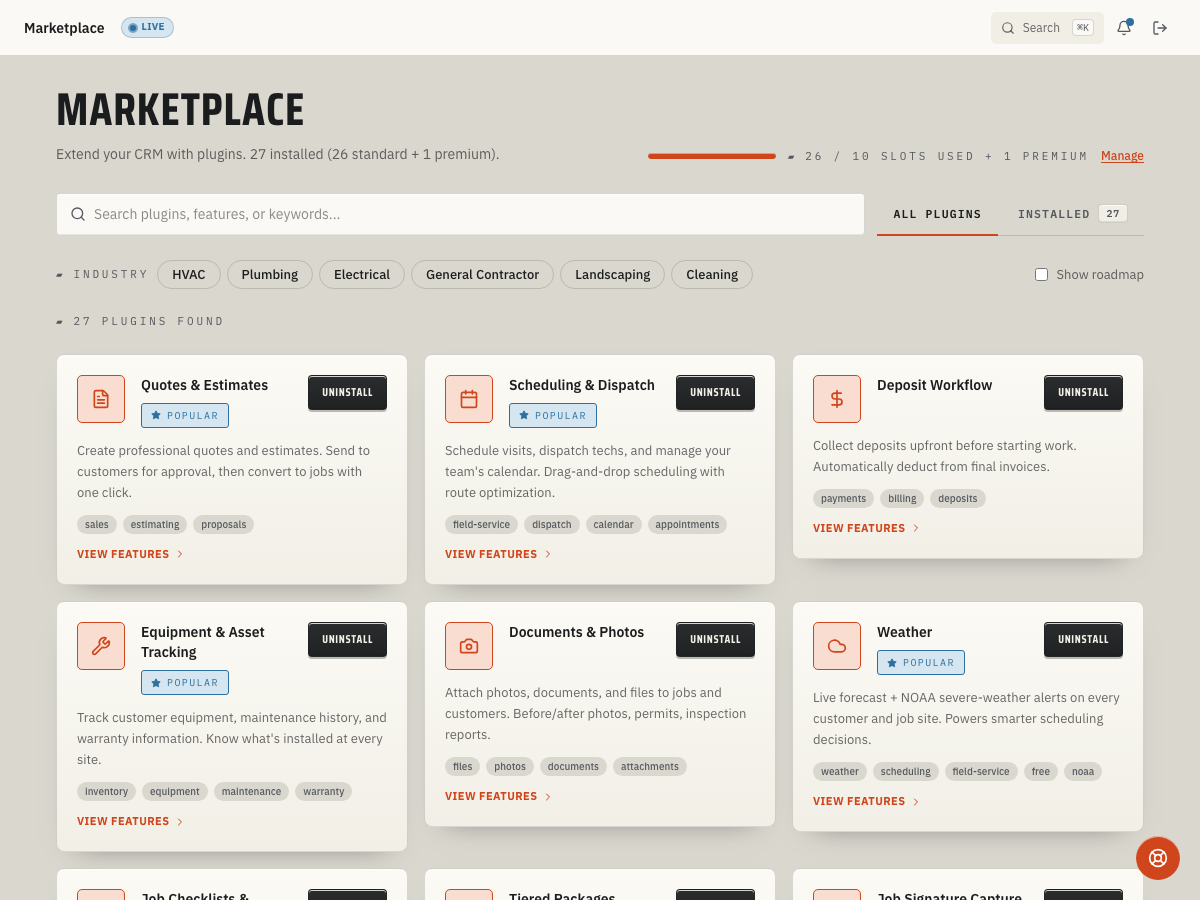
Open Marketplace from the main navigation.
When to use the Marketplace
Use the Marketplace when you want to:
- Find and install new plugins for your account.
- See which plugins are already installed.
- Browse plugins by industry or tag.
- Check how many plugin slots you have left, buy extra slots when needed, and decide which plugins fill those slots.
Before you start
- You need Marketplace access to open the catalog. Built-in Administrators and Managers can browse it; built-in Technician, Finance, and Dispatcher roles do not see the Marketplace unless an administrator grants custom access.
- Installing, uninstalling, and changing plugin status also requires account feature-management access. Built-in Administrators have that access; read-only Marketplace users can review the catalog but should ask an administrator to make changes.
- Your subscription plan includes a limited number of plugin slots. Free accounts include core features only and have no plugin slots, so new free workspaces cannot install plugins during onboarding or from the Marketplace until they upgrade.
- The Marketplace header bar shows a progress indicator so you know how many slots remain. Premium add-ons do not count toward the slot limit.
- Your account needs a card on file before buying extra paid slots. If you prefer more included slots, open Settings → Billing and review plan options instead.
- Some plugins depend on others. When you install a plugin that requires one you have not enabled, the Marketplace offers to install the full dependency chain in one click.
- Re-enabling a plugin you recently uninstalled may count against a short rolling re-enable limit. Brand-new plugin installs are still allowed, and ToolbagCRM shows the remaining attempts or reset date when the limit matters.
- Plugins marked Pilot remain available to accounts that already have them installed, but new installs and re-enables are paused. Do not uninstall a pilot plugin unless you are prepared to lose access until ToolbagCRM reopens activation.
- Plugins marked "Coming Soon" are in development and not yet available for installation.
Browse plugins
The Marketplace opens with the full plugin catalog displayed as a responsive card grid.
Search
Use the search bar to find plugins by name, description, tags, or feature keywords. The search matches against the plugin card content and the individual features inside each plugin.
Industry filters
Click an industry chip to filter plugins recommended for your trade: HVAC, Plumbing, Electrical, General Contractor, Landscaping, Cleaning, and more. Click again to deselect.
Tag filters
Each plugin card shows clickable tag pills (such as "sales," "field-service," or "compliance"). Click a tag to filter the entire grid to show plugins sharing that tag.
Show roadmap
Turn on Show roadmap to include unavailable features in the grid. Roadmap cards show their availability stage instead of an active Install action. Turn the filter off when you want to compare only active and pilot plugins.
Tabs
- All Plugins — shows the entire catalog.
- Installed — shows only plugins currently enabled for your account, with a count badge.
Plugin cards
Each plugin card shows:
- Icon and plugin name
- "Popular" badge for high-traffic plugins
- "Pilot" badge for plugins limited to existing pilot accounts
- "Coming Soon" badge for plugins not yet available for installation
- Short description of what the plugin does
- Tags for discovery
- Requires note when the plugin depends on another feature, so you can review the dependency before selecting Install
View features
Click View features on any card to expand it and see:
- Full description — a longer explanation of the plugin's value.
- Included features grid — a list of specific capabilities the plugin adds.
- Recommended for — which industries benefit most from the plugin.
Install a plugin
- Find the plugin you want to install.
- Click Install on the plugin card.
- If the plugin requires other plugins you have not enabled, a modal lists the dependencies. Click Install all to enable them together.
- The plugin is activated for your account.
- If the install is a re-enable, the success message may also show how many re-enable attempts remain in the rolling window and when that window resets.
Plugin slot limit
Your subscription plan includes a number of plugin slots. The header shows a progress bar with "N / M slots" so you always know how close you are to your limit. Free accounts show zero standard plugin capacity; upgrade to a paid plan before installing optional plugins.
If you hit the cap while installing a plugin, ToolbagCRM opens a You're out of plugin slots dialog instead of silently failing. From that dialog you can:
- Buy the number of extra slots needed for the install.
- Upgrade your plan for more included slots.
- Cancel and uninstall another plugin first.
Paid slots are plugin-agnostic: a slot holds one extra active plugin, and you can swap which plugin fills it at any time.
Re-enable limits
A re-enable attempt means turning on a plugin that was disabled earlier in the current rolling window. Repeated re-enables can reach the rolling limit, but the limit does not block first-time installs or brand-new plugins.
If a re-enable is allowed, the Marketplace toast can show how many re-enable attempts remain and the reset date. If the limit is exceeded, the install is blocked for that recently removed plugin until the reset date, but you can still install plugins that have not been removed recently.
Manage paid slots
Open Settings → Billing to review plugin slot capacity. The Plugin slots card shows:
- Included — slots bundled with your current plan.
- Paid — extra slots you bought separately.
- In use — active plugins currently occupying slots.
Use Buy more slots to add capacity. Use Stop slots renewing when you no longer need unused paid capacity. Released paid slots stay usable until the end of the current billing cycle, then lapse at renewal.
Coming soon plugins
Plugins marked Coming soon have a gray badge and a disabled Coming soon button. These features are in development and not yet available for installation.
Pilot plugins
Plugins marked Pilot show a disabled Pilot only action when they are not already installed. Existing pilot accounts can keep using and uninstalling these plugins, but new installs and re-enables are paused.
Uninstall a plugin
- Find the installed plugin.
- Click Uninstall on the plugin card.
- Review the confirmation. For a pilot plugin, ToolbagCRM warns that you will not be able to re-enable it while pilot activation remains paused.
- If other enabled plugins depend on this one, the uninstall is blocked and a toast message names the dependent plugins.
After the uninstall completes, public links owned by that plugin—such as a published Photo Reports gallery—stop opening. Scheduled tasks and automations already waiting for the uninstalled plugin are skipped; re-enabling the plugin allows new work but does not replay skipped work.
Tips
- Use industry filters to find plugins relevant to your trade instead of scrolling the full catalog.
- Check the "Installed" tab to review what is currently active.
- Expand plugin cards to see the full feature list before deciding to install.
- Keep pilot plugins installed when your team still needs them; uninstalling removes access until pilot activation reopens.
- Monitor your slot usage in the header so you are not surprised by plan limits.
- Avoid uninstalling and re-enabling the same plugin repeatedly while testing. Use a temporary paid slot or a deliberate trial window when you need room to compare options.
- Buy a temporary paid slot when you need to test a plugin before deciding which existing plugin to uninstall.
- Stop unused paid slots from renewing after cleanup instead of leaving extra capacity on the account indefinitely.
Troubleshooting
An install stops and the plugin returns to Install
If ToolbagCRM cannot reach the server, the progress window closes and the plugin card returns to its previous state instead of showing an unconfirmed install. Check your connection, wait for the error message, then select Install again. If the plugin needs dependencies, retry from the original plugin so ToolbagCRM can install the full chain together.
The Plugin slots card could not load
Open Settings → Billing and select Retry on the Couldn't load plugin slots message. Wait for the card to load before buying or releasing slots.
The slot summary is above the plan limit
This can happen after changing to a plan with fewer included slots. Open Settings → Billing and use the warning's deadline to decide which add-ons to keep. Uninstall enough plugins before that date; if the account is still above the limit at the deadline, ToolbagCRM disables the add-ons so an administrator can reselect a set within the plan limit.
"You've used all your plugin slots"
Your subscription plan includes a fixed number of included slots, and the header progress bar shows how many are in use. Premium add-ons do not count toward the slot limit. Buy the required extra slots, upgrade your plan, or uninstall a plugin you no longer need to free a slot.
I bought a slot but still cannot install
Refresh Marketplace so the header reloads the latest slot count. If the install needs more than one dependency, confirm the dialog says you are buying enough slots for the whole dependency chain.
"You've re-enabled plugins too many times recently"
ToolbagCRM is protecting your account from repeated uninstall/re-enable round trips. Wait until the reset date shown in the message, choose a brand-new plugin instead, or keep the plugin installed during the trial period so the same plugin does not consume another re-enable attempt.
I stopped a slot from renewing but it still shows as available
That is expected. Released paid slots stay usable until the end of the current billing cycle, then lapse at renewal.
My enabled plugins exceed renewing capacity
ToolbagCRM does not charge automatically when enabled plugins need more slots than your account is set to renew. Select Review plugin capacity, then add the required slots or uninstall plugins. Until capacity is restored, affected plugins can remain installed but show Billing paused and are unavailable to use.
ToolbagCRM says another plugin must be uninstalled first
Another enabled plugin depends on the one you are trying to uninstall. Uninstall the dependent plugin first, then uninstall the one it requires. The toast message names the exact plugins that are blocking the action.
The Marketplace does not appear in my navigation
Marketplace visibility follows Marketplace read access. Built-in Administrators and Managers can see it; built-in Technician, Finance, and Dispatcher roles do not. If your business uses custom roles, ask an administrator to grant Marketplace read access. Until that access is granted, the navigation link is hidden and direct Marketplace URLs send you back to the dashboard.
I cannot install an unavailable plugin
Unavailable cards show their availability stage instead of an active Install action. These plugins cannot be installed yet.
An active plugin's action does not complete
Check whether your role can manage account features. Read-only Marketplace users can browse cards and feature lists, but an administrator must install, uninstall, or change plugin status.
If an install fails or the connection stalls, ToolbagCRM closes the progress window and shows an error instead of leaving the page blocked. Wait for the plugin card's action to become available again, then select Install to retry. Do not start a second action while that card is still processing.
Search returns no results
The search bar matches against plugin names, descriptions, tags, and feature keywords. Try broader terms or clear the search and use industry or tag filters instead.