
Projects (Pilot)
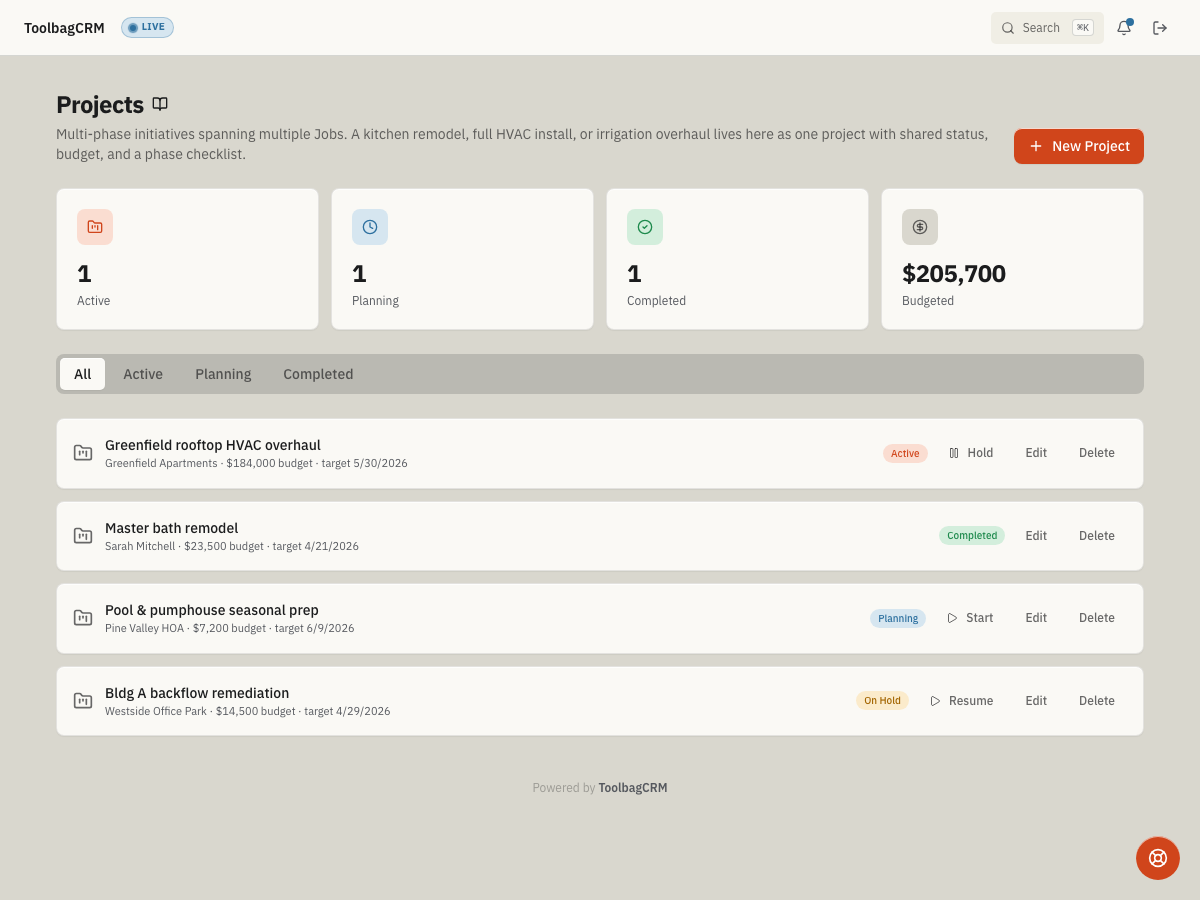
Use Projects to keep a large customer initiative organized when the work spans multiple jobs, phases, visits, or handoffs. A kitchen remodel, full HVAC install, irrigation overhaul, or multi-day service contract rollout can live as one project with a shared customer, status, budget, dates, and phase checklist.
Pilot availability: Existing pilot accounts can keep using Projects. New installs and re-enables are paused.
When to use this
Use Projects when you need to coordinate work that is bigger than one job record, such as:
- Multi-phase installs, remodels, or commercial service rollouts.
- Work that needs one overall budget and timeline but separate phase tasks.
- Office-to-field handoffs where managers need to see Planning, Active, On hold, and Completed work in one place.
- Projects where each phase may eventually line up with a specific job, inspection, or punch-list item.
For one-off visits or a single service call, use the normal Jobs workflow instead. Projects are for the umbrella view above the individual jobs.
Before you start
- Confirm your account already has Projects enabled. New installs and re-enables are paused during the pilot.
- Make sure Customers and Jobs are available on your account. Each project must be attached to a customer and one of that customer's Work locations. Each phase can optionally link to a job at that same location.
- Add the customer's work location before creating the project. The project cannot be saved without one.
- Decide the first few phases before creating the project so the office and field teams share the same checklist.
- If the route shows Projects is disabled, ask an administrator to confirm the account's pilot access. Do not disable an existing pilot installation because re-enables are paused.
What you can track
| Area | What it does |
|---|---|
| Project summary | Stores the customer, work location, project name, description, start date, target end date, budget, and notes. |
| Status | Moves the project through Planning, Active, On hold, Completed, or Cancelled. |
| Phase checklist | Adds ordered phases such as demo, rough-in, final inspection, and punch list. |
| Budget view | Shows the total budgeted amount across active and planning projects. |
| Completion | Completing or skipping every phase automatically flips the parent project to Completed unless the project was cancelled. |
| Recovery | Reopen a completed or skipped phase when work needs another pass. ToolbagCRM keeps the phase history and returns a completed parent project to Active. |
Create a project
- Open Projects.
- Click New Project.
- Choose the Customer.
- Choose the required Work Location. ToolbagCRM offers locations for the selected customer and automatically selects the primary location, or the only location, when available.
- Enter the Project Name and optional Description.
- Add Start Date, Target End, and Budget ($) if you want the project dashboard to track them.
- Click Create Project.
New projects start in Planning by default. Use Start from the project row when the team is ready to move the project into active work.
Manage status and details
- Use the tabs at the top of the page to switch between All, Active, Planning, and Completed projects.
- Click a project row to expand its phases.
- Use Edit to correct the customer, work location, name, description, dates, budget, or notes. After the project has phases, its customer and work location are locked so phase work stays tied to one site.
- Use Start, Hold, or Resume from the project row to move work between Planning, Active, and On hold.
- Use Cancel when work should stop but the project and every phase must remain in history. A cancelled project can be returned to Planning with Restore.
Review retained Project work locations
Older Projects may not have a work location yet. If you have Projects write access and access to all Jobs in the business, use the review before changing those Projects one by one:
- Open Projects and click Review Project work locations.
- Check the Already linked, Safe to adopt, and Needs review totals.
- Review each listed Project. Safe to adopt means every valid linked Job points to the same work location for the same customer. Needs review items will not change.
- Click Apply safe links, then confirm the change.
ToolbagCRM never uses matching names, addresses, the primary location, or a customer's only location as proof. It applies only the safe links shown in the preview and leaves every review item unchanged.
Work with phases
- Expand the project row.
- Click Add Phase.
- Enter the phase name and any helpful description or notes. If you link a job, the list includes only jobs at the project's work location.
- Repeat for the sequence of work your team follows.
- Use the readiness summary to find the next phase. Click Complete when that phase finishes; later phases cannot be completed until every earlier phase is completed or skipped.
- Click Skip when a phase is intentionally not required. Confirming the action keeps the phase in project history and counts it as finished for progress.
- Click Reopen on completed or skipped work that needs another pass. A completed phase reopens as Active, while a skipped phase reopens as Pending. If the parent project was Completed, it returns to Active; reopening does not change job schedules, crew assignments, or invoices.
ToolbagCRM keeps phases in order and shows how many are completed or skipped. Hold pauses phase execution until the project is resumed, while Cancel retains the project and its phase history without allowing more phase work.
Tips
- Keep phase names short and field-friendly, such as Demo, Rough-in, Inspection, and Punch list.
- Use the project budget for the overall target; keep job-level invoices and service details on the individual job records.
- Update the target end date whenever the customer-facing commitment changes.
- Review Planning projects weekly so approved work does not sit without an owner.
Troubleshooting
The New Project button is disabled or the project will not save
Projects require a customer, one of that customer's Work locations, and a project name. Select the customer first, then choose a work location and enter the name. If no work locations are available, add one from the customer record before returning to Projects.
A project moved to Completed after I finished phases
That is expected. When all sibling phases are Completed or Skipped, ToolbagCRM automatically marks the parent project as Completed so managers do not have to close it manually.
Complete is disabled for a phase
Complete or skip every earlier phase first. Phase completion is also paused while the project is On hold, Completed, or Cancelled. Resume an on-hold project, restore a cancelled project, or reopen completed or skipped work before continuing.
Completed or skipped work needs another pass
Click Reopen on the phase and confirm the change. A completed phase returns to Active and a skipped phase returns to Pending. ToolbagCRM keeps the prior completion or skip in history, and a completed parent project returns to Active.
I need a recurring agreement, not a one-time initiative
Use your recurring-service workflow for ongoing agreements. Use Projects for a bounded initiative with phases and an end date.