
Broadcasts (Coming Soon)
Coming Soon: This plugin is a public preview and is not generally available yet. It is grouped separately so customers do not mistake it for an enabled product area.
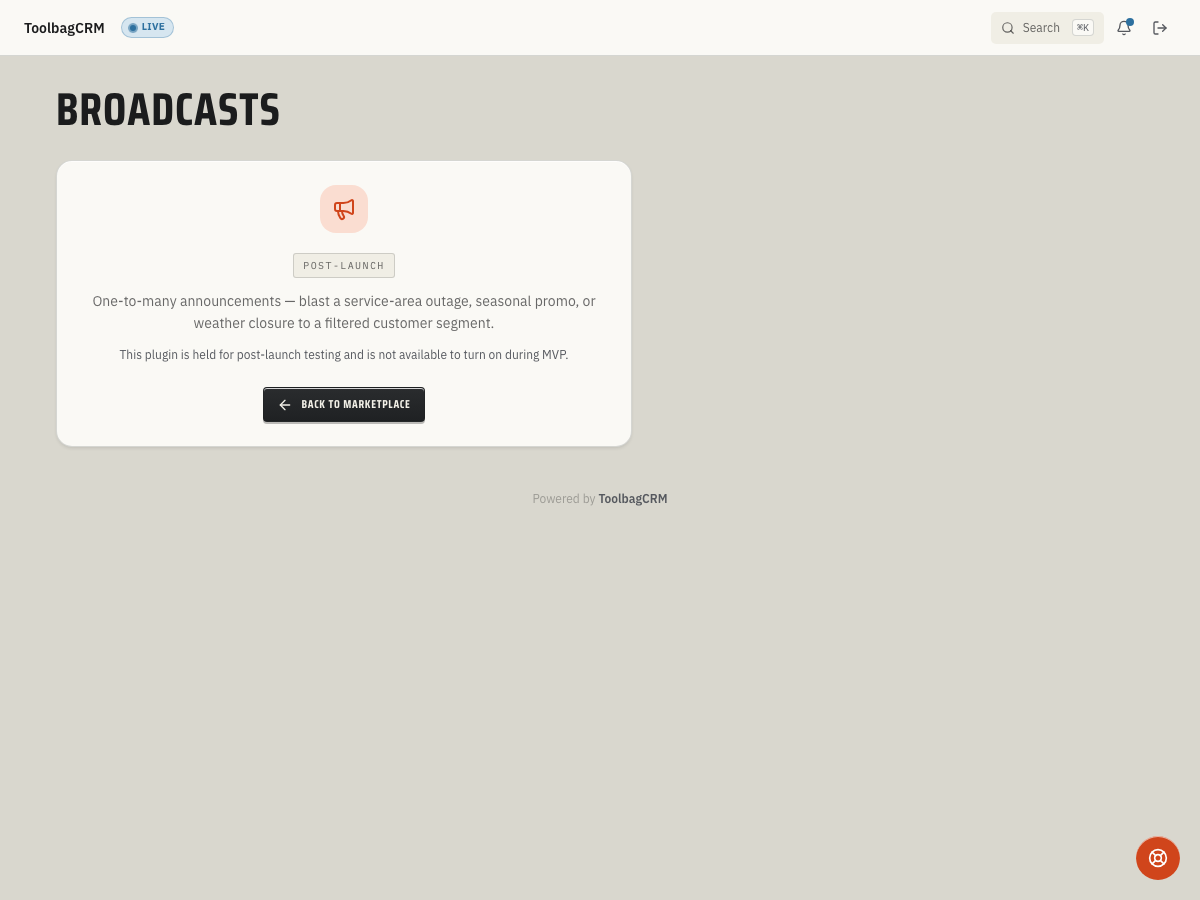
Send a single announcement to many customers at once. Use Broadcasts to blast a service-area outage, seasonal promo, weather closure, or any one-to-many message over SMS or email to a filtered customer segment.
When to use this
- Your office needs to notify many customers at the same time — for example, a weather-related closure, a service-area outage, or a seasonal promotion.
- You want the message tracked inside ToolbagCRM rather than sent from a personal phone or a third-party tool.
Before you start
- Confirm the plugin is included in your plan.
- Open Settings → Features and make sure Broadcasts is enabled.
- Customers must have a valid phone number on file for SMS broadcasts or an email address for email broadcasts.
Planned workflow
When the active Broadcasts workspace is available, the workflow is expected to work like this:
- Create a broadcast — give it a name, choose the channel, write the message body, and add recipient customers.
- Review recipients — the system validates that at least one recipient is included. An empty recipient list is rejected.
- Send — dispatch the broadcast to all recipients. Each message is delivered individually to the customer's selected destination.
- Track status — after sending, the broadcast reports its delivery status and recipient counts. Possible statuses include Sent (all messages delivered), PartialFailure (some messages could not be delivered), and Failed (no recipient could be sent successfully).
- Cancel if needed — a broadcast can be cancelled before it is sent.
TIP
Since this plugin is still in public preview, the exact UI steps may change before general availability. Use the planned lifecycle above as a rollout checklist for broadcast creation, delivery, and cancellation.
Tips
- Start with a small recipient list to confirm the workflow behaves as expected before blasting your entire customer base.
- Keep the message body short and clear — SMS has character limits and customers are more likely to read concise messages.
- If a broadcast shows a PartialFailure status, check that the affected customers have valid phone numbers or email addresses for the selected channel.
- You can cancel a broadcast before it is sent if you need to make changes.
Troubleshooting
I do not see Broadcasts in the app yet
Broadcasts is currently a public-preview feature. If your account is not part of a preview, the route may stay hidden or show only a coming-soon placeholder.
The broadcast will not save
Broadcasts require a broadcast name, a message body, and at least one recipient. Add a clear name, write the message, and select customers with usable contact details before saving.
A sent broadcast shows PartialFailure or Failed
Review the recipient details and customer contact records. Failed or suppressed recipient rows usually mean the destination could not be used, the customer opted out, or the communication provider rejected the send. If every recipient fails or is suppressed, the broadcast can move to Failed instead of PartialFailure.
Cancel does not change the status
Cancel is only useful before the broadcast reaches a final status. Once a broadcast is Sent, PartialFailure, or Failed, keep the record for delivery history and create a corrected broadcast if you need to resend.