
Buy Now Pay Later (Coming Soon)
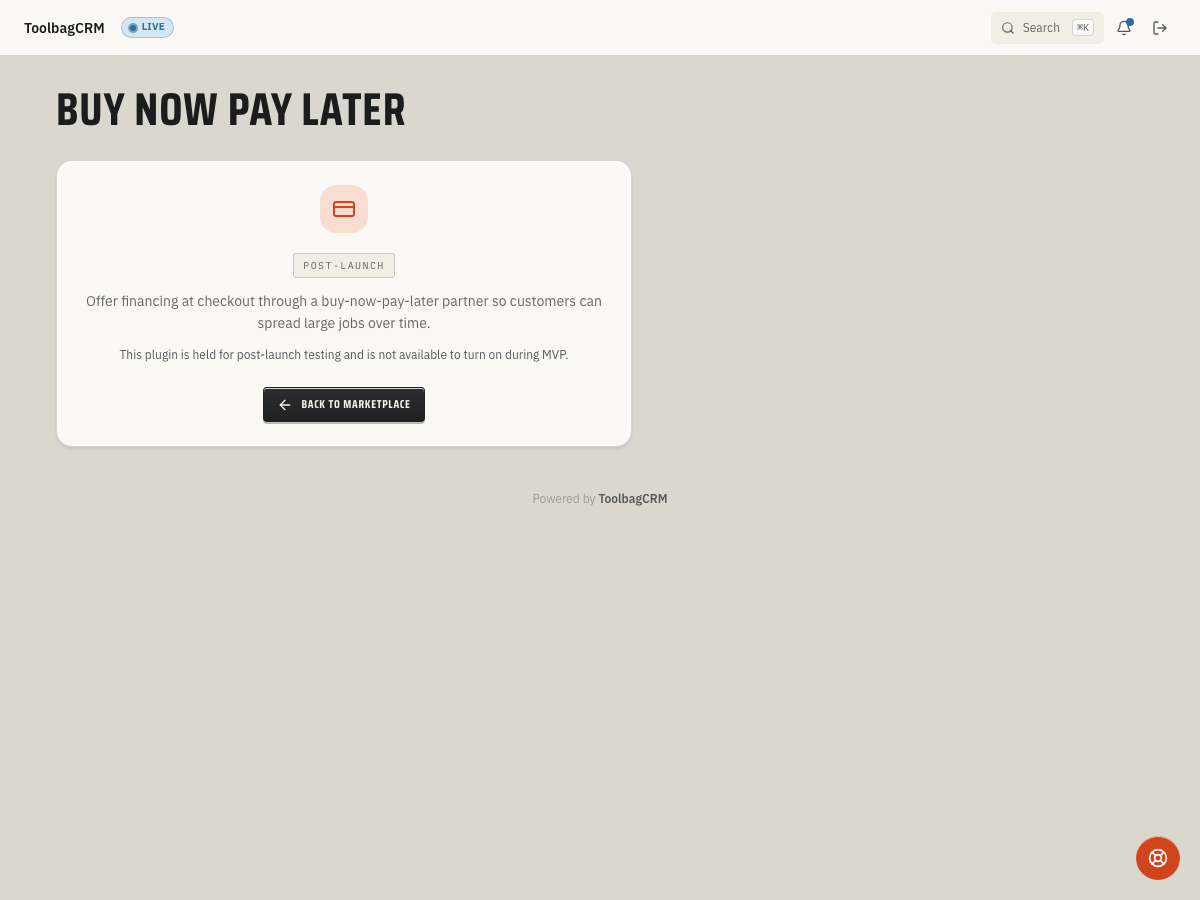
Coming Soon: This plugin is a public preview and is not generally available yet. It is grouped separately so customers do not mistake it for an enabled product area.
Buy Now Pay Later lets your office offer installment financing on invoices through third-party lenders. When a customer cannot or does not want to pay the full job cost up front, you submit a financing application from the invoice, the lender decides, and once approved the customer pays on a monthly plan while your company receives funding from the provider.
When to use this
- A customer asks for financing or monthly payments on a large job.
- Your office partners with one or more BNPL providers such as Affirm, Wisetack, Sunbit, Klarna, or GreenSky.
- You want to track the financing lifecycle — application, approval, and funding — without leaving ToolbagCRM.
Before you start
- Confirm the plugin is included in your plan.
- Open Settings → Features and make sure Buy Now Pay Later is enabled.
- The Invoices plugin must be active because financing applications are linked to invoices.
- You will need an active account with at least one supported BNPL provider before submitting applications.
How financing applications work
Each application moves through a strict status lifecycle:
| Status | Meaning |
|---|---|
| Pending | Application submitted to the lender, waiting for a decision. |
| Approved | Lender approved the financing; the customer can sign the agreement. |
| Declined | Lender declined; a decline reason is recorded. |
| Withdrawn | The application was pulled before a decision was made. |
| Funded | Lender has funded your company; this is a terminal state. |
The lifecycle enforces a forward-only state machine — an application cannot skip from Pending directly to Funded, and once an application reaches a terminal state (Funded or Declined) its status cannot be changed again.
Submit a financing application
- Open the invoice you want to finance.
- Start a new BNPL application.
- Choose the provider (Affirm, Wisetack, Sunbit, Klarna, GreenSky, or Other).
- Enter the finance amount, term length in months, and APR if known.
- Submit the application. ToolbagCRM records it with a Pending status.
Record a lender decision
After the provider responds, update the application in ToolbagCRM:
- Open the pending application.
- Record the decision: Approved, Declined, or Withdrawn.
- If declined, enter the decline reason from the provider.
- If approved, enter the provider reference ID so you can cross-reference the lender's records.
- Once the lender sends funding, mark the application Funded.
List and filter applications
You can view all financing applications or filter by status — for example, show only Pending applications that need follow-up, or only Funded applications for reconciliation.
Tips
- Tie each application to the correct invoice so your revenue reports stay accurate.
- Record the provider reference ID as soon as the lender provides one; it makes support calls much easier.
- If a customer changes their mind after approval, mark the application Withdrawn rather than deleting it.
- Start with one BNPL provider before enabling multiple — it keeps the workflow simpler while the team learns the process.
Troubleshooting
The page still says "Coming Soon"
Buy Now Pay Later is a public preview. It is not generally available yet, so the plugin page shows a preview screen rather than the live workflow described above. This will update automatically once the feature ships.
The finance amount is rejected
The finance amount must be a positive number. Submitting an application with a zero or blank amount is rejected before it reaches the lender, so double-check the amount field if a submission does not go through.
An application's status will not change
Financing applications are expected to follow a forward-only lifecycle: Pending moves to Approved, Declined, or Withdrawn, and Approved moves to Funded. Once an application reaches a terminal state — Funded or Declined — its status is expected to be locked and cannot be changed again. If you need to correct a mistaken entry, plan to submit a new application rather than editing the terminal one.
I can't submit a financing application
Confirm the Invoices plugin is enabled — financing applications are linked to invoices, so BNPL cannot submit an application without an invoice to attach it to. Also confirm you have an active account with the BNPL provider you are trying to use before submitting.