
Automation Flows (Idea)
Idea stage: Automation Flows is a concept and is not available to turn on yet. This guide describes planned behavior and may change before release.
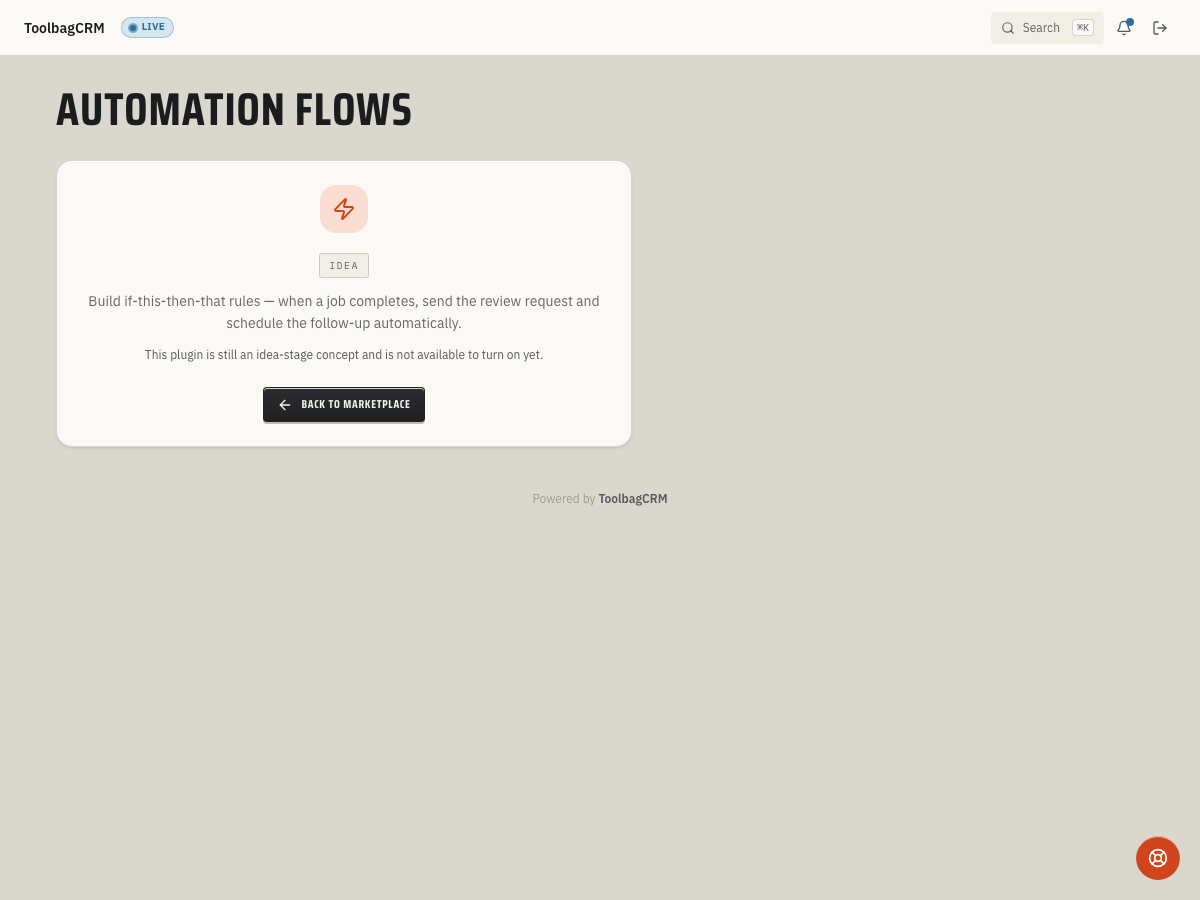
Automation Flows will let your office build simple “when this happens, do that” rules for repeatable follow-up work, such as sending a review request after a completed job or scheduling a check-in after a quote is sent.
When to use this
Use Automation Flows when a repeatable office step should happen automatically after a ToolbagCRM event instead of relying on a dispatcher, CSR, or technician to remember it every time.
Good candidates include:
- Follow-up messages after completed jobs.
- Internal reminders after quotes, invoices, or callbacks reach a certain status.
- Back-office checklists that should start from the same trigger every time.
- Low-risk notifications that can be tested before they are turned on.
Current availability
Automation Flows is still an idea-stage concept. There is no customer-facing flow builder, settings screen, or run history to use yet.
Use this page to plan your first automations now: pick the business event, draft the follow-up action, decide who owns the flow, and wait until the builder, settings, and run-history screens are visible in your account before relying on Automation Flows for customer communication.
Planned workflow
Once the plugin is available, the expected workflow is:
- Open Automation Flows from the ToolbagCRM navigation.
- Create a new flow and give it a clear name, such as “Completed job review request.”
- Choose the trigger event that starts the flow.
- Add conditions so the flow only runs for the right jobs, customers, or statuses.
- Add the action steps that ToolbagCRM should run automatically.
- Save the flow as a draft and use the test-run option before making it active.
- Review recent runs to confirm the automation is behaving the way your team expects.
Before you start
Before using automation in a production account, decide:
- Which team member owns the flow if something needs to change.
- What event should trigger it.
- What should happen when the flow is paused or archived.
- Whether the first version should only notify your office team before it sends anything to customers.
- How often your team will review run history and failed/skipped runs.
Status and testing notes
Automation Flows are designed around draft, active, paused, and archived statuses. Run history also tracks the trigger event, sample payload, run status, start time, finish time, and any error message.
When the visual builder becomes available, start with one low-risk draft flow, run a test payload, then activate it only after the result matches what your team expects.
Tips
- Name flows after the business outcome, not the technical trigger.
- Keep the first version narrow so it is easy to test.
- Pause a flow before making large changes.
- Review run history after activating a flow for the first time.
- Avoid duplicating an automation that another plugin or integration already handles.
Troubleshooting
I only see an idea-stage screen
That is expected. Automation Flows is still at the idea stage and is not available to enable.
My first flow is rejected
When the active builder is enabled, each flow will need a name and a trigger event before it can be saved. Start with a clear name such as “Completed job review request,” then choose the event that should start the automation.
I do not see Automation Flows in my navigation
That is expected while Automation Flows remains at the idea stage. The current placeholder is reached from its Marketplace listing rather than an active workspace in the main navigation.
I am not sure what to automate first
Start with a reminder or internal notification rather than a customer-facing message. It is easier to validate the trigger and action pattern before customers see the results.