
Scheduling
Scheduling lets you create, update, assign, and track field visits tied to your jobs and customers. Use the Day and Week views to focus the calendar, filter the visible window, manage a visit, or open its linked job.
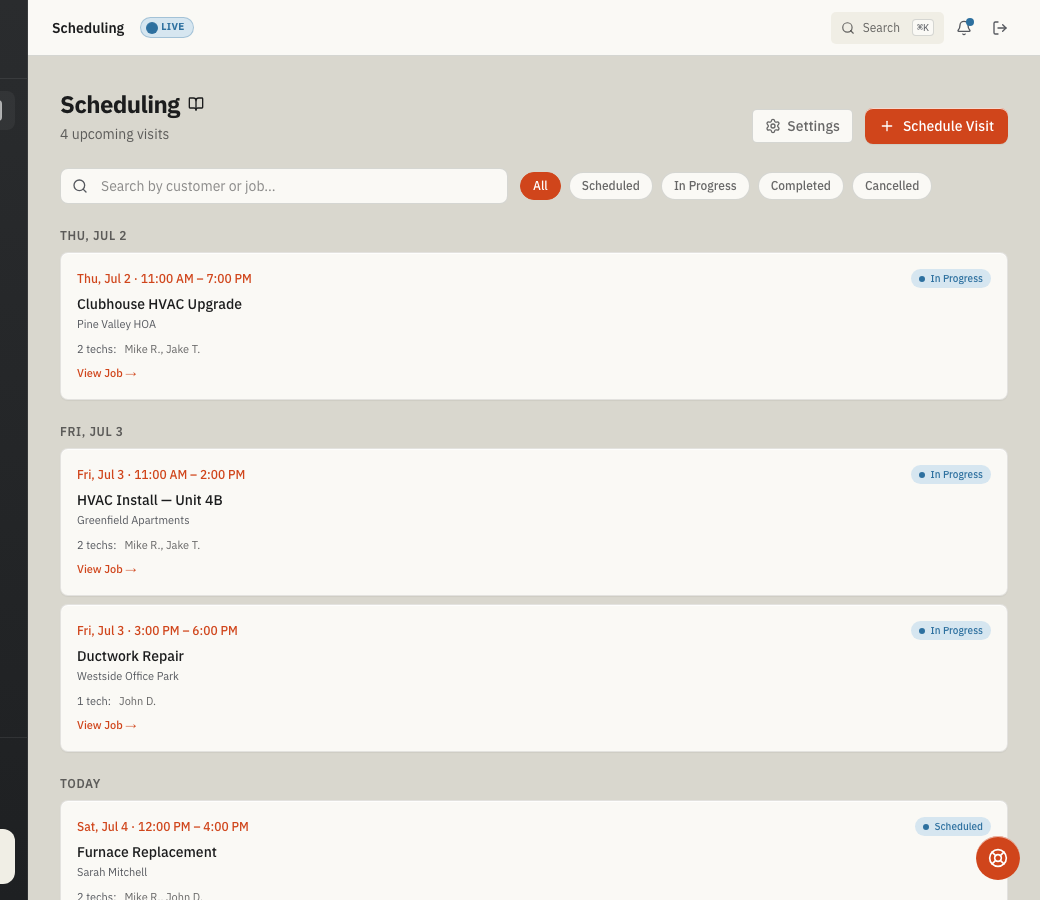
Open Scheduling from the main navigation. Scheduling is included with the core CRM experience; if you do not see it, ask an administrator to confirm your role has scheduling access.
When to use Scheduling
Use Scheduling when your team needs to:
- Assign jobs to specific time windows and team members.
- Update a visit's time, crew, or notes without recreating it.
- Review one day in detail or scan a Monday-through-Sunday week.
- Find visits by customer or job and narrow the calendar by status or crew.
- Track visit status from scheduled through completion.
- Set business hours and configure scheduling defaults.
The calendar workspace
The page opens in Day view for the selected date. Use the controls at the top of the workspace to change what appears:
- Day — shows visits for one calendar day.
- Week — shows a Monday-through-Sunday calendar.
- Previous day / Next day — moves one day at a time in Day view.
- Previous week / Next week — moves one week at a time in Week view.
- Today — returns to the current date.
- Choose schedule date — jumps directly to a date.
The heading identifies the selected day or week, the business time zone used for visit times, and the number of visits in the current view.
Search and filter
The filters apply to the selected Day or Week window:
- Search schedule — find visits by customer name or job title.
- Status — choose All statuses, Scheduled, In progress, Completed, or Cancelled.
- Crew — choose All crew or one active team member.
- Assigned to me — show only visits assigned to your linked team-member record. This switch appears only when your account has one.
When Scheduling opens from a job, Showing visits for this job appears above the calendar and keeps the view limited to that job. Select the chip's close control to return to all visits without changing the selected date or other filters.
If no visits match, use Clear filters or choose another date. If crew names cannot load, the visits remain available and Retry crew reloads the crew list.
What each visit card shows
- Time range — start and end time for the visit.
- Status badge — Scheduled, In progress, Completed, or Cancelled.
- Job title — the work being done.
- Customer name — who the visit is for.
- Crew — assigned team members, Unassigned, or Unknown crew member when a saved assignment no longer resolves.
- Manage visit — opens an active visit so users with scheduling write access can update or cancel it. Read-only users and completed or cancelled visits show View visit instead.
- View job — opens the linked job detail page.
Schedule a visit
- Click Schedule visit. You can also use Schedule Visit from a job detail page or the job edit sheet; Scheduling opens with that job selected.
- Select a Job (required). The picker lists open jobs only; completed and cancelled jobs remain available as history but cannot receive another visit. The customer and work location resolve from the selected job.
- Set Start and End (required). End must be later than Start.
- Under Crew for this visit, select any active team members (optional). Preferred team members for the customer or work location appear first. Restricted team members are marked unavailable and cannot be newly assigned while their policy applies.
- Add Notes such as access instructions, parking details, or safety concerns (optional).
- Click Schedule.
The Schedule button becomes available only after Job, Start, and End are filled and End is later than Start. An End that is earlier than or equal to Start is marked immediately with End must be after start. The visit cannot be scheduled until the time window is valid. Changing Start checks End again, so adjust End if the message returns. After you set a valid time window, a warning icon identifies crew members who already have an overlapping active visit. Customer and work-location crew guidance is checked for the selected start time; preferred team members appear first and restricted team members cannot be newly assigned. A selected crew applies to this visit only and does not change the job's crew. Crew assigned to the visit can access the linked job while the visit is part of their assigned work.
Manage a visit
- Select Manage visit on an active visit card. The job, customer, work location, and current status stay locked so the visit keeps the same work-order relationships.
- Update Start, End, Crew for this visit, or Notes.
- Select Save changes. If you close the window with unsaved changes, ToolbagCRM asks whether to discard them or keep editing.
Changing the visit time or crew checks the customer and work-location policies that apply at the new start time. Remove a restricted crew member before saving. If guidance cannot load, ToolbagCRM still validates the assignment when you save rather than treating the missing guidance as approval.
To stop a visit without deleting its history, select Cancel visit and confirm. Cancellation preserves the saved schedule, crew, job and customer relationships, and notes; unsaved edits in the management window are not applied. Completed and cancelled visits remain available through View visit as read-only history.
Inactive or older crew assignments are retained until you explicitly remove them and save. This prevents an edit to the time or notes from silently dropping a saved assignment.
Crew progress and reassignment
Users with Scheduling write access and access to all jobs can manage each active assignment in Crew progress:
- Select Dispatch when a scheduled crew assignment is ready to begin.
- Select a replacement and choose Reassign to move the visit to another active team member. Preferred replacements appear first; restricted replacements remain visible but unavailable.
- Save or discard any visit-time, crew, or notes edits before reassigning someone.
- If the current assignment already has field progress, confirm Reassign and reset progress. The replacement starts at Scheduled, while the previous crew member's progress stays in history.
Visit statuses
Visits follow this status flow:
- Scheduled — planned but not yet started.
- In progress — work is actively underway.
- Completed — the visit is finished.
- Cancelled — the visit will not proceed but stays on record.
Settings
Open Scheduling → Settings from the page header to configure scheduling defaults and policies.
Visit defaults
- Default visit duration (minutes) — fallback length for visits created without an explicit end time. The current Schedule visit form still requires End. The allowed range is 5 to 1,440 minutes; the default is 60 minutes.
- Default visit status — status inherited by a new visit; the default is Scheduled.
Business hours
- Opens — business-hours start time; the default is 08:00.
- Closes — business-hours end time; the default is 17:00 and must be later than Opens.
- Business days — toggle each day your team operates; Monday through Friday are selected by default.
Routing and policy
- Travel buffer (minutes) — time reserved between visits, from 0 to 480 minutes; the default is 0.
- Allow double-booking the same team — permits overlapping visits for the same team when enabled; it is off by default.
Before you start
- Scheduling is included with core CRM — if the page is missing from navigation, ask an administrator to confirm your role has scheduling access.
- Jobs must exist — each visit is tied to a job, so create the job and its customer first.
- Team members should be active — only active members appear in the visit crew picker and Crew filter.
- Business hours and visit defaults can be customized in Scheduling → Settings.
Tips
- Switch to Week to compare the whole workweek, then use Day when you need a focused daily list.
- Use Assigned to me for a quick personal schedule; use the Crew filter when dispatchers or managers need to review another active team member.
- If you opened Scheduling from a job, clear Showing visits for this job before investigating visits from other work orders.
- Set business hours so the schedule reflects when your crews actually work.
- Use the travel buffer to prevent back-to-back visits when technicians need drive time.
- Schedule from the job detail page when you are already reviewing the work order; the selected job carries into the scheduling dialog.
- Use the job detail Manage visit link to open its next active visit directly in Scheduling.
- Use Schedule first visit now in the New Job form when the first service window is already known.
- Add visit notes for access instructions, parking details, or safety concerns.
Troubleshooting
The Schedule button is disabled
Select a Job and set both Start and End. End must be later than Start. The button remains disabled while jobs are loading or if the jobs list could not load.
I cannot find a job in the picker
The visit picker excludes completed and cancelled jobs. Open the job and confirm its status is Pending or In Progress, then return to Scheduling. Keep a terminal status when the work is finished or cancelled; its existing visits remain available as history.
I do not see Schedule in navigation
Ask an administrator to confirm your role has scheduling access, then refresh the app or sign out and back in so the navigation reloads.
I can view a visit but cannot edit it
Users with read-only scheduling access see View visit instead of Manage visit. Completed and cancelled visits are also retained as read-only history. Ask an administrator about scheduling write access if an active visit needs changes.
A crew member shows an overlap warning
The warning icon means that crew member already has an active visit that overlaps the selected Start and End times. If Allow double-booking the same team is off in Scheduling → Settings, ToolbagCRM blocks the overlapping assignment. Choose another crew member, adjust the visit times, or enable the setting if your workflow requires overlaps.
Jobs are unavailable in the scheduling dialog
Visits require a linked job. If the Job list says No jobs available or shows a loading error, create a job under Jobs or reload the page and try again.
Crew members are missing or cannot be assigned
Only active team members appear in the visit crew picker. Check Team settings, then use Retry crew if the crew list failed to load.
A worker policy blocks this crew assignment
Open the customer profile and review Crew assignment policies, or choose another active team member. Preferred team members are suggestions; restricted team members cannot be newly assigned to that customer or work location while the policy applies. If the page says crew guidance could not load, retry the save only after reviewing the selection because the server still enforces the active policy.
The calendar is empty
Confirm the selected Day or Week, then check Search schedule, Status, Crew, and Assigned to me. If Showing visits for this job appears, the calendar is limited to that job; clear the chip to show visits from every job. Choose Clear filters when filters are active, or use Today to return to the current date.