
White Label (Coming Soon)
Coming Soon: White Label is being finished or tested and is not available to turn on yet. This guide describes the expected workflow and may change before release.
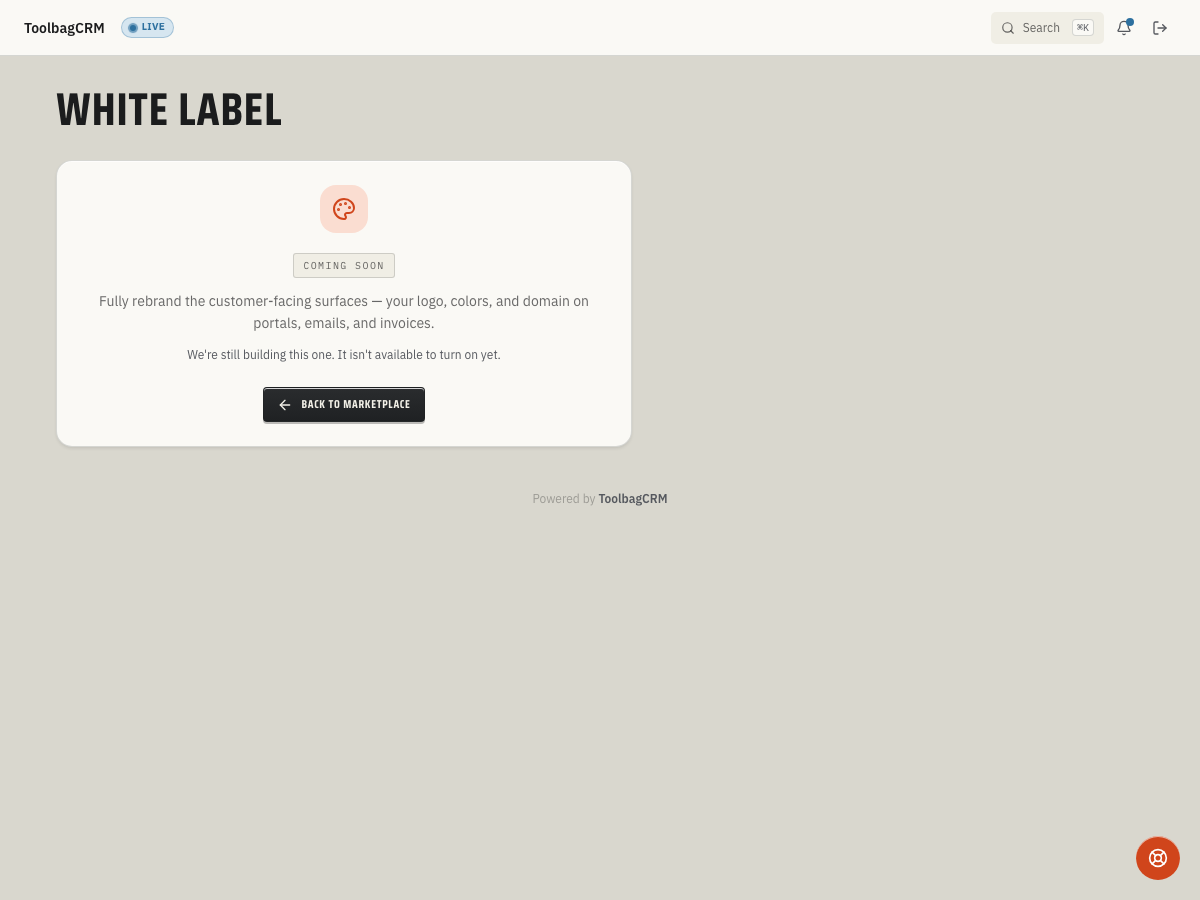
White Label will help eligible teams present ToolbagCRM with their own company, franchise, or reseller branding across customer-facing and in-app surfaces.
When to use this
Use White Label when your business needs staff, franchise locations, or customers to see your brand instead of the default ToolbagCRM identity. It is most useful for:
- Enterprise contractors that want crews working inside a branded app experience.
- Franchise or multi-location teams that need consistent logos, colors, and naming across locations.
- Resellers or managed-service partners that package ToolbagCRM for their own customers.
- Teams that want invoices, receipts, emails, and portal pages to feel like they came directly from the business.
Current availability
White Label is still marked as coming soon in the product. The current navigation path is Settings → White Label, but the page shows a placeholder instead of the full setup workflow.
Because the live workflow is not available yet, the public docs should not be used as a launch checklist for production branding changes. Your ToolbagCRM team can confirm rollout timing, account eligibility, and any approval steps before you plan a customer-facing brand migration.
Planned setup workflow
When the workflow is available, expect the setup to focus on a controlled set of brand tokens rather than a free-form theme builder:
- Open Settings → White Label after the plugin is enabled for your account.
- Add the public brand name or wordmark that should replace default ToolbagCRM labeling.
- Upload approved logo, favicon, and related brand assets.
- Choose primary/accent colors and review contrast so buttons, headers, and links stay readable.
- Configure any supported custom app or sender domains.
- Preview the branded dashboard, customer portal, email, and invoice examples before requesting approval or rollout.
What White Label is expected to affect
White Label is intended to keep the core ToolbagCRM design system intact while changing the business identity shown to staff and customers. Planned branded surfaces include:
- App wordmark, logo, favicon, and browser title text.
- Customer portal, booking, service-tracker, and other customer-facing pages.
- Invoice, receipt, statement, and other customer email/PDF branding where supported.
- Optional custom app domains or email-sender domains, depending on account rollout.
What to prepare before rollout
- A high-resolution logo and a favicon or square icon.
- Approved brand colors, including primary and accent colors.
- The legal business name that should appear on customer-facing paperwork.
- Any custom domain you want customers or employees to use.
- Access to the DNS provider for the domain, because domain and sender verification usually requires adding DNS records.
- Internal approval from whoever owns brand, legal, or franchise standards.
Tips
- Treat the first branded rollout as a controlled launch. Verify the app, customer portal, emails, and PDFs before announcing the new experience broadly.
- Keep brand changes narrow at first: logo, colors, wordmark, and domain are easier to validate than a full visual redesign.
- Coordinate domain changes with whoever manages DNS for your company.
- Avoid uploading unofficial franchise marks or customer-owned logos without written approval.
Troubleshooting
I only see a coming-soon screen
That is expected while White Label is in the coming-soon stage. The active brand editor is not available in customer workspaces yet.
I do not see White Label in Settings
Confirm your plan includes the plugin and that it has been enabled for your account. If the feature is not available, contact ToolbagCRM support before changing DNS or preparing a launch announcement.
A custom domain is not ready yet
Do not point customers at a new branded domain until ToolbagCRM confirms DNS and SSL verification are complete. Keep using the standard app address until the custom domain is marked ready.