
Pricing Catalog
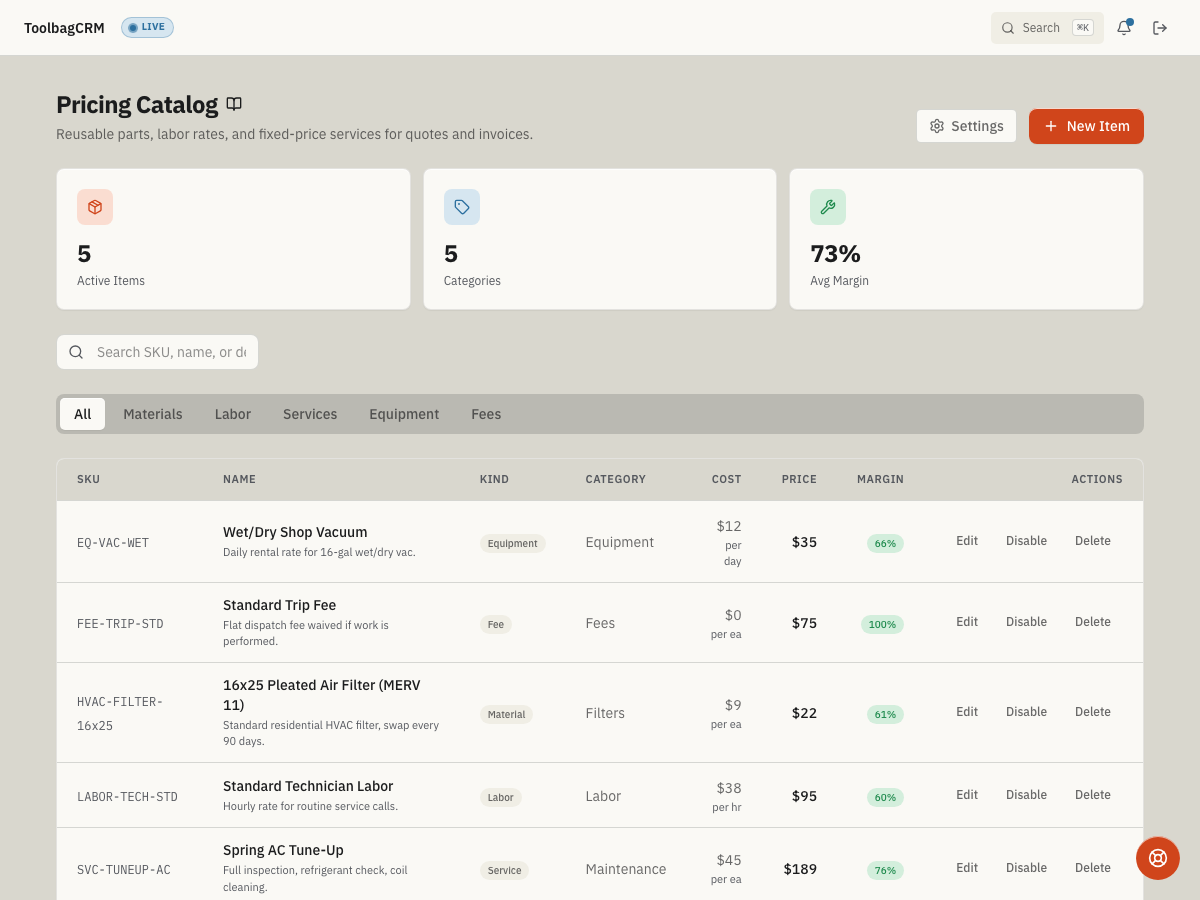
Pricing Catalog gives your team one reusable price book for parts, labor rates, service fees, equipment charges, and other priced line items. It is included in ToolbagCRM so office staff can keep quote and billing prices consistent instead of retyping the same line items every time.
When to use this
Use Pricing Catalog when your team wants standard pricing for repeat work such as service call fees, maintenance tasks, filters, trip charges, diagnostic labor, or commonly sold materials. It is especially helpful when managers want to control margin, keep photo-backed item details together, and let quote writers add approved items quickly from the line-item editor.
Before you start
- Pricing Catalog is included for every ToolbagCRM account; administrators can still control who has access to manage catalog items.
- Decide who can create or edit catalog items. Most teams limit this to owners, office managers, or price-book administrators.
- Gather the SKUs, names, costs, sale prices, categories, and taxable status for the first group of items you want to standardize.
- Collect simple item photos for parts, equipment, or packages where a picture helps staff choose the right line item.
- If you use tiered quote packages, set up your tier names first so catalog items can store optional tier-specific prices.
How to use Pricing Catalog
Open Pricing Catalog from the main navigation. The page shows summary cards, search, kind filters, and the catalog table. Use the tabs to focus on materials, labor, services, equipment, or fees.
- Click New Item.
- Enter the item SKU and customer-facing Name.
- Choose the item Kind: Material, Labor, Service, Equipment, or Fee.
- Add an optional description that explains what the line item includes.
- Enter Unit Cost, Unit Price, and Unit. ToolbagCRM shows the margin before you save.
- If tiered quote packages are enabled, add optional tier prices for each configured tier. Leave a tier field blank when the item should not carry a tier-specific price override.
- Add a Category or Trade Tag if your team filters by department, trade, or material group.
- Upload an optional Photo for parts, equipment, or packages that are easier to recognize visually. PNG, JPG, and WebP uploads are accepted and ToolbagCRM sizes the image for you.
- Confirm whether the item is Taxable and Active, then click Create Item.
After items exist, use Edit to update a price, photo, tier price, or description; Disable to hide an item from future use without deleting it; and Delete only for items that should be removed entirely. Select Include inactive to find disabled items again. Inactive rows carry an Inactive badge and an Enable action so you can restore them.
Add catalog items to quotes
When Pricing Catalog is available, quote line items include Add from catalog. The picker searches catalog items and inserts the selected item as an editable quote line.
- The quote line copies the catalog item name, unit, and unit price.
- The line stays editable after insertion, so you can adjust quantity, description, unit, or price for a specific job.
- If the quote starts with one blank line item, choosing a catalog item replaces that blank row instead of leaving an extra invalid line behind.
Settings
Open Pricing Catalog → Settings from the page header. The setup page controls the defaults ToolbagCRM applies when someone creates a new catalog item.
Recommended setup flow:
- Set Default markup (%) if you want ToolbagCRM to calculate a sale price when a cost is entered and the price is left blank.
- Set the Default unit your team uses most often, such as
ea,hr, orft. - Choose the Default item kind for the items your team adds most often.
- Turn Taxable by default on or off based on your local sales-tax rules.
- Click Save changes.
Tips
- Start with a small group of high-volume items before importing an entire price book.
- Keep SKU, Name, Unit, Category, and Trade Tag naming consistent so search and filters stay useful as the catalog grows.
- Review Unit Cost, Unit Price, and margin before publishing items to the field team.
- Use tier prices only when the same item needs different Good / Better / Best package pricing; leave tier fields blank when the standard unit price should apply.
- Add photos for look-alike parts, filters, equipment, and packaged services so staff can confirm they picked the right item. Use clear PNG, JPG, or WebP images rather than supplier sheets with tiny text.
- Disable outdated items instead of deleting them if your team may need historical context later.
Troubleshooting
The Create Item button stays disabled
The new item dialog requires both SKU and Name before it can save. Add a short SKU your team can recognize and a customer-facing name, then choose the item kind and pricing details.
ToolbagCRM says the SKU already exists
Each catalog item needs a unique SKU. Search the catalog for the SKU first, then edit the existing item, disable the old item, or create a new SKU for the replacement.
Add from catalog does not appear on a quote
Pricing Catalog is included, but the line-item picker still needs catalog access, at least one active catalog item, and room for another line item. Ask an administrator to confirm your role can access Pricing Catalog, check that the item is marked Active, and reduce the quote below the 10-line limit if the quote is already full.
A disabled item disappears from the catalog
Select Include inactive beside the catalog search box. The item returns with an Inactive badge; choose Enable to make it available for future use again. Inactive items stay hidden from new quote line-item searches but remain on historical records.
Tier price fields are missing
Tier price fields appear only when tiered quote packages are enabled and tier names have been configured. Open Quotes → Packages → Settings to set up tier names, then return to the catalog item.
A photo upload fails
Use an actual PNG, JPG, or WebP image. ToolbagCRM resizes it before upload, but original files of 20 MB or more are refused and the resized image must fit the 5 MB upload limit. Renaming another file type with an accepted extension does not convert it; ToolbagCRM rejects files whose contents do not match the selected image type. If the image is still rejected, try a smaller or simpler photo and upload it again from the catalog item dialog.
A long catalog field will not save
Keep SKUs, names, units, categories, trade tags, and descriptions concise. If a save fails after pasting supplier text, shorten the field that the error message names, then try again.