
Document Templates (Coming Soon)
Coming Soon: Document Templates is being finished or tested and is not available to turn on yet. This guide describes the expected workflow and may change before release.
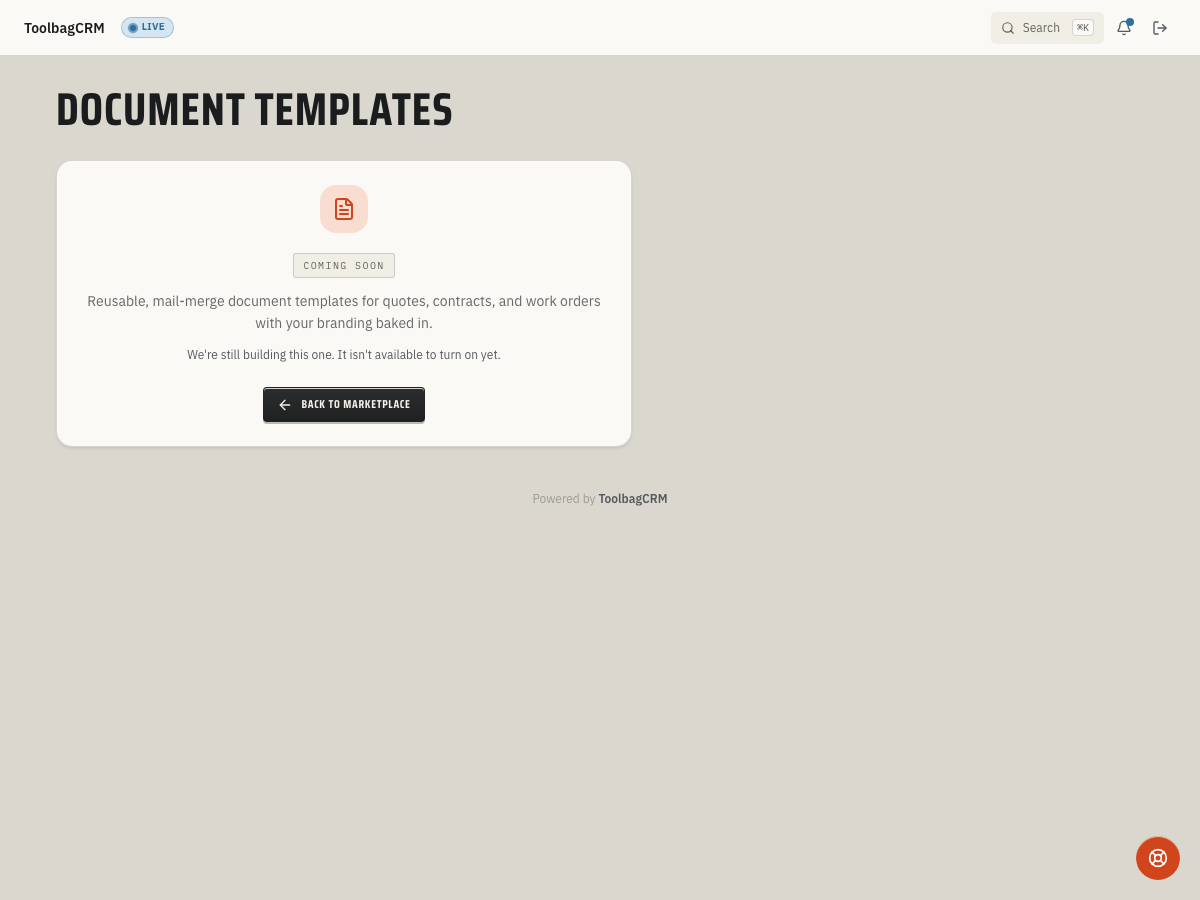
Document Templates will help your office turn repeatable paperwork into reusable, branded templates.
Use it for quotes, invoices, work orders, service agreements, sale agreements, welcome packets, receipts, and other customer-facing documents.
When to use this
Use Document Templates when your team repeatedly sends the same style of contract, proposal, work order, or customer packet and wants ToolbagCRM to fill in customer, job, and billing details automatically.
Good candidates include:
- Quote cover letters and proposal attachments.
- Service agreements and sale agreements.
- Work-order instructions for technicians.
- New-customer welcome packets.
- Receipt or invoice notes that need consistent wording.
Before you start
Because the plugin is not generally available yet:
- Watch the plugin catalog for the Document Templates availability update.
- Keep your current contract/proposal templates in a shared folder until the ToolbagCRM builder is released.
- Decide which documents should be standardized first and who is allowed to edit customer-facing language.
- Gather the merge fields you expect to need, such as customer name, job address, quote total, invoice balance, service date, and company contact details.
Planned workflow
When the plugin is available, the expected workflow is:
- Open Document Templates from the plugin navigation.
- Create a template and choose the document type, such as quote, invoice, work order, service agreement, sale agreement, welcome packet, receipt, or other.
- Add the reusable body text in HTML, Markdown, or plain text format.
- Insert merge placeholders for customer, job, invoice, quote, or company values.
- Preview the rendered document with sample values before using it with real customers.
- Mark the approved version as enabled, and optionally set it as the default template for that document type.
- Review templates after price, warranty, legal, or branding changes so old language does not continue to appear in generated paperwork.
Planned template options
The planned template model supports these customer-facing choices:
- Document type: Quote, Invoice, Work Order, Sale Agreement, Service Agreement, Welcome Packet, Receipt, or Other.
- Format: HTML, Markdown, or Plain Text. HTML is the default format for branded documents.
- Default template: one template can be marked as the default for a document type so the office does not have to choose it every time.
- Enabled state and version: keep only approved templates enabled, and use the version number to tell whether a document was generated from the latest approved wording.
Tips
- Start with one high-volume document, such as the quote proposal or work-order instructions, before converting every form.
- Keep legal terms, cancellation language, and warranty language reviewed by the right person on your team.
- Use clear template names like
Residential Quote ProposalorAnnual Maintenance Agreementso office staff can pick the right version quickly. - Store a short internal note about what each template is for and when it should be updated.
Troubleshooting
I do not see Document Templates in my account
The plugin is still coming soon. If you see it in the catalog but cannot open a full workflow, that is expected until the rollout reaches your account.
My first template is rejected
Every template needs a clear name before it can be saved. Use a name that tells office staff where the template belongs, such as Quote Proposal - Residential or Welcome Packet - New Customer.
A generated document is missing customer or job details
Once the plugin is available, check that the template uses supported merge placeholders and that the related customer, job, quote, or invoice record has the field filled in.
Old language keeps appearing in customer paperwork
Review which template is marked as the default for that document type, then disable or replace outdated versions after the new wording is approved.