
Custom Fields (Coming Soon)
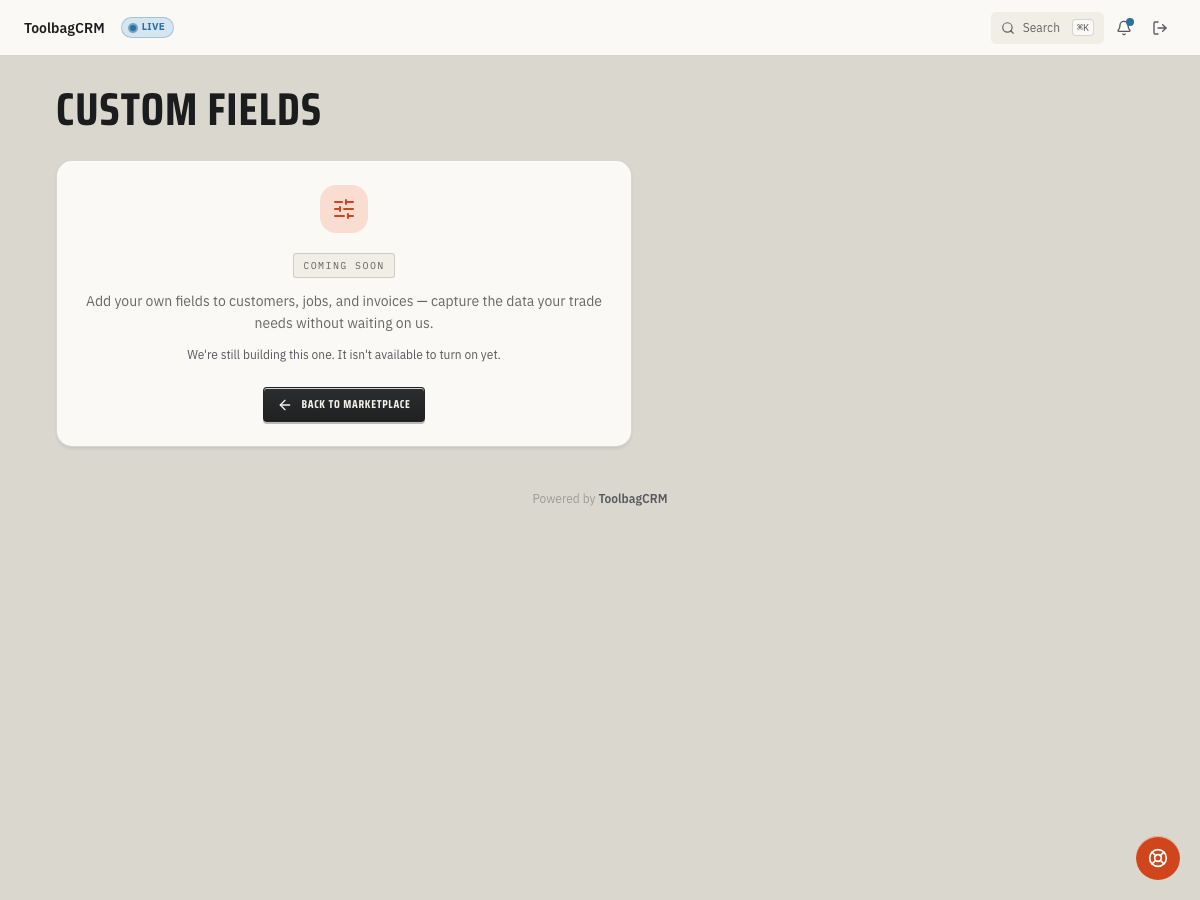
Coming Soon: Custom Fields is being finished or tested and is not available to turn on yet. This guide describes the expected workflow and may change before release.
Custom Fields will let your office add trade-specific information to customers, jobs, invoices, quotes, properties, and team records without waiting for a custom code change.
Use it for structured details that are too important to bury in notes: filter sizes, roof age, pet-on-premises warnings, preferred language, gate codes, warranty class, sales source, or any other field your team needs to see consistently.
When to use this
Custom Fields is designed for repeatable information that belongs on many records of the same type.
Good candidates include:
- A Customer field for preferred contact window, language, or referral source.
- A Job field for roof pitch, equipment location, access instructions, or permit number.
- A Property field for filter size, water shutoff location, or irrigation zone count.
- An Invoice or Quote field for internal approval codes, job class, or project phase.
- A Team Member field for uniform size, credentials, service territory, or vehicle assignment.
Keep one-off reminders, long explanations, and conversations in notes or tasks. Use custom fields when the same answer should be easy to find, filter, report on, or export later.
Current availability
The Custom Fields page currently shows a coming-soon placeholder. The planned workflow includes creating field definitions and storing values, but the customer-facing field-builder is not available in customer workspaces yet.
Until the builder is available in your account, keep critical extra details in the closest existing ToolbagCRM field, job/customer notes, documents, or a clear office SOP so your team can migrate them later.
Plan your fields before rollout
Before turning on a custom field workflow, make a short list of the fields your team truly needs:
- Choose the record type. Decide whether the information belongs to the customer, property, job, invoice, quote, or team member.
- Name the field plainly. Use labels your office and technicians would say out loud, such as
Filter sizeorGate code. - Pick the right type. Use text for short answers, long text for notes, number for measurements, date for expirations, yes/no for flags, and select lists for controlled choices.
- Decide whether it is required. Required fields are best for new records going forward; avoid making every legacy record impossible to update.
- Decide where it should appear. Some fields should be visible in lists or exports; others only need to appear on the detail page.
- Write down who owns maintenance. For example, dispatch updates access notes, office updates warranty class, and technicians update equipment details after visits.
Example rollout
A practical first rollout might be:
- Start with one record type, such as Customers or Jobs.
- Add two or three high-value fields instead of recreating every spreadsheet column.
- Train the office team on when each field should be filled in.
- Review the first week of records and remove any field that no one uses.
- Add fields to list views, exports, or reporting only after the values are being entered consistently.
Tips
- Prefer select lists over free text when your team needs clean reporting.
- Avoid duplicate fields with slightly different names, such as
Gate Code,Gate code, andEntry code. - Do not store passwords, payment card data, health information, or other sensitive secrets in custom fields.
- Keep field labels customer-friendly if those values may later appear on quotes, invoices, portals, or exports.
- Archive unused fields instead of renaming them into unrelated meanings; old records may still depend on the original purpose.
Troubleshooting
I only see the coming-soon screen
That is expected while Custom Fields is in the coming-soon stage. The active field-builder screen is not available in customer workspaces yet.
A field belongs on more than one record type
Create separate fields for each record type when the meaning is different. For example, a customer-level Referral source and a job-level Project source may sound similar but answer different questions.
The team is using notes instead
Move only the repeatable, reportable parts into custom fields. Leave narrative context in notes so the record stays readable.