
Customer Portal (Idea)
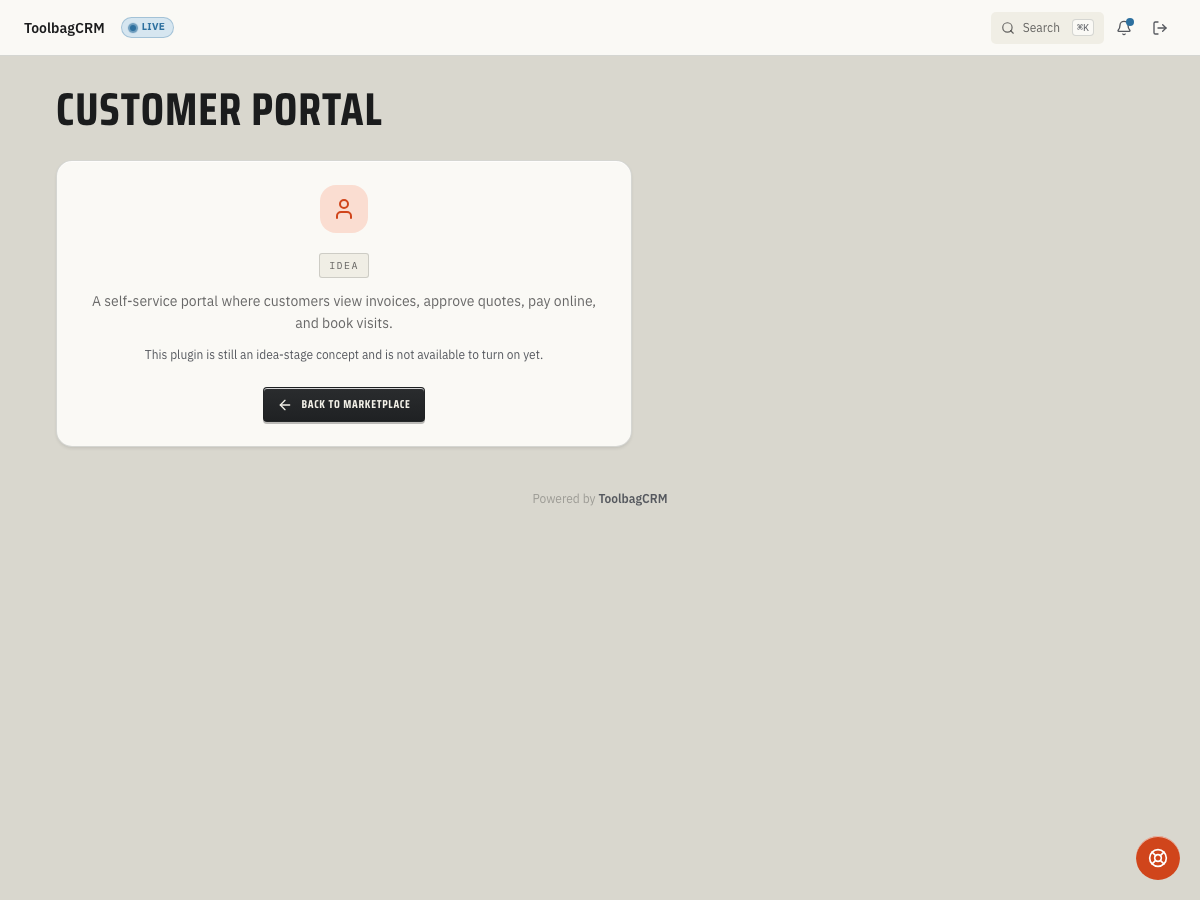
Idea stage: Customer Portal is a concept and is not available to turn on yet. This guide describes planned behavior and may change before release.
Customer Portal will give repeat customers a branded self-service place to review jobs, approve quotes, pay invoices, and request service.
Idea: This is an idea-stage plugin and is not generally available yet. It is grouped separately so customers do not mistake it for an enabled product area.
When to use this
Use Customer Portal when your office wants customers to handle routine follow-up without another phone call or email. The planned workflow is best for teams that want customers to:
- See active and past jobs with current status updates.
- Approve pending quotes online.
- Pay open invoices from a branded portal.
- Submit new service requests that can become jobs in your queue.
- Access shared documents or photos when your account exposes them through the portal.
Before you start
Accounts without the active Customer Portal workspace will see an idea-stage placeholder, so use this page as rollout preparation rather than a setup checklist for an active portal screen.
Before the workflow is generally available:
- Keep customer email addresses clean and deduplicated.
- Decide which job, quote, invoice, document, and photo details should be customer-visible.
- Review your online payment setup so invoice payment can be connected when portal access opens.
- Confirm your brand name, logo, and customer-facing contact information are ready for portal pages.
- Plan who on your team can invite customers, reset access, or disable portal accounts.
Planned customer workflow
- Your team enables portal access for a customer account.
- The customer signs in from your branded portal link.
- They review their job history, open quotes, invoices, and shared records.
- They approve quotes, pay invoices, or submit a new service request when those actions are enabled for your account.
- Your office follows up from the related customer, job, quote, or invoice record in ToolbagCRM.
Portal account controls
The planned portal controls include account creation, enable/disable controls, and a public portal login path. The active account-management screen is not generally available in customer workspaces yet, so do not promise customers a live invitation flow until your ToolbagCRM account shows the portal controls.
When the workflow ships, treat portal access like any other customer-facing permission:
- Invite only the correct customer contact.
- Disable access when a contact leaves, changes companies, or no longer needs access.
- Keep payment and document visibility aligned with your internal policy.
- Test the customer-facing experience before announcing portal access broadly.
Tips
- Start with a small group of repeat customers before rolling portal access out to everyone.
- Keep portal messaging plain-English so customers know whether they are approving a quote, paying an invoice, or requesting new work.
- Review customer-visible files and photos before sharing them through any portal workflow.
- Use portal rollout as a chance to clean customer emails, billing contacts, and open invoice follow-up.
Troubleshooting
I only see an idea-stage screen
That is the expected account state while Customer Portal remains in the idea stage. The active setup screen is not generally available in customer workspaces yet.
A customer cannot sign in after portal access is enabled
Confirm the email address belongs to the invited customer contact and reset the password or invite if needed. ToolbagCRM rejects incorrect portal passwords, so do not share a portal link until the customer account is created with the correct email.
A customer should not have portal access anymore
Use the available customer/account controls in your ToolbagCRM environment to disable access. If your account only shows the idea-stage placeholder, contact ToolbagCRM support before promising portal access to that customer.
Customers are asking about invoices or quotes
Until the portal is active for your account, keep sending normal quote approval, invoice payment, and service-request links through your existing ToolbagCRM workflows.