
Loyalty Program
Loyalty Program helps you reward repeat customers with points, tiers, and an auditable earn/redeem history. Use it when your business wants a simple customer-retention program for recurring service customers, referral rewards, or seasonal promotions.
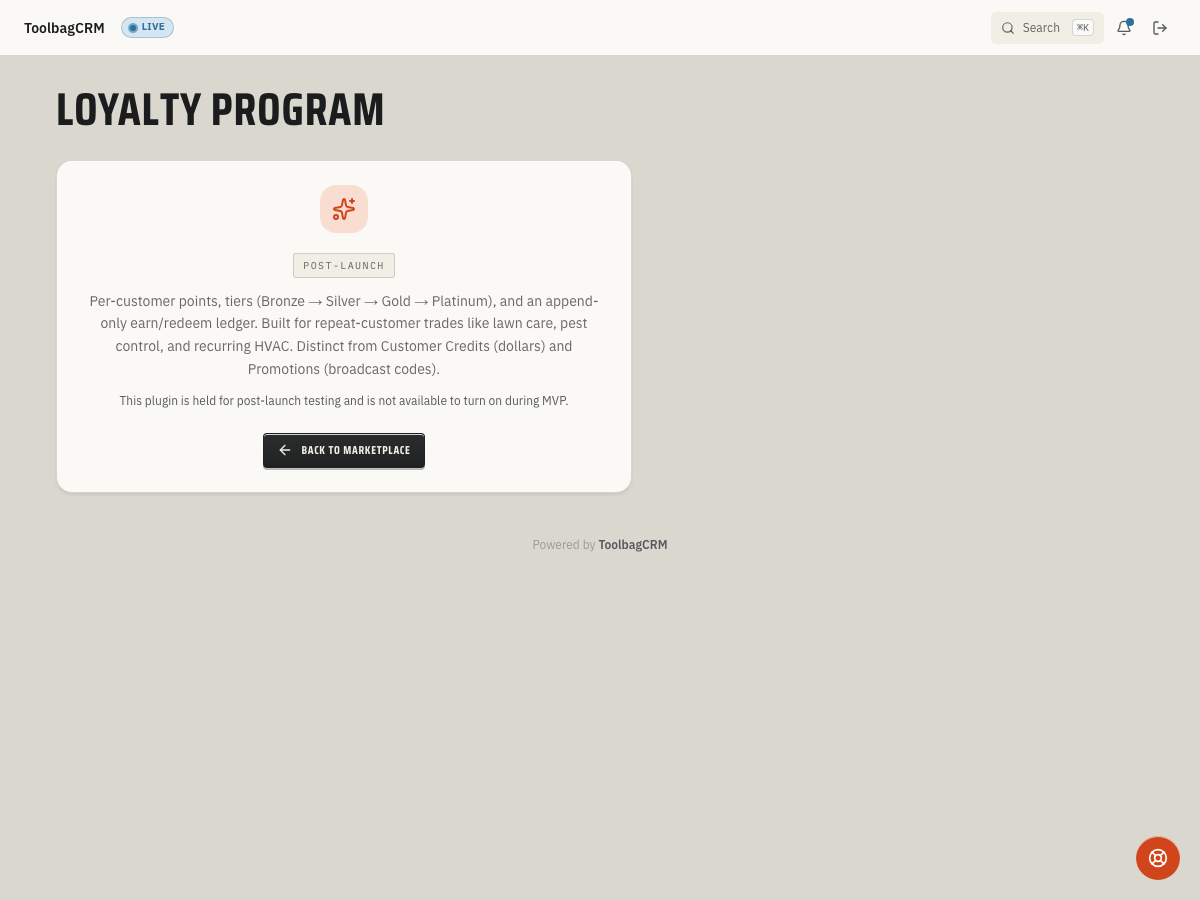
Open Loyalty Program from the main navigation after the plugin is enabled in Settings → Features.
When to use this
Use Loyalty Program when you want to:
- encourage customers to book repeat service,
- reward referrals or manual goodwill credits,
- group customers into Bronze, Silver, Gold, and Platinum tiers,
- track available points separately from lifetime points, and
- keep a permanent history of earn and redeem activity.
The plugin is customer-facing in the sense that it tracks customer rewards, but your team manages the accounts from inside ToolbagCRM.
Before you start
- Confirm Loyalty Program is included in your plan.
- Enable Loyalty Program in Settings → Features.
- Make sure customer records are already in ToolbagCRM, because each loyalty account is tied to a customer.
- Decide how your team will award points: job spend, referrals, manual service recovery, seasonal promotions, or a mix of sources.
Enroll customers
- Open Loyalty Program.
- Select Enroll Customer.
- Choose the customer.
- Add any internal notes your team should see.
- Select Enroll.
New loyalty accounts start at Bronze. As lifetime points increase, the customer can move through Silver, Gold, and Platinum based on your tier thresholds.
If the customer list is empty, add the customer in ToolbagCRM first or confirm that the customer records are available to your current account.
Manage points and tiers
After a customer is enrolled, open their loyalty account to review available points, lifetime points, tier progress, and transaction history.
Use the account actions to:
- Earn Points — add points for a job, referral, promotion, or manual adjustment.
- Redeem — subtract points when the customer uses a reward.
- Delete — remove a loyalty account if it was created by mistake.
Points added or redeemed appear in the transaction history so the office can audit why the balance changed.
Settings
Administrators can open Loyalty Program → Settings to manage account-wide loyalty preferences.
Current settings include:
- Silver threshold — lifetime points needed to reach Silver.
- Gold threshold — lifetime points needed to reach Gold.
- Platinum threshold — lifetime points needed to reach Platinum.
- Points per dollar — your preferred earn rate.
- Redemption value per point — your preferred dollar value for redemptions.
- Point expiry months — your preferred point lifetime.
Today, tier thresholds drive customer tier progress. Earn rate, redemption value, and expiry are stored as account preferences, but automatic earning on spend, automatic redemption math, and automatic point expiry are not yet handled by the plugin.
Recommended workflow
- Enable Loyalty Program.
- Configure the tier thresholds your team wants to use.
- Enroll a small group of repeat customers first.
- Use Earn Points for a clear reason such as a referral, completed service, or promotional credit.
- Review transaction history before redeeming points so balances stay easy to explain.
- Expand the program once the team agrees on how customers earn and redeem rewards.
Tips
- Review the transaction history before redeeming points so the office can explain why a balance changed.
- Use a clear reason when adding points — such as a referral, completed job, or promotional credit — so the earn history stays easy to audit.
- Start with a small pilot group of repeat customers before rolling the program out broadly; this lets the team agree on earn and redeem rules.
- Remember that tier thresholds are the only setting that drives automatic tier progress today. Earn rate, redemption value, and point expiry are stored as preferences but are not yet applied automatically.
- Use Delete only for accounts created by mistake. For customers who stop engaging, simply stop adding points rather than removing their history.
Troubleshooting
Points do not appear on a customer account
Points are earned when a qualifying invoice payment is recorded. If the customer has no paid invoices yet, the loyalty balance will be zero until a payment is processed.