
Recurring Services
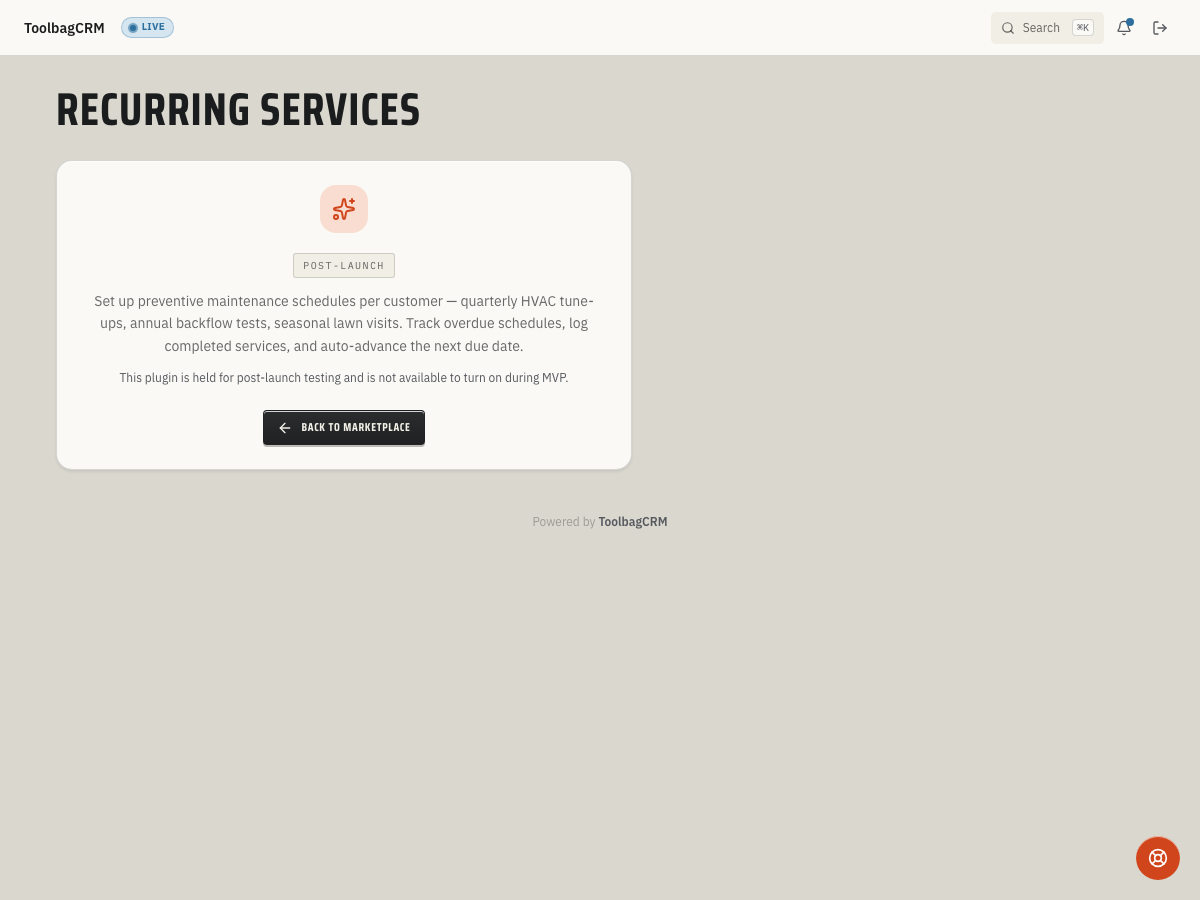
Recurring Services helps you track preventive maintenance, seasonal visits, inspections, and other repeat work that should happen on a predictable schedule. Use it to see which customers are due soon, record completed visits, and keep a service history without recreating the same reminder from scratch each time.
When to use this
Use Recurring Services when your company sells or manages repeat services such as:
- Quarterly HVAC tune-ups or filter changes.
- Backflow, safety, or compliance inspections.
- Pool, lawn, pest, cleaning, or irrigation service intervals.
- Any customer agreement where the next due date matters as much as the last completed job.
It is best for work that repeats by cadence. Use regular jobs for one-off visits that do not need ongoing schedule tracking.
Before you start
- Confirm Recurring Services is included in your ToolbagCRM plan.
- Enable the plugin from Marketplace or Settings → Features.
- Make sure the customer or service location details you want technicians to use are already in ToolbagCRM.
- Decide the default cadence your team uses most often. The plugin supports Weekly, Biweekly, Monthly, Quarterly, Semi-Annual, Annual, and Custom intervals.
Create a recurring schedule
- Open Recurring Services from the main navigation.
- Select New Schedule.
- Enter the Customer Name and Service Type. Example:
Greenfield ApartmentsandQuarterly HVAC Tune-Up. - Choose the frequency. If you choose Custom, enter the custom interval in days.
- Add the Last Service Date and Next Service Due date when you know them.
- Add internal notes for the office or field team.
- Select Create Schedule.
The schedule appears as a card with a frequency badge, due date, and status. Schedules due within the near-term window show as Due Soon; overdue active schedules show as Overdue.
Manage due work
Recurring Services includes summary cards for:
- Total Schedules — every schedule tracked by the plugin.
- Active — schedules currently running.
- Overdue Now — active schedules past their next due date.
- Completed This Month — recorded service completions for the current month.
Use the Search schedules field to filter by customer name or service type. This is useful when a dispatcher is answering a customer call and needs to quickly confirm the next planned visit.
Record a completed service
- Find the active schedule.
- Select the checkmark action to open Record Service.
- Confirm the service date.
- Enter the technician or staff member in Performed By.
- Choose the result: Completed, Skipped, or Missed.
- Add service notes.
- Select Record Service.
Recorded visits appear on the Service History tab. The history can be searched by customer, service type, or technician name. Recording a service also refreshes the schedule data so the next due information stays current.
Pause, resume, edit, or delete a schedule
Each schedule card includes quick actions:
- Pause schedule when a customer temporarily stops service. Paused schedules keep their history but do not appear as actively due.
- Resume schedule when repeat work should continue.
- Edit to adjust the customer name, service type, frequency, dates, or notes.
- Delete when the schedule should be removed. ToolbagCRM asks for confirmation before deleting.
For service-history entries, use Delete record only when the record was created by mistake.
Schedule defaults
If your account has permission to configure plugin settings, open the gear/settings link from the Recurring Services page. The Schedule defaults page lets you set:
- Default frequency for new schedules.
- Default custom interval in days.
- Overdue reminder lead time.
- Whether new schedules should default to auto-generating jobs when that automation becomes available.
Today, due schedules can send customer email reminders. Automatic job creation is marked as coming soon in the product settings, so do not rely on it for dispatch until your account shows that automation as available.
Tips
- Check the Overdue Now card first thing each morning — these are the schedules that need same-day attention before customers call asking where their tech is.
- A schedule shows Due Soon (yellow badge) when there are 14 days or fewer until the next visit. Use this window for proactive scheduling rather than waiting for the Overdue state.
- When a visit was not completed but should be rescheduled, record it as Skipped rather than Missed. Missed marks a failure in the history; Skipped keeps the record clean when the timing simply did not work out.
- Use Pause schedule for seasonal customers (winterizing, pool closings) instead of deleting the schedule. Pausing preserves the full service history and makes it easy to resume when the season returns.
- Set the Overdue reminder lead time in Schedule Defaults to match your office's dispatch cycle — if your team plans routes two weeks out, a 14-day lead time lets the office build the next route before anything goes overdue.
- Use the Service History tab to pull a customer's completion record before their next visit. It shows every completed, skipped, and missed entry, which is useful for billing disputes or warranty discussions.
Troubleshooting
I cannot see Recurring Services
Make sure the plugin is enabled in Marketplace or Settings → Features. If it still does not appear, your plan or role may not include the plugin.
The page is empty
Create the first schedule with New Schedule, or broaden your search if a filter is active. Empty service history is normal until someone records a completed, skipped, or missed visit.
I cannot edit schedule defaults
Schedule defaults require write access for the Recurring Services plugin. Ask an administrator to grant permission or make the change for you.
A schedule should not count as due right now
Pause the schedule if service is temporarily stopped, or edit the next due date if the work was rescheduled outside ToolbagCRM.