
Customer Mobile App (Idea)
Idea stage: Customer Mobile App is a concept and is not available to turn on yet. This guide describes planned behavior and may change before release.
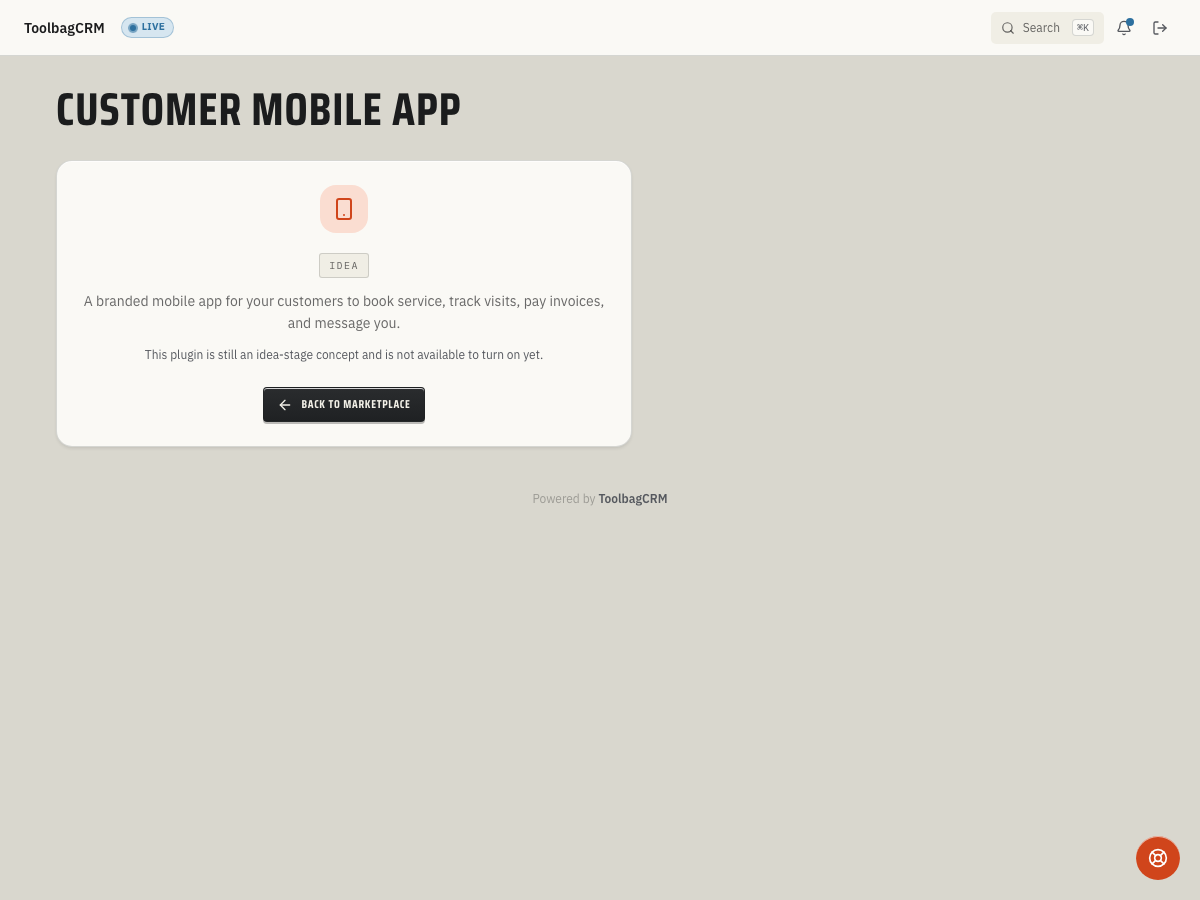
Customer Mobile App will give customers a branded phone experience for booking service, tracking visits, paying invoices, and messaging your team. It is currently listed as an idea-stage customer-facing feature that depends on core customer records.
When to use this
Use Customer Mobile App when customers need a self-service place to:
- Request or book service without calling the office.
- Track upcoming visits and job updates from their phone.
- View and pay invoices from a branded customer experience.
- Receive push notifications after they opt in on their mobile device.
Before you start
Customer Mobile App is not generally available yet. Before planning a rollout:
- Confirm the plugin has moved out of Idea for your account.
- Make sure Customers is enabled, because device records are tied to customer profiles.
- Decide which customer events should trigger app notifications, such as appointment updates, invoices, and messages.
- Prepare customer-facing support text for download links, sign-in help, and notification opt-in questions.
Planned workflow
1. Enable the plugin when it becomes available
Once ToolbagCRM releases the plugin for your account, an administrator should enable Customer Mobile App from Settings → Features.
2. Invite customers to the app
Send customers the official download or sign-in instructions provided during rollout. Do not publish public app links until the plugin is enabled and the branded app experience has been confirmed for your account.
3. Let customers register their devices
ToolbagCRM's planned device registration stores the customer, platform, device model, app version, push token, registration time, last-seen time, and push-notification opt-in status. If the same push token is registered again, ToolbagCRM updates the existing device record instead of creating a duplicate.
4. Manage notification opt-in
The planned device record includes a per-device opt-in toggle for push notifications. Use it to respect customer notification preferences instead of assuming every installed app can receive push messages.
Current availability
Accounts without the active Customer Mobile App workspace will still see an idea-stage placeholder, and no active branded mobile app screen, invitation flow, or settings page is available in the customer-facing UI. Keep the screenshot and rollout language in this article limited to the placeholder and planned behavior until the finished workflow is available.
Tips
- Push tokens re-bind on re-registration. If a customer reinstalls the app or signs in on a new device that shares the same push token, the device record moves to the most recent customer. This is expected — the token is owned by whoever last registered it — but it means one device cannot serve two customers simultaneously.
- New devices start with push enabled. Push notification opt-in defaults to true when a device is first registered. If a customer reports not receiving notifications, check their device's opt-in status before investigating delivery issues.
- Track device activity with Last Seen. Each registered device records a LastSeenAt timestamp that updates every time the device re-registers. Use it to identify inactive devices that may need a re-engagement prompt or to clean up stale records.
- Opt-in is per device, not per customer. One customer can have multiple registered devices (for example, a phone and a tablet) with different notification preferences. Respect each device's individual opt-in toggle rather than assuming all devices on an account behave the same way.
- Both iOS and Android are supported. Device records track platform as Ios or Android. When planning notification campaigns, confirm that your push service handles both platform token formats correctly.
Troubleshooting
Customer Mobile App still shows Idea
Customer Mobile App has not been released for general use on your account yet. Do not promise app downloads or push notifications to customers until the plugin is enabled and the branded app workflow is visible.
Devices do not appear for a customer
If the plugin is released but devices do not appear for a customer, confirm that the customer has actually signed into the mobile app and allowed notifications on their device. Push notification status is tracked per registered device, so one customer's phone settings do not apply to every device on the account.
Device registration fails
When device registration becomes available, the registration needs both a customer profile and a non-empty push token. If registration fails during rollout testing, confirm the customer is selected and the mobile app is sending a valid push token for the device.