
Maintenance Contracts
Use Maintenance Contracts to track recurring service agreements such as HVAC tune-ups, annual boiler service, filter-change programs, generator maintenance, or other repeat work sold as a contract.
The plugin gives the office one place to see active agreements, upcoming visits, billing cadence, and visit history.
When to use this
Turn on Maintenance Contracts when your team sells recurring service that should stay visible after the original job is complete.
Common examples include:
- Monthly or quarterly HVAC maintenance
- Annual boiler inspections
- Generator service plans
- Water-treatment filter programs
- Seasonal startup/shutdown service
- Any recurring agreement where the customer expects future visits
How to create a maintenance contract
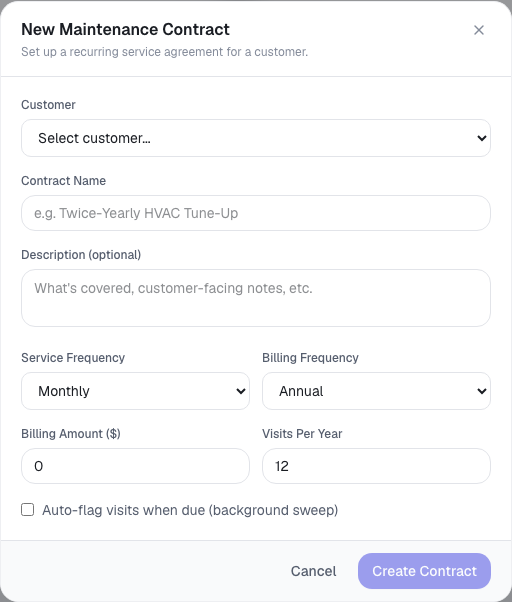
- Open Maintenance Contracts from the main navigation.
- Select New Contract.
- Choose the customer.
- Enter the contract name and optional description.
- Set the service frequency, billing frequency, billing amount, and visits per year.
- If your team wants ToolbagCRM to flag upcoming visits, turn on Auto-flag visits when due.
- Select Create Contract.
How to use the contracts list
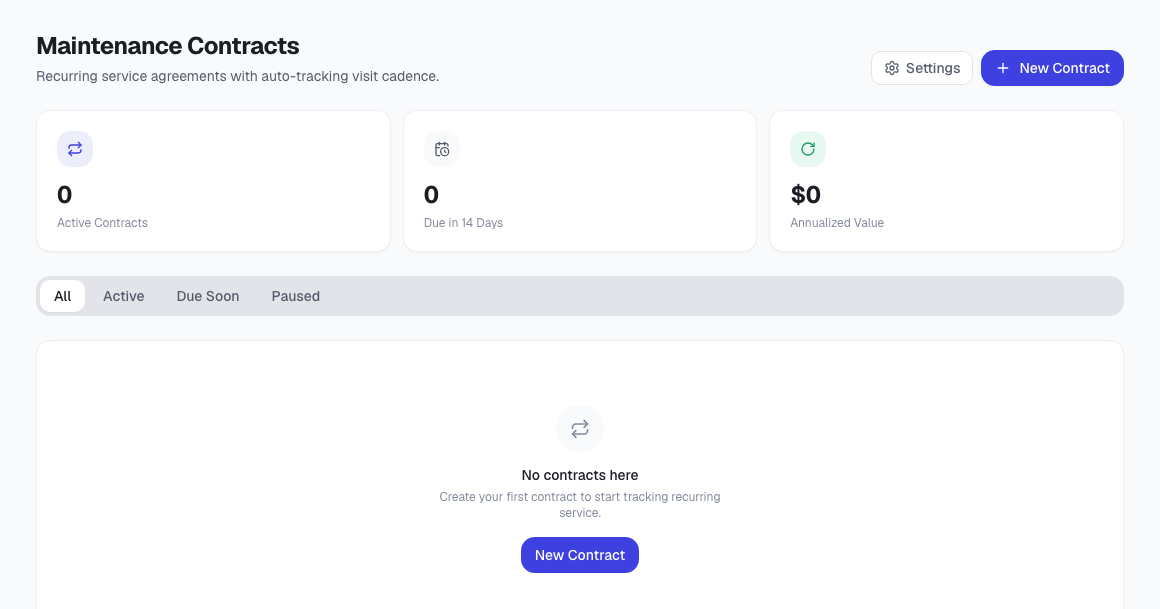
The Maintenance Contracts page summarizes contract health at the top, then lets you filter the list by All, Active, Due Soon, or Paused.
Use the list to:
- Review how many contracts are active.
- See how many visits are due in the next 14 days.
- Estimate annualized contract value.
- Open a contract's history.
- Log a completed visit.
- Edit contract details.
- Pause or resume an agreement.
Before you start
Have these details ready before creating a contract:
- Customer name
- Contract name your office and technicians will recognize
- What is included in the agreement
- Service cadence, such as monthly, quarterly, semiannual, or annual
- Billing cadence and billing amount
- Number of planned visits per year
- Whether visits should be auto-flagged when due
Tips
- Use clear contract names, such as “Greenfield Apartments — Monthly HVAC,” so dispatchers can understand the agreement without opening every row.
- Keep descriptions customer-friendly. They are a good place to summarize what is covered and what is excluded.
- Use Paused when a customer temporarily stops service but may resume later.
- Use Log Visit after completing recurring service so the contract history stays accurate.
- Review Due Soon regularly to catch upcoming visits before customers call asking about them.
If the page says the plugin is disabled
Open Settings → Features and enable Maintenance Contracts. After the plugin is enabled, return to Maintenance Contracts from the main navigation.