
Weather
Weather adds a forecast and severe-weather warning strip to customer and job detail pages so dispatchers can plan weather-sensitive work without leaving ToolbagCRM.
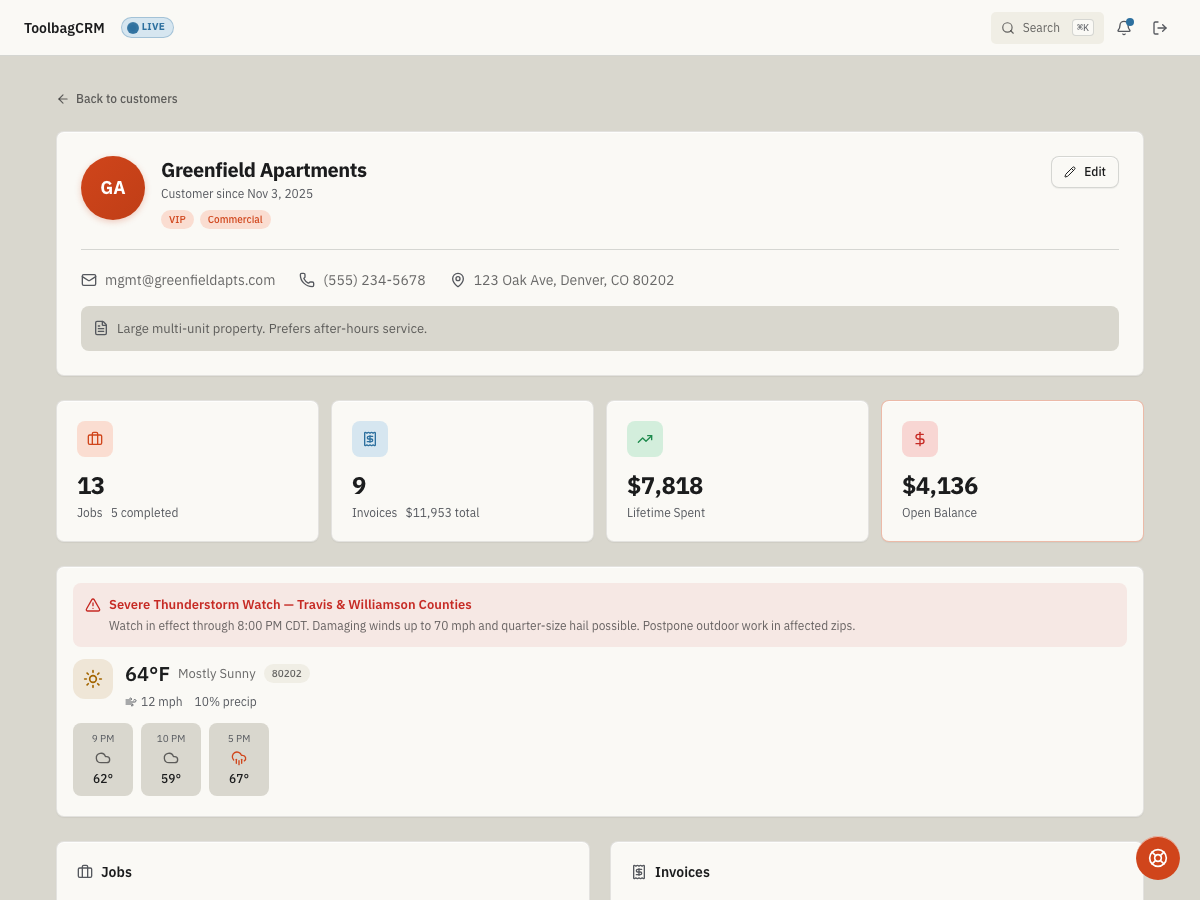
It uses U.S. ZIP-code-based National Weather Service data, including ZIP+4 addresses by reading the first five digits. Forecasts and alerts are cached in the background, so multiple customers in the same area can reuse the same public weather data.
When to use this
Use Weather when your team needs to:
- Check rain, snow, wind, or severe-weather risk before sending a technician.
- Plan roofing, exterior, landscaping, pest, pool, or other weather-sensitive jobs.
- Notice active severe-weather alerts while reviewing a customer or job.
- Make scheduling calls from the same ToolbagCRM screen the dispatcher already has open.
Before you start
- Make sure Weather is included in your plan and enabled in Settings → Features.
- Keep customer addresses and attached job service locations updated with a valid U.S. ZIP code. ZIP+4 addresses are fine — ToolbagCRM reads the first five digits for the forecast lookup.
- Remember that Weather is a background helper. It does not add a separate daily workflow page for the team to manage.
Where weather appears
After Weather is enabled, ToolbagCRM can show a weather strip on:
- Customer detail pages.
- Job detail pages, using the attached service location first and the customer's address when no service location is attached.
- Weather-sensitive workflows that read the same forecast or alert data.
The strip always appears on these pages once Weather is enabled — it does not silently disappear. It shows one of five states:
- Forecast — the current headline forecast, temperature, wind speed, precipitation chance, and a short hourly outlook. If an active alert covers the area, ToolbagCRM surfaces a warning banner above the forecast.
- Missing ZIP — Add a ZIP code to this address to show weather. On a job with an attached service location, users with customer edit access and account-wide job access can select the prompt, edit that exact location, save its ZIP/postal code, and return to the originating job. Assigned-only and read-only users see the guidance without an edit link. When Weather is disabled, neither the strip nor the prompt appears.
- Loading — a brief spinner while the forecast is fetched for that ZIP code.
- No forecast — an explicit message when the ZIP code is valid but the National Weather Service returns no forecast data.
- Fetch error — an explicit error message if the National Weather Service lookup fails, instead of an empty or blank strip.
Weather severity levels
ToolbagCRM classifies each hourly forecast and each active alert with its own severity scale, so you can scan the strip quickly instead of reading every detail.
Forecast severity (per hour, based on National Weather Service conditions):
- Clear
- Cloudy
- Rain
- Thunderstorm
- Snow
- Severe
Alert severity (per active National Weather Service alert):
- Minor
- Moderate
- Severe
- Extreme
Use forecast severity to judge whether conditions are workable for the job type, and use alert severity to judge how urgently a schedule change is needed. A Severe or Extreme alert deserves an immediate look, even if the hourly forecast severity for that time slot looks milder.
How dispatchers use it
- Open the customer or job you are scheduling.
- Review the weather strip near the detail information.
- Look for severe-weather banners first, then check wind and precipitation.
- If the forecast makes the work unsafe or inefficient, reschedule the job or add a note for the office team.
- Recheck the job before dispatch when weather conditions are changing quickly.
Settings
Weather does not currently have a separate settings page. Enable or disable it from Settings → Features.
The forecast cache is refreshed in the background. In production, hourly forecast data is designed to refresh every few hours, while severe-weather alerts are checked more frequently so dispatchers can see urgent National Weather Service alerts closer to real time.
Tips
- Use the Severe and Extreme alert levels as your priority filter when multiple areas have active alerts.
- Treat severe-weather alerts as a scheduling review prompt, not an automatic cancellation rule.
- Keep the attached service location's ZIP code accurate so a job forecast matches where the technician is going. Jobs without an attached service location use the customer's address instead. If the address includes ZIP+4, the five-digit ZIP still drives the lookup.
- For outdoor trades, review the strip before scheduling multi-hour or roof/exterior work.
- Pair Weather with callbacks, dispatch, or route planning notes when storms affect multiple jobs in the same area.
Troubleshooting
I do not see a forecast, only a prompt to add a ZIP code
The customer address has no ZIP code, or the job's attached service location is missing one. On a job, select Add a ZIP code to this address to show weather. to open that exact attached work location, enter its ZIP/postal code, and save; ToolbagCRM returns you to the originating job. This action requires customer edit access and account-wide job access. Assigned-only and read-only users see guidance without an edit link, so ask an administrator or dispatcher with the required access to update the location. On a customer profile, use Edit to update the customer's ZIP/postal code. If Weather is disabled, the strip and missing-ZIP prompt remain hidden.
The page says no forecast is available
Forecast data may not be warmed yet for that ZIP code, or the National Weather Service may not have returned data for the location. Check again later and make the scheduling decision from the information you do have.
I entered a non-U.S. postal code and no forecast appears
Weather uses U.S. ZIP-code coverage from the National Weather Service. Non-U.S. postal codes and unknown ZIPs return no forecast instead of showing a broken card, so use a local weather source for that job until a supported ZIP is available.
The strip shows an error message instead of a forecast
This means the National Weather Service lookup failed for that ZIP code rather than the strip loading indefinitely. Try reopening the record in a few minutes; if the error persists across multiple ZIP codes, treat it as a wider service issue and fall back to checking the forecast directly with National Weather Service or another source before dispatching.
I expected a separate Weather page
Weather is a background helper, not a standalone work queue. Look for it on customer and job detail pages instead of the main navigation.