
Data Import (Coming Soon)
Coming Soon: Data Import is being finished or tested and is not available to turn on yet. This guide describes the expected workflow and may change before release.
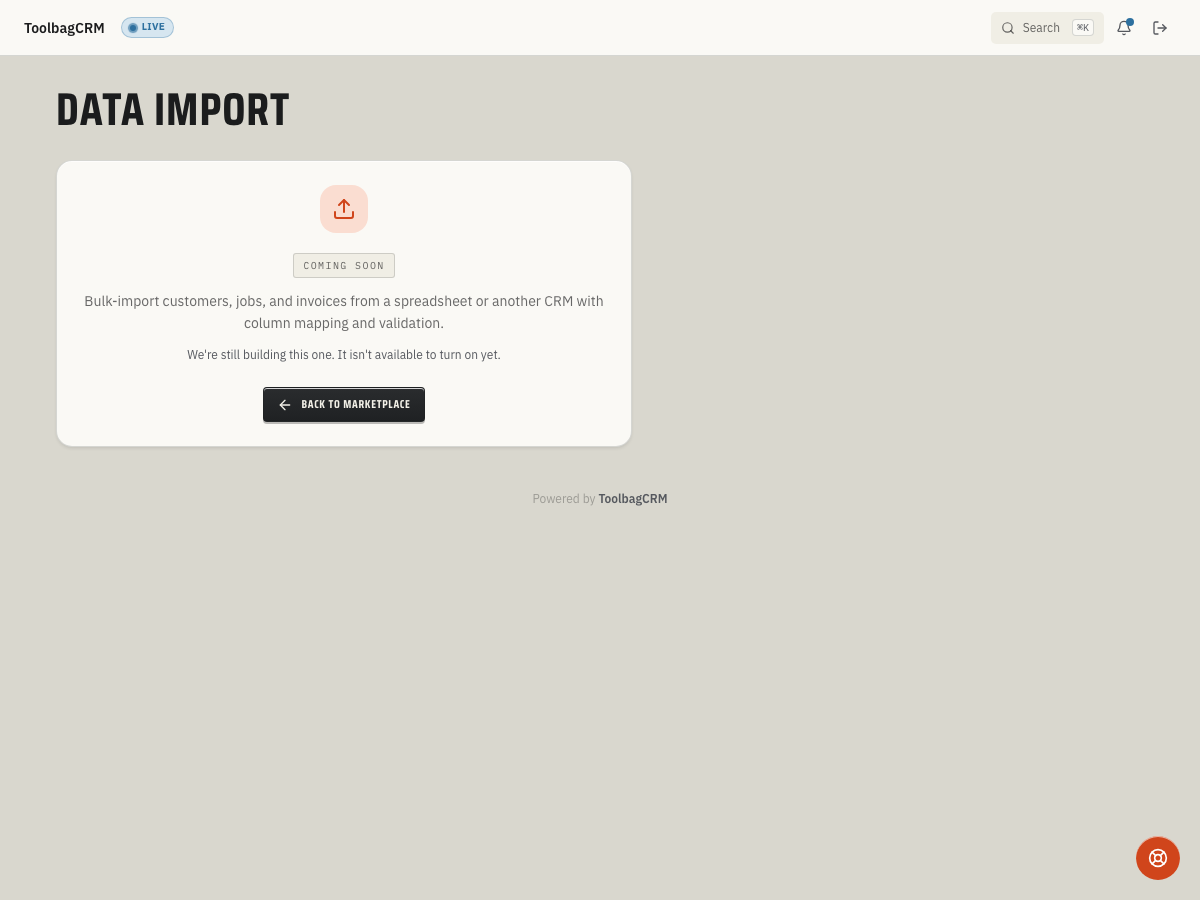
Data Import is planned to help teams move customer and job history into ToolbagCRM from CSV files, spreadsheets, or exports from another CRM.
When to use this
Use Data Import when you need a guided way to bring existing business records into ToolbagCRM instead of entering them one at a time. It is intended for onboarding a new company, migrating from another CRM, or adding a large historical list after your workspace is already running.
The planned import workflow tracks import runs, row counts, statuses, mappings, and row-level errors. The customer-facing UI is still marked coming soon, so do not promise a same-day self-service import workflow until your account has access to the finished workspace.
Before you start
- Confirm Data Import is available for your account or ask your ToolbagCRM contact about preview access.
- Clean the source file before importing: remove duplicate rows, old test records, and contacts you do not want in ToolbagCRM.
- Decide what type of records you want to import first. The current source model supports customers, jobs, invoices, payments, team members, and service locations.
- Keep the first upload small. A sample file with 10-20 real rows is easier to validate than a full database export.
- Back up the original export from your old system so you can compare counts later.
Planned import flow
When the full workspace is available, expect the import process to follow a review-first pattern:
- Open Data Import from the ToolbagCRM navigation.
- Choose the source format, such as CSV, Excel, QuickBooks export, ServiceTitan export, Housecall Pro export, or another spreadsheet/export format.
- Choose the record type you are importing.
- Upload the file and confirm the row count.
- Map columns from the file to ToolbagCRM fields.
- Review validation errors before importing live records.
- Start the import and monitor the run status until it completes.
- Download or review row-level errors for anything that was skipped or failed.
Supported record types in the source model
Data Import is designed around these record categories:
- Customers
- Jobs
- Invoices
- Payments
- Team members
- Service locations
Start with customers or service locations before importing dependent records such as jobs or invoices. That order makes it easier to match later rows to the right customer.
Understand import statuses
The planned import workflow uses these run states:
- Uploaded: The file has been accepted and is ready for mapping or validation.
- Mapping: Columns are being matched to ToolbagCRM fields.
- Validating: ToolbagCRM is checking rows for missing or invalid data.
- Importing: Rows are being created or updated.
- Completed: The run finished without recorded row failures.
- Completed with errors: Some rows imported, but one or more rows need review.
- Cancelled: The run was stopped before completion.
- Failed: The import could not finish.
If a future import run finishes with errors, review the row-level error list before retrying the same file. Fixing the source file first is safer than repeatedly uploading unchanged data.
Tips
- For a clean first import, use one header row with clear names such as Customer Name, Phone, Email, Street, City, State, and ZIP.
- Split combined fields when possible. Separate first/last name, street/city/state/ZIP, and billing/service addresses if your export supports it.
- Use consistent phone and ZIP formats across the file.
- Remove rows that belong to inactive branches, test accounts, or customers you do not plan to serve.
- Import in batches by record type instead of mixing unrelated data in one spreadsheet.
Troubleshooting
I only see a preview page
That is expected while Data Import is in the coming-soon stage. Your account will show a coming-soon placeholder until the active import workspace is enabled.
My first file is rejected
Start with a real CSV or spreadsheet export that has a filename and at least one data row. A blank upload or empty filename cannot start an import run.
I need to migrate before self-service import is available
Coordinate with ToolbagCRM support before adding large historical datasets. This article skips column-mapping, validation, and completed-import screenshots until those active wizard states are available in customer workspaces.