
Reviews & Reputation
Reviews & Reputation helps you track review requests after completed work and record the ratings customers leave on public review channels. Use it when your team wants one place to see who has been asked for a review, which requests are still waiting, and how recent reviews are trending.
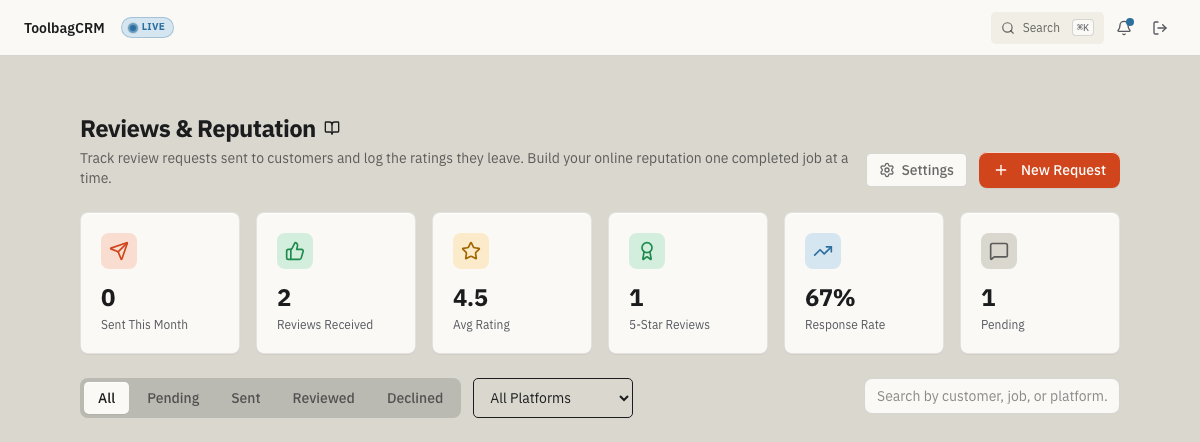
This guide covers the Reviews & Reputation plugin. It focuses on public review requests and ratings; use your normal job-notes process for internal concern follow-up.
What the plugin tracks
Each review request can include:
- Customer name, email, and phone number
- Related job or service name
- Review platform: Google, Yelp, Facebook, Nextdoor, Angi, HomeAdvisor, or Custom
- Review link for the platform or page where the customer should leave the review
- Request status: Pending, Sent, Reviewed, Declined, or Expired
- Star rating and review text after the customer responds
- Internal notes for your team
When to use it
Reviews & Reputation is useful for contractors and home-service businesses that want to:
- follow up after good jobs while the experience is still fresh,
- keep Google, Yelp, Facebook, or other review requests organized,
- see which requests are pending, sent, or already reviewed,
- record the rating and comment when a customer leaves a review, and
- watch reputation totals such as average rating, five-star reviews, response rate, and reviews received this month.
Before you start
- Enable Reviews & Reputation from Settings → Features.
- Choose a default review platform in plugin settings — Google, Yelp, Facebook, Nextdoor, Angi, HomeAdvisor, or Custom. This is pre-selected when you create new requests.
- Decide whether to use the request message template and auto-send delay settings for future automation, or plan to send review requests manually for now.
- Set a request expiry preference if you want pending requests to close automatically after a number of days. Today this is a stored preference; automatic expiry is a future automation area.
Create a review request
- Open Reviews & Reputation.
- Select New Request.
- Enter the customer's name and any contact details you want your team to see.
- Add the job or service name, such as “AC tune-up” or “Water heater replacement.”
- Choose the review platform.
- Paste the review link if you have one. Use the full
https://orhttp://address from the review site; shortened relative paths or pasted script links are rejected for customer safety. - Add any internal notes, then save the request.
New requests start as Pending. You can edit or delete a request from the list if the details need to change.
Mark a request sent
When your team asks the customer for a review, use Mark Sent on the request. This changes the request from Pending to Sent and records the sent date used by the monthly totals.
The current Reviews & Reputation screen tracks the request and status. The request-message template and auto-send timing settings are saved for future automation, but the current customer-facing workflow should be treated as manual follow-up unless your account has a separate communications process configured.
Record a review
When a customer leaves a review:
- Find the request in Reviews & Reputation.
- Select Record Review.
- Choose the star rating from 1 to 5.
- Paste or summarize the review text if you want it saved with the request.
- Save the review.
The request moves to Reviewed, and the rating starts contributing to the dashboard totals.
Declined and expired requests
Use Declined when the customer does not want to leave a review or the team decides not to continue follow-up.
Requests can also appear as Expired when an API workflow or future automation closes them. The current staff screen shows expired requests if they are returned by the API, but the visible list actions are Mark Sent, Record Review, Declined, edit, and delete. For day-to-day cleanup in the staff UI, use Declined when your team decides to stop follow-up.
Review dashboard totals
The Reviews & Reputation page shows quick totals for:
- Sent this month
- Reviews received
- Average rating
- Five-star reviews
- Response rate
- Pending requests
Use these numbers to spot whether review follow-up is happening consistently and whether recent customer ratings need attention.
Filter and search requests
You can narrow the list by:
- status tabs such as Pending, Sent, Reviewed, or Declined,
- platform, and
- search by customer, job/service, or platform.
This helps managers quickly find unanswered requests, recently completed review requests, or requests tied to a specific review channel.
Settings
Open the plugin settings from the Reviews & Reputation page to configure:
- the default review platform for new requests,
- the message template your team plans to send, including
{{review_link}}, - the preferred delay after a job before asking for a review, and
- how long a request should remain open before expiring.
Today, the default platform is the setting that directly affects new review requests. The message template, auto-send delay, and expiry fields are stored as preferences for future review-request automation.
Tips
- Ask for reviews soon after successful jobs, while the customer still remembers the service.
- Use the same naming style for job/service names so filtering stays useful.
- Mark requests sent only after the customer has actually been asked.
- Record the rating and review text once the review appears on the chosen platform.
- Paste only full
https://orhttp://review URLs so the external-link icon can safely open the review site for staff. - Review low ratings with the service manager before asking the team for more public follow-up.
Troubleshooting
The New Request form requires a customer name but I do not have a record for this customer
You can type any name into the Customer Name field — it does not require a linked ToolbagCRM customer record. Use this for walk-in or phone customers who are not yet in your CRM.
The review link will not save
Review links must be absolute http:// or https:// URLs, such as a full Google Business Profile review link. ToolbagCRM trims extra spaces, but it rejects relative paths like /reviews and unsafe links such as javascript: or data: URLs.
I recorded a review but the dashboard totals did not update
The Record Review dialog requires a 1–5 star rating and refreshes the dashboard totals after a successful save. If the request moved to Reviewed but the cards still show old values, reload the page to fetch the latest totals and confirm the saved rating. Do not create or record a duplicate; Reviewed is a final status for that request.
A request shows Expired but I did not set an expiry
Expired is a terminal status supported by backend/API workflows. The current Reviews & Reputation screen does not expose a separate Expire button. For everyday staff cleanup, mark stale requests Declined when you are done following up, delete duplicate or test requests, or create a new request if an API workflow expired one that you still want to pursue.
I changed the default review platform in settings but existing requests still show the old platform
The default platform setting applies to new requests only. Existing requests keep the platform that was selected when they were created. Edit individual requests to change their platform.
The response rate seems low
Response rate is calculated from the ratio of reviews received to requests sent. If your team marks requests as Sent before the customer has actually been asked, the denominator grows without matching reviews. Only mark requests Sent after the customer has been contacted.
What this plugin does not do yet
Reviews & Reputation does not currently guarantee automatic message delivery, automatic public-site posting, or automatic request expiry from the settings page alone. It is best documented as a request tracker, manual send log, and reputation summary until the communications-queue automation is connected end to end.