
Dispatch Board
Dispatch Board gives office staff and field leads a daily run sheet for assigning visits to technicians, tracking status, and spotting emergency work before the day gets away from the team.
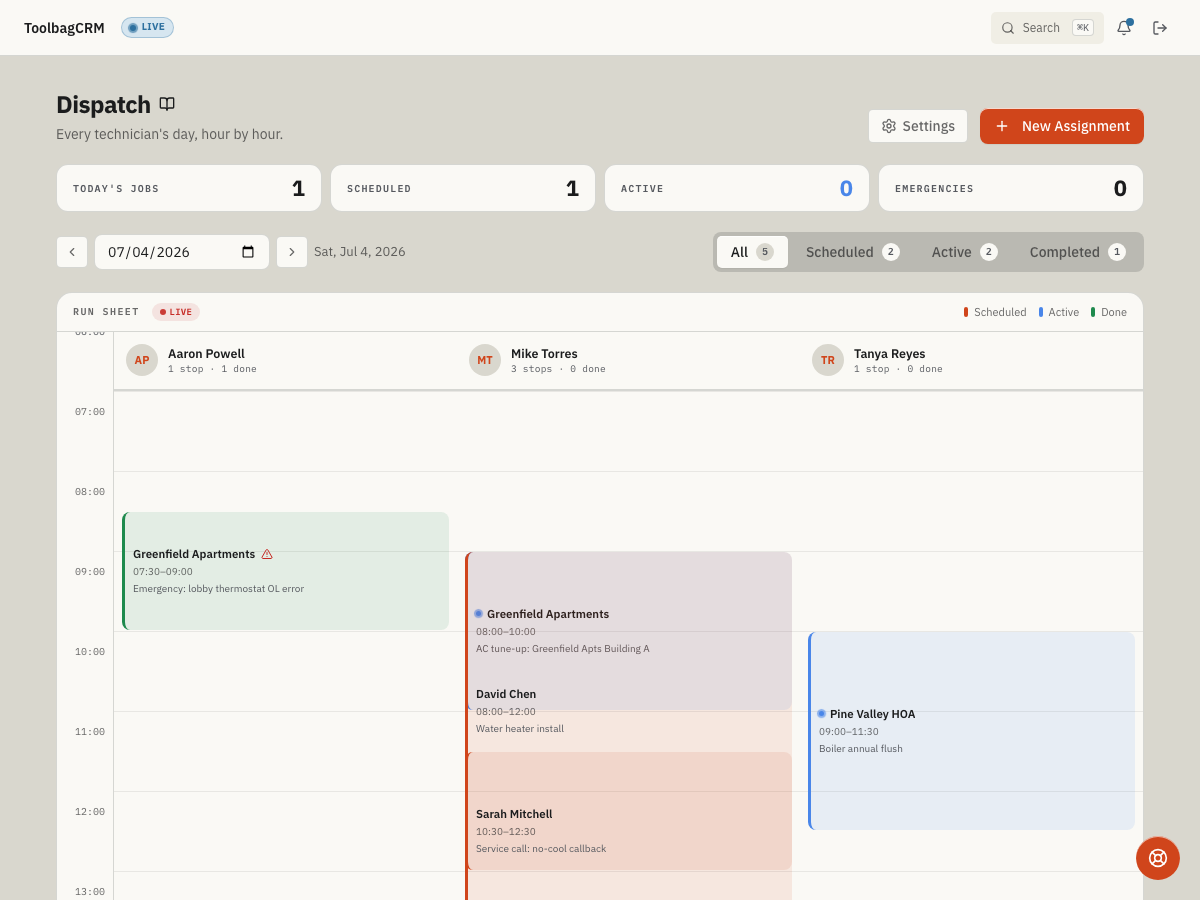
Open Dispatch Board from the main navigation after the plugin is enabled in Settings → Features.
When to use Dispatch Board
Use Dispatch Board when your team needs one place to see who is scheduled, when each visit starts and ends, and which jobs are still scheduled, dispatched, en route, on site, completed, or cancelled. It is most useful for companies that coordinate multiple technicians or crews during the same day.
Before you start
- Confirm the plugin is included in your plan.
- Open Settings → Features and make sure Dispatch Board is enabled.
- Make sure the team members who schedule work have permission to create and update dispatch assignments.
- Decide your normal day-start time and who should receive emergency assignment notifications.
Schedule a visit
Select New Assignment to create a dispatch assignment. By default the form links the visit to an existing customer and job: choose a Customer to narrow the job list, then pick the Job / Task from that customer's jobs. Selecting a job locks in its title and customer automatically. Check Ad-hoc task (not linked to a job) to switch to a free-text Job / Task and optional Customer name instead, for work that is not tied to a CRM job record.
To schedule a visit:
- Open Dispatch Board.
- Select New Assignment.
- Enter the Technician.
- Choose a Customer to scope the job list, then use Search jobs if needed and select the Job / Task. Or check Ad-hoc task and type a free-text Job / Task and optional Customer name.
- Confirm the Dispatch Date.
- Add the Scheduled Start and Scheduled End times.
- Choose the starting Priority and Status.
- Add notes such as gate codes, call-ahead instructions, parking notes, or special access details.
- Select Create Assignment to save.
Work the daily run sheet
The board shows today's job counts, a date selector, status filters, technician lanes, and a run-sheet timeline. Scheduled, active, and completed visits use distinct colors so dispatchers can scan the day quickly. Use the date controls to move between days and the filters to focus on All, Scheduled, Active, or Completed work.
After an assignment is on the board, open it to update details or move it through the field workflow. Statuses follow the normal sequence: Scheduled → Dispatched → En Route → On Site → Completed. Use Cancelled when the visit should not continue but the office still needs a record of what happened.
Settings
Open Dispatch Board → Settings from the page header. Dispatch setup controls the defaults the board uses for new assignments and the way urgent work is surfaced.
Recommended setup flow:
- Set the Default assignment priority for newly created assignments.
- Decide whether to enable Auto-advance assignment status. When it is on, new assignments can move from Scheduled to Dispatched automatically; later steps remain manual.
- Add emergency notification recipients. These recipients are emailed when an emergency assignment lands on the board.
- Set the Day-start time so the run sheet begins when your crews normally start work.
- Save changes.
Tips
- Link assignments to an existing customer and job whenever possible — dispatchers and technicians see the job's real title and customer, and the visit stays connected to that job's history. Reserve Ad-hoc task for one-off work that has no CRM job record.
- Keep assignment notes short and field-ready: access instructions, customer expectations, parking notes, or safety concerns.
- Use emergency priority only when dispatchers should treat the visit differently from normal same-day work.
- Review the board at the start and end of each day so unfinished work is rescheduled instead of silently disappearing.
- If the run sheet is empty, confirm the date filter first, then schedule the first visit for that day.
- Keep emergency notification recipients current when office managers or dispatch leads change.
Troubleshooting
Could not load the dispatch board
The board could not reach the ToolbagCRM server. Check your internet connection and select Try again. If the error persists, confirm the Dispatch Board plugin is still enabled in Settings → Features and that your session has not expired.
No technicians assigned for today
The board is empty because no visits have been scheduled for the selected date. Use New Assignment to create the first assignment, or use the date selector to move to a day that already has assignments.
Assignments not showing after scheduling
Confirm the dispatch date matches the date currently selected on the board. Use the date selector in the header to navigate to the correct day.
Status not advancing
Dispatch Board moves assignments through statuses manually unless Auto-advance assignment status is turned on in Dispatch settings. Open Dispatch Board → Settings and check whether auto-advance is enabled for your workflow.
Selected job belongs to a different customer
You picked a Customer and a Job / Task that don't belong together. Reopen the job picker after choosing the customer so the list is scoped to that customer's jobs, then reselect the job. If the job truly has no linked customer record, check Ad-hoc task instead of forcing a mismatched pairing.