
Tiered Packages
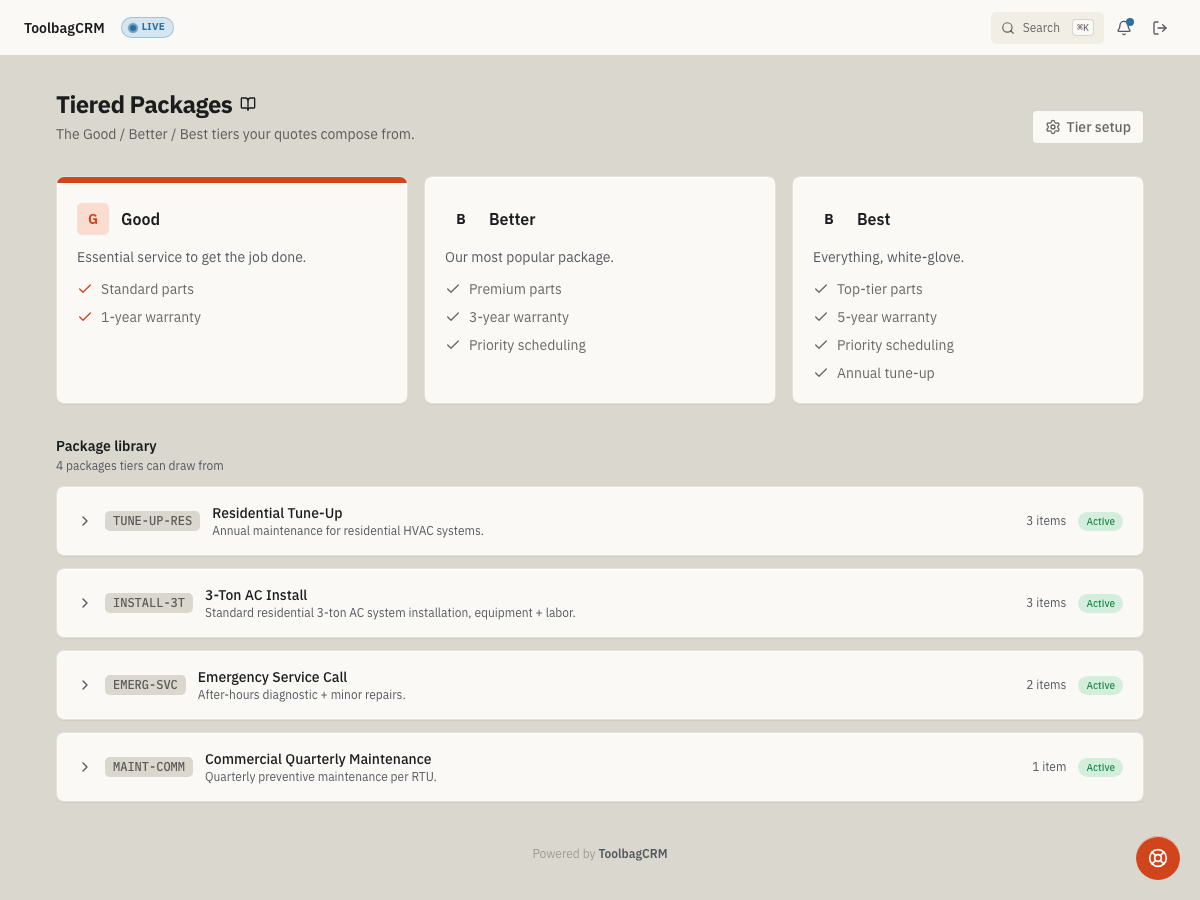
Tiered Packages lets you build quotes from saved service bundles and present customers with Good / Better / Best-style options instead of one flat price. It adds a Tiered Packages usage page, a Tier setup settings page, and a package selector inside New Quote when the feature is enabled.
When to use this
Use Tiered Packages when your team sells repeatable scopes where customers should compare upgrade levels before approving the quote. Common examples include:
- Basic, standard, and premium service packages.
- Bronze, Silver, and Gold maintenance options.
- Good / Better / Best replacement packages.
- Seasonal tune-up bundles with different included work.
Before you start
- Enable Quotes first; Tiered Packages is a Quotes sub-feature and depends on the quote workflow.
- Enable Tiered Packages from Settings → Features when it is available on your plan.
- Make sure at least one customer exists before creating a quote.
- Decide the tier names and package codes your team will use before adding them, so quotes stay consistent across the office.
- Give administrators or sales managers write access to Tiered Packages if they need to edit the account-wide tier setup.
Set up tiers
- Open Quotes → Packages.
- Click Tier setup.
- Choose a layout:
- Inline — display tiers side by side.
- Podium — raise the middle tier when exactly three tiers are configured.
- Stacked — display tiers vertically.
- Add or edit each tier with a Tier name, Color, optional Logo URL, Blurb, and Feature lines.
- Click Save changes.
Fresh accounts can start with no tiers configured. Add at least one tier before relying on the Tiered Packages page as a sales reference.
Build package bundles
The package library stores reusable service bundles that the quote form can use.
- From Tier setup, scroll to Package library.
- Click New Package.
- Enter a package Code and Name.
- Add an optional description.
- Add line items with Description, Quantity, and Unit price.
- Review the computed total and click Create Package.
The same package library appears read-only on the Tiered Packages usage page. Active packages show their code, name, description, item count, status badge, line items, and default total when expanded.
Use a package on a quote
When Tiered Packages is enabled, the New Quote form uses a Package selector in place of the manual line-item editor.
- Open Quotes and click New Quote.
- Select a customer.
- Choose a saved package from the Package dropdown.
- Review the included line items and totals.
- Click Create Quote.
ToolbagCRM copies the selected package's line items into the quote, stores the package code on the quote, and uses the package total as the quote amount.
Settings
The Tier setup page controls account-wide tier presentation:
- Layout — Inline, Podium, or Stacked.
- Tier name — the customer-facing label, such as Good, Better, Best, Silver, Gold, or Premium.
- Color — one of ToolbagCRM's theme-safe color tokens.
- Logo URL — optional logo or badge image URL for the tier.
- Blurb — short customer-facing copy for the tier.
- Feature lines — bullet points that explain what is included or improved at that level.
- Package library — reusable service bundles with codes, names, line items, and default totals.
Tips
- Keep package codes short and memorable so staff can recognize them in the quote detail drawer.
- Use tier names your customers already understand; Good / Better / Best is clear, but trade-specific names can work if your sales team explains them consistently.
- Keep feature lines customer-facing. Avoid internal shorthand or cost notes that should not appear in a proposal conversation.
- Review package totals whenever supplier costs, labor rates, or seasonal pricing changes.
- If a package should no longer be sold, retire or replace it before creating new quotes rather than editing old quotes by hand.
Troubleshooting
I do not have access to Tier setup
The settings page requires write access to Tiered Packages. Ask an administrator to grant the appropriate role permission before changing account-wide tiers or package bundles.
Tier settings could not be loaded
Use Retry to load your tier names, layout, colors, and copy again. If the message returns, wait a few minutes before trying again rather than treating the page as an empty tier setup.
No tiers are showing
A fresh account can have zero tiers configured. Open Tier setup, click Add tier, complete the tier name and feature lines, then click Save changes.
The New Package form will not create a package
Check that the package has a unique code, a name, and at least one line item with a description. Quantities must be greater than zero, unit prices cannot be negative, and extremely large totals are rejected.
The Create Quote button is disabled
When Tiered Packages is enabled, the quote form requires a customer and a selected package. If you need to build a one-off quote with manual line items, disable Tiered Packages for that account or create a temporary package for the custom scope.