
Site Assessments (Pilot)
Site Assessments helps your team document pre-job conditions, access notes, hazards, measurements, and recommendations before work starts.
Pilot availability: Existing pilot accounts can keep using Site Assessments. New installs and re-enables are paused.
When to use this
Use Site Assessments when estimators or technicians need a structured survey before quoting or starting field work. It is especially useful for HVAC, plumbing, electrical, remediation, and other trades where existing equipment, access constraints, hazards, or code issues can change the scope.
Good candidates include:
- Pre-sale walkthroughs where the office needs a permanent record before building the estimate.
- Replacement jobs where equipment age, condition, model, and access notes matter.
- Sites with crawl spaces, attic access, gate codes, tenant restrictions, or parking limits.
- Jobs where hazards, code violations, or special materials need to be flagged before dispatch.
Before you start
- Confirm Customers is enabled, because assessments are meant to be tied back to a customer record.
- Confirm your account already has Site Assessments enabled. New installs and re-enables are paused during the pilot.
- Decide who is allowed to create drafts and who is responsible for final review.
- Gather the customer name, property address, related job title if one exists, and the technician or estimator who performed the assessment.
Create a site assessment
- Open Site Assessments.
- Select New Assessment.
- Enter the customer, conducted-by name, assessment date, property address, and related job title when available. The address fields use structured entry — start typing and Google Places autocomplete will suggest the full address, filling in street, city, state, and postal code automatically.
- Fill in the equipment section with existing system details, condition, and approximate age.
- Add measurements, access notes, hazards, code violations, observations, and the recommended scope.
- Add estimated hours and internal notes when they help the office plan labor or follow-up.
- Save the assessment as a draft.
Draft assessments stay editable while the team is still gathering information.
Review and finalize
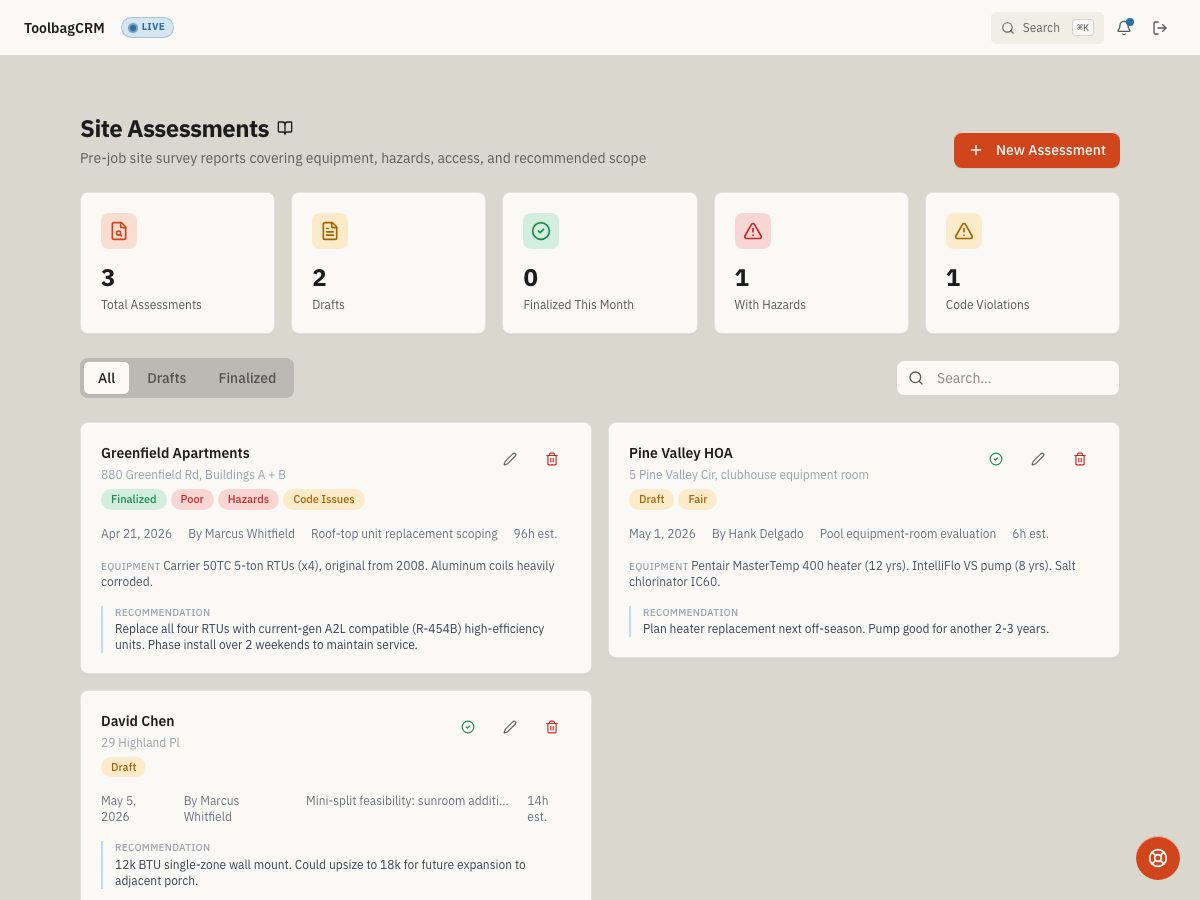
The Site Assessments page shows summary tiles for total assessments, drafts, finalized assessments this month, assessments with hazards, and assessments with code violations. Use All, Drafts, and Finalized tabs to focus the list. The search box matches customer names, the person who conducted the assessment, property addresses, and recommendation text.
When the assessment is ready:
- Open the draft from the assessment list.
- Confirm the customer, site, equipment, risk, and recommendation details are accurate.
- Use Finalize to lock the assessment as the reviewed record.
Finalized assessments are read-only and cannot be deleted. Finalize only after the estimator or office manager has reviewed the scope; keep the assessment as a draft while the field team is still collecting details.
Tips
- Treat the form as a field checklist: capture the customer and property address, related job title, existing equipment, equipment condition, equipment age, measurements, access notes, hazards, code violations, observations, recommendations, estimated hours, and internal notes while the details are still fresh.
- Ask technicians to record hazards and access problems in the assessment instead of burying them in informal notes.
- Use consistent equipment-condition labels such as Good, Fair, Poor, and Failed so the office can compare assessments quickly.
- Review assessments with Hazards or Code Issues badges before scheduling work or promising a firm scope.
- Keep customer-facing promises out of internal notes unless your team intends to share them later.
- Use the address autocomplete when creating assessments — typing the street number and name fills in city, state, and postal code so site addresses stay consistent across records.
Troubleshooting
I do not see Site Assessments
Ask an administrator to confirm that the pilot remains enabled for your account. Do not disable an existing pilot installation because re-enables are paused.
The page is empty
An empty page usually means no assessments have been created yet. Select New Assessment to start the first draft. If your team expects existing records, check the search text and status filter first.
A draft should not be finalized yet
Leave it as a draft until the estimator or office reviewer confirms the findings. Finalize only when the assessment should become the reviewed field record.
I cannot edit or delete a finalized assessment
Finalized assessments are locked to preserve the reviewed field record. Only drafts can be edited or deleted. If a finalized assessment contains an error, create a new draft with the corrected details and keep the original for history.