
Customer Support
Customer Support gives your office a shared place to triage inbound customer issues before they become jobs. Use it for the “my AC stopped working,” “I have a billing question,” or “the technician is running late” calls that need an owner, priority, status, and conversation history.
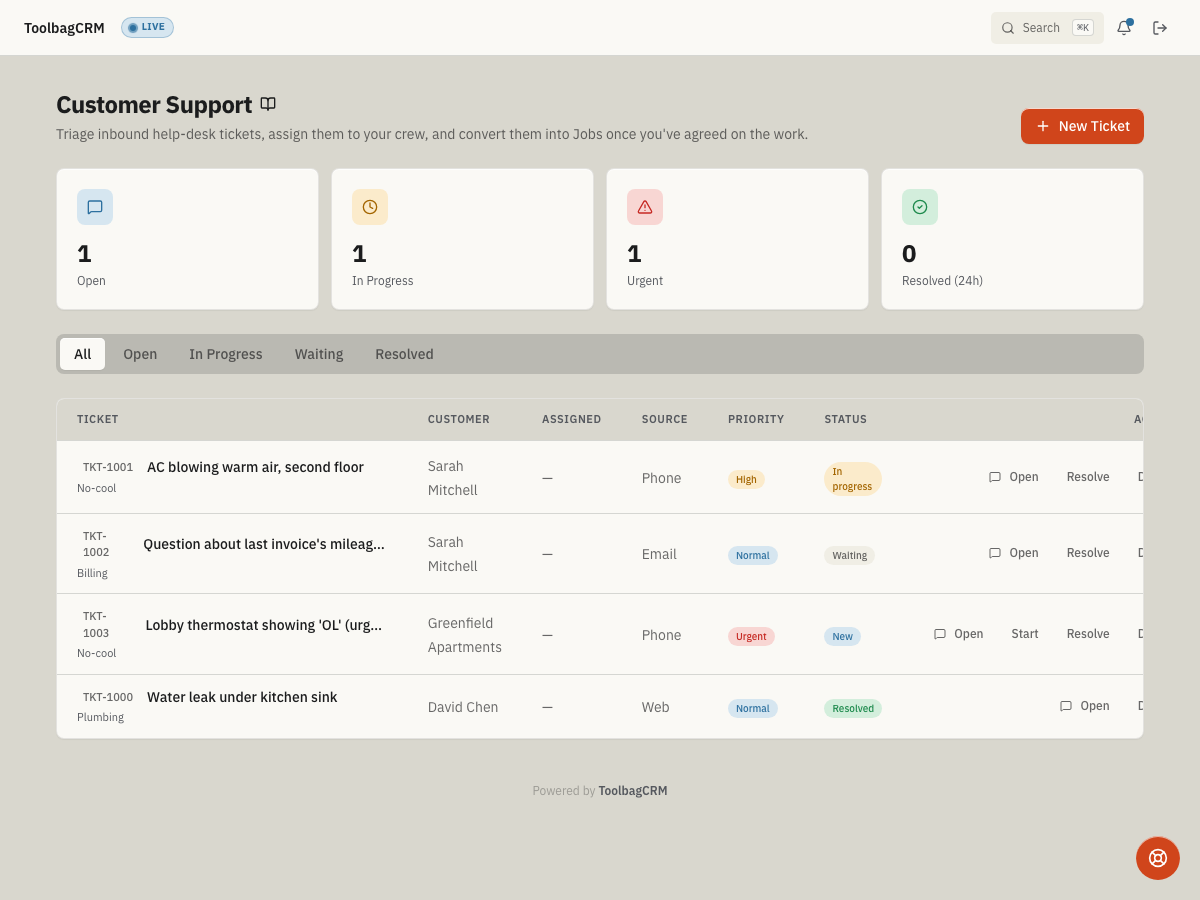
Open Customer Support from the main navigation after enabling the plugin in Settings → Features.
When to use this
Use Customer Support when your team needs to:
- Capture customer issues that are not ready to be scheduled as jobs yet.
- Track ticket priority, source, status, owner, and follow-up notes.
- Keep urgent calls visible instead of buried in individual inboxes or voicemails.
- Convert a ticket into a job once the customer approves the work.
- Separate internal staff notes from customer-facing replies.
Before you start
- Confirm Customers is enabled so tickets can be linked to existing customer records.
- Enable Customer Support in Settings → Features.
- If your team converts tickets into work orders, keep Jobs enabled too.
- Decide who watches new, urgent, and waiting tickets during business hours.
Customer Support workspace
The workspace starts with summary cards for Open, In Progress, Urgent, and Resolved (24h) tickets. Tabs let staff filter the queue by all tickets, open tickets, in-progress work, waiting items, and resolved tickets.
Ticket rows show the customer, assignee, source, priority, status, and quick actions:
- Open — view the ticket detail, conversation, assignment, and job-linking controls.
- Start — move a new ticket into in-progress work.
- Resolve — mark the issue resolved when follow-up is complete.
- Delete — remove a ticket that was logged by mistake.
Log a new ticket
- Click New Ticket.
- Enter a short Subject that clearly describes the issue.
- Add the customer’s description and any time-sensitive context.
- Choose the customer if they already exist in ToolbagCRM, or leave the caller as unknown for first contact.
- Assign the ticket to a team member when someone owns the follow-up.
- Set Priority, Source, and Category so the queue can be sorted quickly.
- Click Create Ticket.
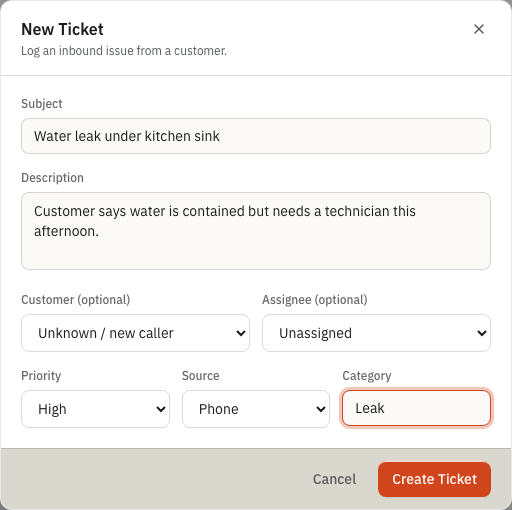
Use the New Ticket form to capture the caller’s issue, ownership, priority, source, and category before the item joins the shared support queue.
Work a ticket
Open a ticket to review the description, assign it to the right person, and continue the conversation.
From the detail window you can:
- Change the assignee.
- Convert the ticket to a job by choosing a linked job.
- Read the conversation timeline.
- Add a reply or staff-only note.
- Mark a note as Internal note when it should not be customer-visible.
Adding a comment to a new ticket also moves it into In Progress, which helps the queue reflect first response activity.
Convert a ticket into a job
When the customer agrees that work should be scheduled:
- Open the ticket.
- Use Convert to Job to pick the matching job.
- Continue job scheduling, estimates, visits, and billing from the job record.
After a ticket is linked to a job, use the job for future operational updates so field work, dispatch, and billing stay connected to the main job timeline.
Tips
- Use clear categories like
No-cool,Leak,Billing, orSchedulingso the queue is easy to scan. - Reserve Urgent for tickets that need immediate dispatch or manager attention.
- Assign every active ticket to one owner before the end of the day.
- Convert approved work into jobs instead of letting tickets become the long-term work record.
Troubleshooting
A ticket cannot be converted to a job
Confirm the customer and job exist in ToolbagCRM. The job picker is meant to link the ticket to the appropriate customer work record once the team has agreed on the next step.
A reply should be private
Use Internal note (not customer-visible) before sending staff-only context such as dispatch decisions, pricing exceptions, or internal handoff notes.