
Backflow Testing (Post-launch)
Backflow Testing is planned for plumbing and irrigation teams that need to track backflow prevention assemblies, annual test results, due dates, repairs, and water-authority reporting notes from one ToolbagCRM page.
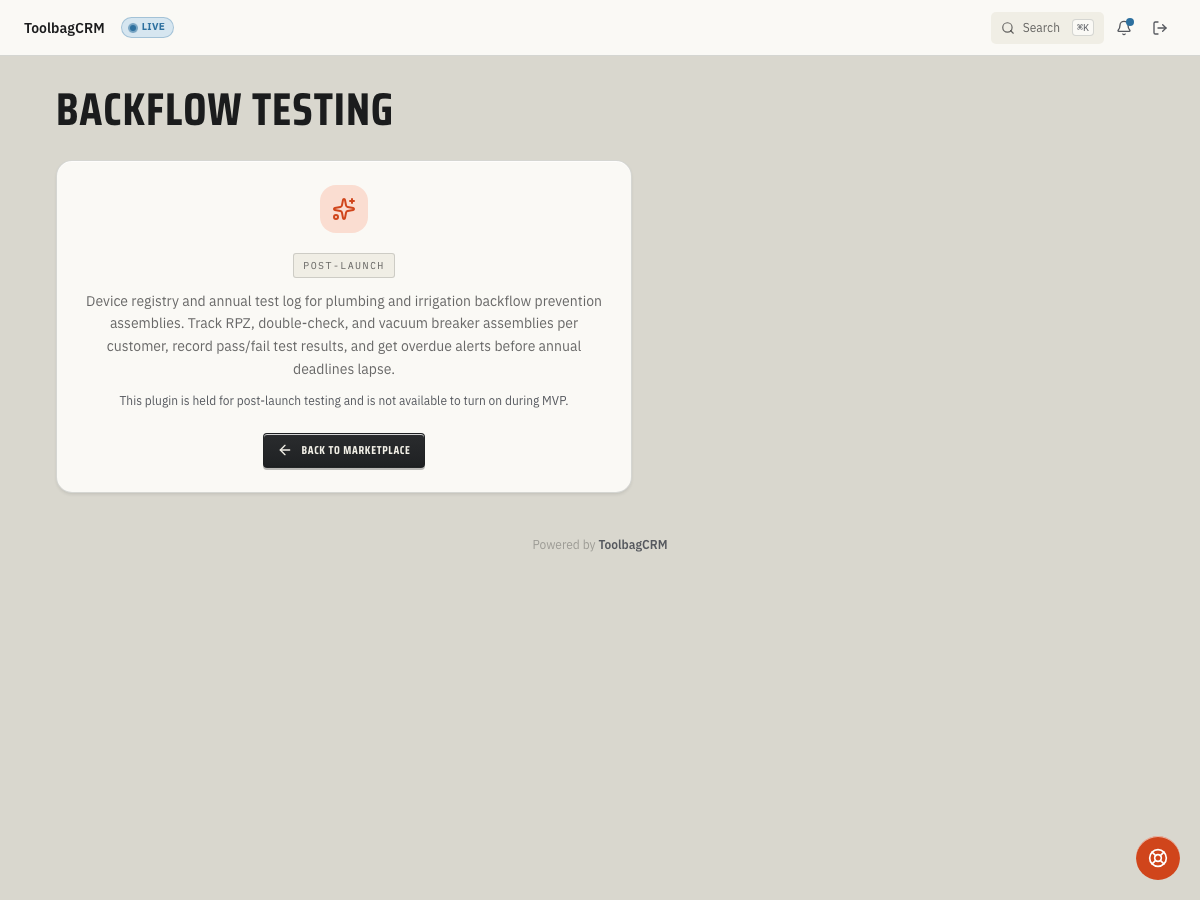
Current availability
Backflow Testing is registered in ToolbagCRM but is marked Post-launch in the product registry. It is not available to turn on from Settings → Features during the MVP rollout. Use this guide to plan the device and testing data your team will want ready when the active workspace is enabled.
When to use this
Use Backflow Testing when your company installs, inspects, repairs, or certifies backflow prevention assemblies and needs a consistent office-to-field record of each device and annual compliance test.
Before you start
- Confirm with ToolbagCRM support or your account administrator that Backflow Testing has been enabled for your account before training staff on the active workflow.
- Keep using your current compliance process until the active Backflow Testing workspace is visible in your account.
- Gather the device details your team normally submits to the local water authority: customer, property address, serial number, assembly type, size, manufacturer, model, location, test due date, and authority account or permit number.
- Decide who should add devices, log tests, edit historical records, and change account-wide reminder settings when the plugin becomes available.
Planned workflow
When the active workspace is available, Backflow Testing is designed to start with compliance summary cards, then let you switch between registered Devices and Test Records. The planned search box matches customers, serial numbers, addresses, manufacturers, and testers. A Show overdue / due soon only filter helps prioritize renewals before annual deadlines lapse.
Planned workflow:
- Click Add Device before the first test for a property.
- Enter the customer, property address, assembly type, serial number, manufacturer/model, size, device location, test dates, and water-authority account or permit number.
- Keep Active device selected for assemblies that should continue to show in the annual testing workflow.
- Click Log Test when a certified tester completes an inspection.
- Record the device serial, customer, test date, overall result, tester name, certification number, readings, repair notes, and authority-notified date.
- Review Overdue / Due Soon and the Test Records tab during office follow-up so renewal notices and authority paperwork do not fall through the cracks.
Planned dashboard counts
The planned Backflow Testing workspace includes summary cards for:
- Total Devices — every registered backflow assembly in the account.
- Active Devices — assemblies that should remain in the annual testing cycle.
- Tests This Year — backflow test records dated in the current calendar year.
- Passed This Year — tests that passed outright or failed first but were repaired and passed.
- Failed This Year — failed tests that still need attention.
- Overdue / Due Soon — active devices whose next test due date falls inside the configured reminder window or has already passed.
Planned settings
When the active settings screen is available, Backflow Testing is designed to support account-wide defaults for new devices and due-date reminders:
- Annual test interval (months) — defaults to 12 months and advances the next due date after a non-voided test.
- Overdue reminder lead (days) — defaults to 30 days and controls when devices start showing as due soon.
- Default device type — defaults to Reduced Pressure Zone (RPZ) for new device records.
- Water authority auto-notify — stores the preference for future submission workflows; automatic submission is not part of the current MVP availability.
What to prepare now
Prepare a clean source list of each assembly with the customer, property address, serial number, assembly type, device size, manufacturer/model, device location, next test due date, and water-authority account or permit number. After each inspection, keep the test result, tester certification, readings, repair notes, and authority notification date together so the data can move into ToolbagCRM once the active workspace opens.
Tips
- Keep serial numbers consistent now; the planned search relies on serial numbers, customer names, addresses, manufacturers, and tester names.
- Track failed-then-repaired tests separately from tests that passed on the first attempt so your yearly pass/fail totals remain useful.
- Review devices due in the next reminder window during slower office blocks instead of waiting for notices from the water authority.
- Do not promise water-authority auto-submission until the active settings screen and submission workflow are visible in your account.
Troubleshooting
I only see a Post-launch placeholder
That is the expected state for accounts where Backflow Testing has not been released yet. The plugin is registered but not installable during MVP, so Settings → Features will not provide a working enable toggle until ToolbagCRM rolls out the active workspace.
A device record cannot be saved
When the active workspace is available, each device will need at least a customer name, assembly type, serial number, and active/inactive state. If a save fails, check the serial number first and confirm the customer/device details are not blank.
A test record is rejected
A test record is expected to require a customer name, tester name, status, and a valid device when it is tied to a registered assembly. If you are migrating historical tests, prepare the device serial and customer name before logging the test so records attach cleanly.