
Customer Onboarding (Idea)
Idea stage: Customer Onboarding is a concept and is not available to turn on yet. This guide describes planned behavior and may change before release.
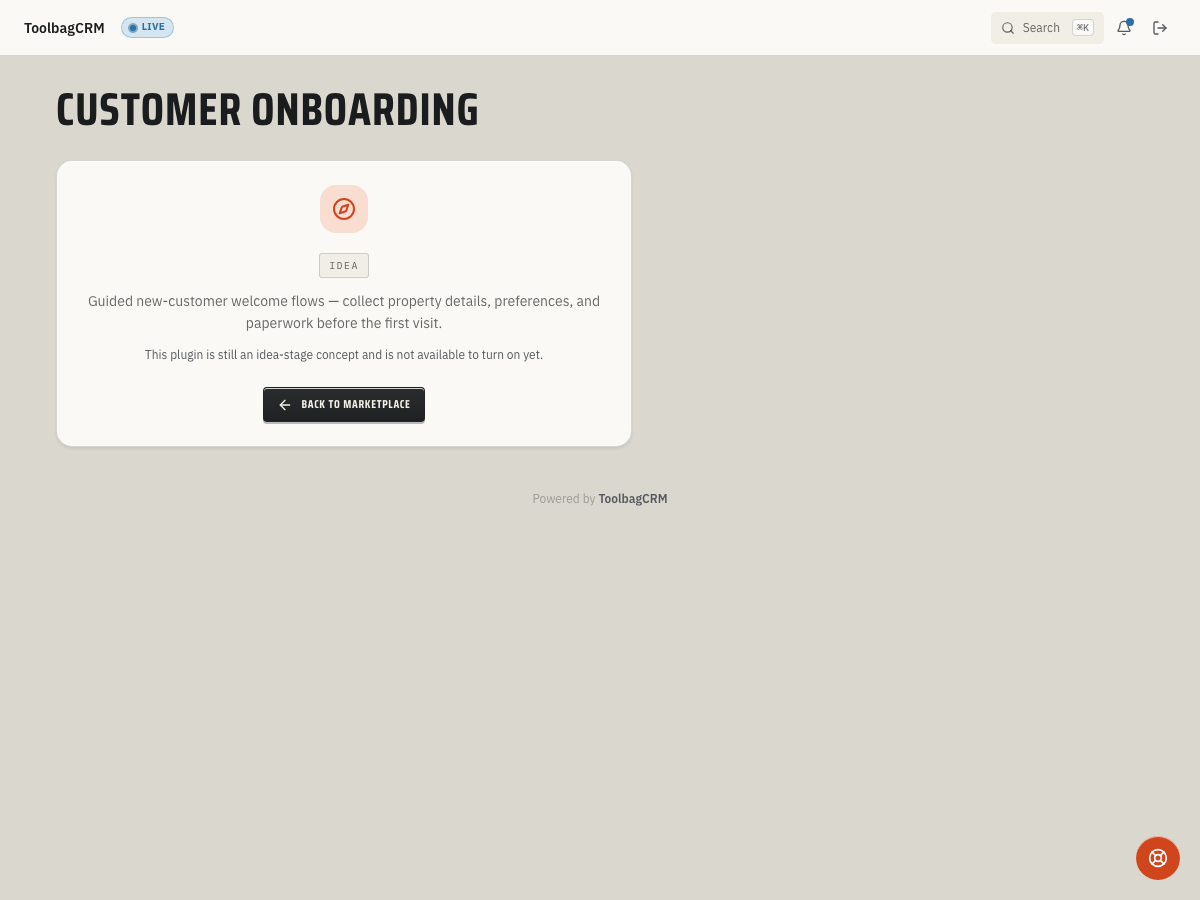
Customer Onboarding lets you define guided welcome flows that run automatically when a new customer is added. Each flow is a sequence of ordered steps — send a welcome email, collect property details, request paperwork, or assign a manual task — so your team delivers a consistent first impression without manually tracking who has been contacted and who still needs follow-up.
When to use this
- You want every new customer to receive the same welcome sequence without relying on a checklist someone has to remember.
- Your office needs to collect property information, gate codes, or signed agreements before the first job.
- You want to track onboarding progress per customer so nothing falls through the cracks during the first 30 days.
Before you start
- Confirm Customer Onboarding is included in your ToolbagCRM plan.
- Prepare this step for rollout; Customer Onboarding is not available to enable while it remains at the idea stage.
- Customers must be available because each onboarding instance is tied to a customer record.
Planned workflow
When the active Customer Onboarding workspace is available, the workflow is expected to work like this:
1. Create an onboarding flow
Define a flow with a name and an ordered list of steps. Each step has:
- Step type — such as SendEmail (automated email), CollectField (capture a specific piece of information), or ManualTask (an internal to-do for your team).
- Title — a short label that tells the team what the step is for.
- Due relative days — how many days after the flow starts before the step is due.
- Required for completion — whether the step must be done before the onboarding instance counts as complete.
A flow must include at least one step.
2. Start an instance for a customer
When a new customer is added, start an onboarding instance by linking the customer to a flow. The instance creates a copy of each step and begins tracking progress.
3. Complete steps
As your team works through the onboarding, each step is marked done. The instance tracks a completion percentage — once every required step is complete, the instance reaches 100 %.
4. Cancel if needed
If a customer relationship ends before onboarding finishes, the active instance can be cancelled. Cancelled instances are preserved for reference but stop generating tasks or reminders.
TIP
Since this plugin is still at the idea stage, the exact UI steps may change before general availability. Use this guide to plan your welcome flow and required data before the active workspace is enabled.
Tips
- Keep flows short — five to seven steps is enough for most residential customers. Long flows feel like paperwork.
- Use SendEmail steps for automated touchpoints and ManualTask steps for anything that requires a phone call or office action.
- Set due relative days so early steps happen on day zero and later steps space out over the first week or two, giving customers time to respond.
- Mark only the truly essential steps as required for completion so the onboarding can still close even if a customer skips an optional item.
- Review cancelled onboarding instances periodically — they may reveal friction points in your welcome process.
Troubleshooting
The Customer Onboarding page still says Idea
That is expected while Customer Onboarding is at the idea stage. Your account will show an idea-stage placeholder until the active onboarding workspace is enabled.
A flow cannot be saved
ToolbagCRM requires at least one onboarding step before a flow can be saved. Add a SendEmail, CollectField, or ManualTask step with a clear title before saving the flow.
An onboarding instance does not reach 100%
Only required steps count toward completion. Review the copied steps on the customer's onboarding instance and mark each required step done. If the customer relationship ends before onboarding finishes, cancel the instance instead of leaving it open indefinitely.