
Video Calls (Idea)
Idea stage: Video Calls is a concept and is not available to turn on yet. This guide describes planned behavior and may change before release.
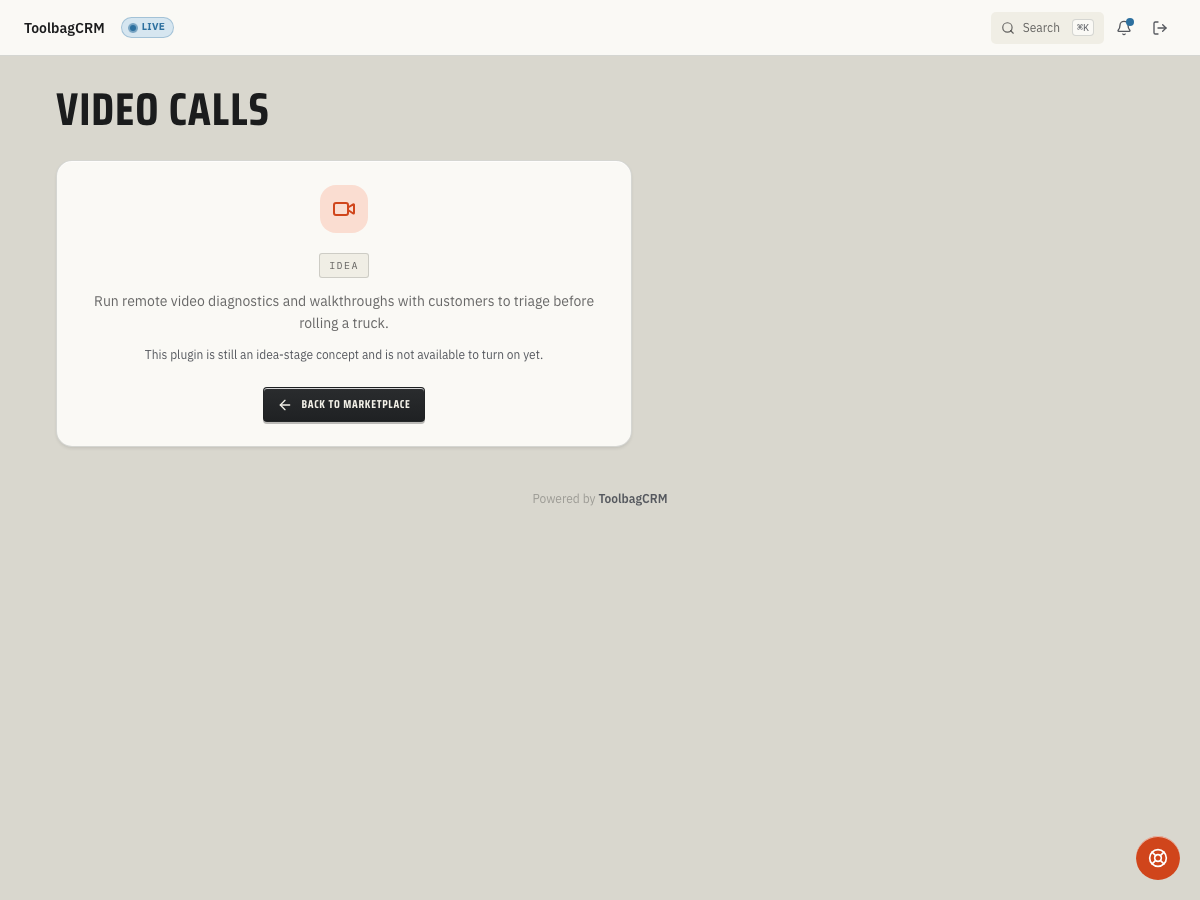
Video Calls is planned for remote customer diagnostics and walkthroughs before your team rolls a truck. The planned workflow supports creating video call rooms, tying them to a customer or job, sharing host and customer join links, and recording call outcomes such as completed, no-show, or failed.
When to use this
Use Video Calls when a quick visual conversation could prevent an unnecessary trip or help the office prepare the right technician, parts, or estimate details before dispatch.
Good future fits include:
- Troubleshooting equipment issues while the customer points their phone at the problem.
- Reviewing job-site conditions before scheduling a quote or service visit.
- Walking a customer through simple checks before deciding whether a technician is needed.
- Keeping a record that a remote consultation happened and how it ended.
Before you start
- Confirm Video Calls is included in your plan .
- Open Settings → Features and look for Video Calls in the plugin list.
- Decide which office roles should start calls and which field or customer-service roles only need to view history.
- Prepare customer expectations for remote calls, including when a video consult is not a substitute for an on-site visit.
Planned workflow
When the full workspace is released, the expected workflow is:
- Open Video Calls from the plugin navigation or from a related customer/job workflow.
- Create a room with a clear room name.
- Optionally associate the room with a customer and job so the call history is easy to find later.
- Share the customer join link and use the host join link internally.
- Complete the consultation.
- Record the final status, such as Completed, No Show, or Failed, with duration when available.
The planned room data supports providers such as Twilio, Daily, Zoom, and other providers, but accounts without the active Video Calls workspace will still see a placeholder. Do not rely on saved room lists or active join screens until the UI becomes generally available.
Current availability
Accounts without the active Video Calls workspace will see an idea-stage placeholder rather than a working room list or call screen. That is intentional: the help site should not show fabricated calls, customers, room links, or video sessions.
Video Calls is not available to enable while it remains at the idea stage. Use the current placeholder as an availability notice, not a setup prompt.
Tips
- Start with one office-led workflow, such as remote triage for high-value jobs, before rolling video consultations out to every technician.
- Use short, descriptive room names so call history makes sense later.
- Keep customer join links private and send them only through the approved customer communication channel.
- Record failed or no-show calls so the team knows whether to follow up, reschedule, or dispatch normally.
Troubleshooting
Video Calls still shows Idea
Video Calls is not available to enable while it remains at the idea stage. Use the current placeholder as an availability notice, not a setup prompt.
A room cannot be created
When the room workflow becomes available, every room needs a non-empty room name. Use a short, descriptive name such as Smith remote diagnosis or June heat-pump walkthrough so the room can be saved and recognized later.
A status update does not attach to the room
Status updates apply to an existing room. If a room was deleted, never saved, or opened from an old link, create a fresh room before recording Joined, Completed, No Show, or Failed.