
Permits & Inspections
Permits & Inspections helps regulated service teams track jurisdictional permits from application through issuance, expiration, inspection, and final sign-off.
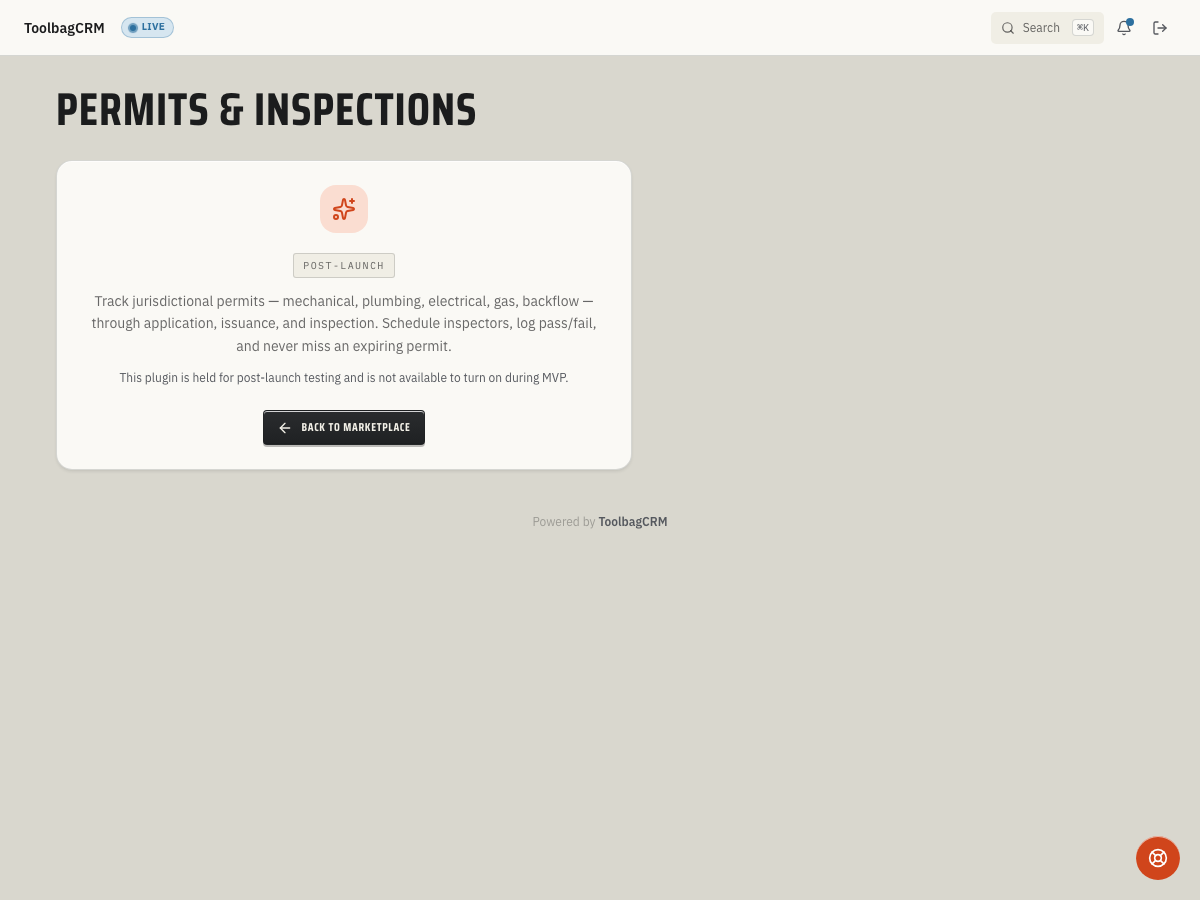
Not available to turn on right now. Permits & Inspections is held for post-launch rollout and cannot be enabled from Settings → Features during the current release. The workflow below describes how the plugin works once it ships so you know what to expect — administrators cannot self-serve enable it yet.
When to use this
Use Permits & Inspections when your work needs city, county, utility, or authority approval before it can be closed out. It is especially useful for:
- Mechanical, plumbing, electrical, gas, backflow, irrigation, building, or other jurisdictional permits.
- Tracking permit numbers, issuing authorities, fees, expiration dates, and scope of work.
- Seeing which permits are still open, awaiting inspection, approved, or expiring soon.
- Recording inspection history so the office can see pass, fail, conditional, or cancelled results.
Before you start
- Permits & Inspections is not yet available to enable — it is held for post-launch rollout, so there is nothing to turn on in Settings → Features yet.
- Once it ships, a permit will need to be tied to a customer first, and it can optionally be tied to a job.
- Decide how your office wants to name permit numbers and statuses so everyone uses the same lifecycle.
- Keep official permit documents in your normal document process; this plugin tracks permit and inspection details inside ToolbagCRM.
Add a permit
- Open Permits & Inspections from the main navigation.
- Select New Permit.
- Choose the Customer. If that customer has jobs, choose the related Job or leave it unlinked.
- Pick the Permit Type, such as Mechanical, Plumbing, Electrical, Building, Gas, Backflow, Irrigation, or Other.
- Set the current Status. Common starting points are Draft, Applied, or Issued.
- Add the permit number, issuing authority, expiration date, fee, and scope of work when known.
- Select Create Permit.
The permit appears in the list with the customer, optional job, authority, type, expiration date, fee, and status badge.
Review open, inspection, and expiration work
Use the tabs at the top of the page to narrow the permit list:
- All shows every permit.
- Open shows permits that are not approved, closed, or cancelled.
- Awaiting Inspection shows permits waiting on an inspection result.
- Approved shows permits that have passed final sign-off.
- Expiring Soon shows permits with an expiration date in the next 30 days.
The summary cards also show open permit counts, awaiting-inspection counts, approved counts, and permits expiring in 30 days.
Update permit status
Use the row actions to move permits through the lifecycle:
- Select Await Insp. on an issued permit when it is ready for inspection.
- Select Close when the permit is finished but does not need an approved-state workflow.
- Select Delete only for mistakes. Deleting a permit also removes its inspection history.
Log an inspection
- Find the permit row and select Inspection.
- Choose the inspection Phase, such as RoughIn, Underground, Framing, Final, ReInspection, or Other.
- If the inspection is scheduled for the future, enter the Scheduled date and leave the result as Not yet.
- If the inspection already happened, enter the Performed date, inspector name, result, and notes.
- For a failed inspection, add the Failure Reasons so the team knows what to correct before re-inspection.
- Select Log Inspection.
A Final inspection with a Pass result automatically marks the permit Approved. A failed inspection marks the permit Rejected so it stands out for follow-up.
Tips
- Always link a permit to a job when one exists — the Open and Awaiting Inspection tabs become a much more useful dispatch view when permits are tied to the work that needs them.
- Use the Expiring Soon tab during weekly office meetings so your team can chase renewals before the jurisdiction stops work.
- When scheduling an inspection, enter the Scheduled date and leave the result as Not yet so the permit shows up in the Awaiting Inspection tab and does not get forgotten.
- Add Failure Reasons on a failed inspection immediately — re-inspection happens faster when the technician knows exactly what to correct.
- A Final inspection with a Pass result automatically moves the permit to Approved. If the jurisdiction requires a separate sign-off step, use the Close action instead so the permit stays open until the office receives confirmation.
- Use Delete only for mistakes. Deleting a permit removes its inspection history permanently — if you just need to stop tracking it, move the status to Closed or Cancelled instead.
Troubleshooting
The page says the plugin is disabled
This is expected right now. Permits & Inspections is held for post-launch rollout, so the Open Settings button does not lead to a working toggle yet — there is no enable action available during the current release.
New Permit cannot be completed
A customer is required before a permit can be created. Create or select the customer first, then return to the permit form.
A permit is missing from a tab
Switch back to All. The other tabs filter by lifecycle state, so approved, closed, cancelled, awaiting-inspection, and expiring permits may appear in different views.