
POS Mode (Coming Soon)
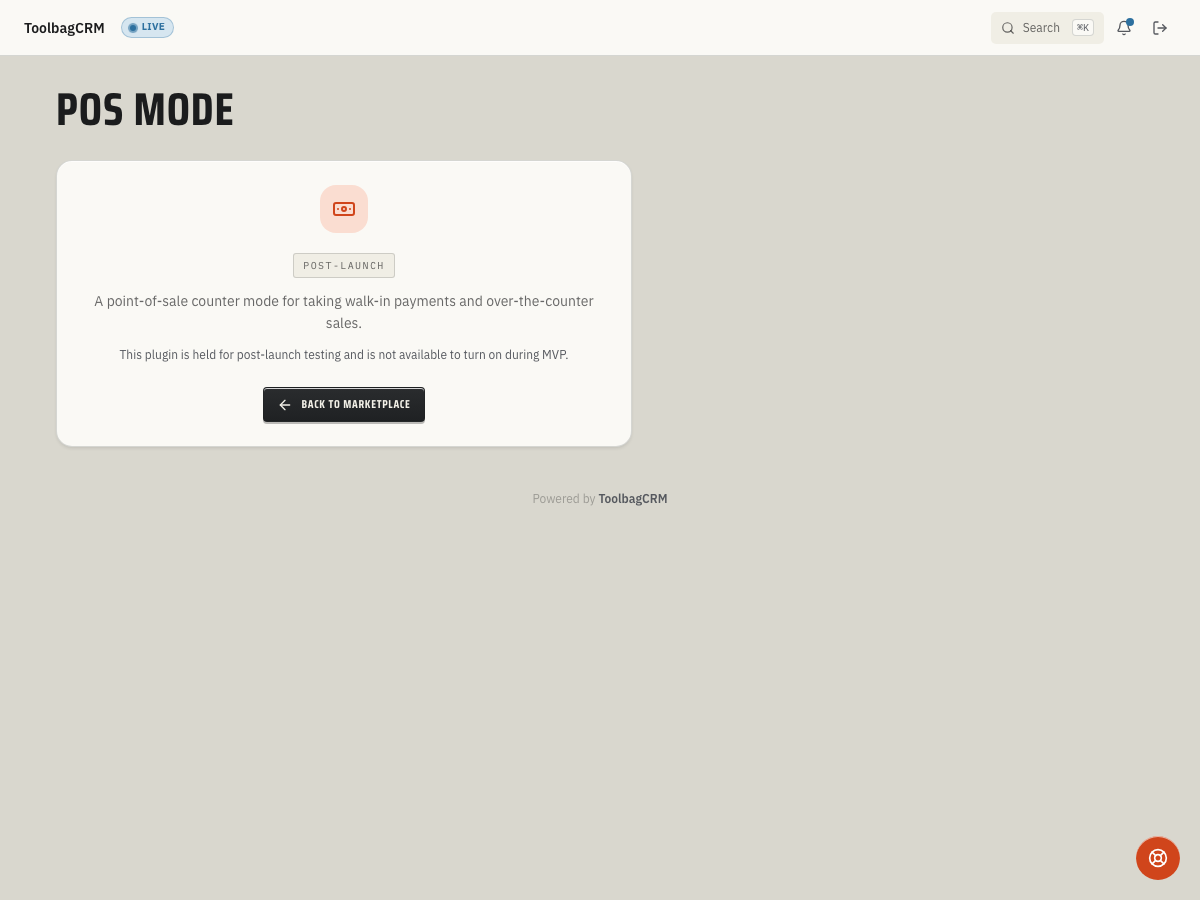
Coming Soon: POS Mode is in public preview and is not generally available yet. Accounts without the active POS Mode workspace will see a coming-soon placeholder, so the counter checkout workflow and settings screen are not available yet.
POS Mode will help shops take in-person payments for counter sales, parts, and quick over-the-counter jobs from inside ToolbagCRM.
When to use this
Use POS Mode when your office or warehouse needs a simple checkout counter tied to ToolbagCRM billing activity.
Planned uses include:
- Taking walk-in payments without creating a full field-service job first.
- Recording over-the-counter parts, materials, or small service sales.
- Connecting supported payment-terminal activity to ToolbagCRM payment records.
- Reviewing recent counter charges by terminal or register.
Before you start
- Treat the feature as coming soon until your ToolbagCRM account shows the full POS workflow.
- Make sure your payment processing setup is complete before relying on in-person card capture.
- Decide which staff members should be allowed to register terminals and record charges.
- Keep normal invoice and payment workflows in place until the POS screen is available in your account.
Planned workflow
- Open POS Mode from the ToolbagCRM sidebar or plugin catalog once it is available for your account.
- Register or select the counter terminal your team will use.
- Enter the sale amount and any customer or invoice context your workflow requires.
- Capture the payment through the supported terminal or payment provider.
- Review the charge ledger so the office can reconcile counter payments with daily deposits.
The planned workflow includes terminal registration and charge records, but the current customer preview still shows a coming-soon placeholder. Do not assume live card processing, invoice settlement, refunds, or deposit reconciliation are available until the full product workflow appears in your account.
Rollout checklist
Before using POS Mode with customers, confirm:
- Your payment processor account is connected and approved for in-person payments.
- Staff know when to use POS Mode versus a normal invoice payment.
- Terminal names or serial numbers are easy for the office to recognize.
- Daily reconciliation owners know where to review counter-payment activity.
- Permission settings limit terminal setup and payment capture to trusted team members.
Tips
- Start with one counter or office location before rolling POS Mode out to every register.
- Keep a written closeout routine for reconciling POS charges with processor deposits.
- Use clear terminal names so support and accounting can tell which device handled a charge.
- Continue using invoice payments for work that needs normal estimate, invoice, or job history.
Troubleshooting
I only see a coming-soon screen
That is expected while your account is still on the preview page. POS Mode has a placeholder route until the customer-facing counter checkout screen is enabled.
A terminal or charge will not save
Check the required fields before retrying: terminal registration needs a serial number, and each charge needs a selected terminal plus a positive amount. Invoice-backed captures also require the user to have payment permissions because they settle through ToolbagCRM Payments.
The plugin appears in the catalog, but I cannot take a payment
Confirm that POS Mode is enabled for your plan and that your payment-processing setup is complete. The plugin depends on ToolbagCRM payment capabilities, so a missing or incomplete payment connection can block checkout even after the page is visible.
Should I create sample charge screenshots for training?
No. Use only real ToolbagCRM screenshots after the active POS workflow is available. Until then, document the coming-soon state and avoid screenshots that imply a saved charge, settled invoice, or successful card capture that was not verified.