
Callback Tracker
Callback Tracker helps your team record return trips when work needs a warranty visit, redo, or customer-requested follow-up. Use it to see why callbacks are happening, who handled the original work, who is assigned to the return visit, and whether each callback is still open, scheduled, resolved, or declined.
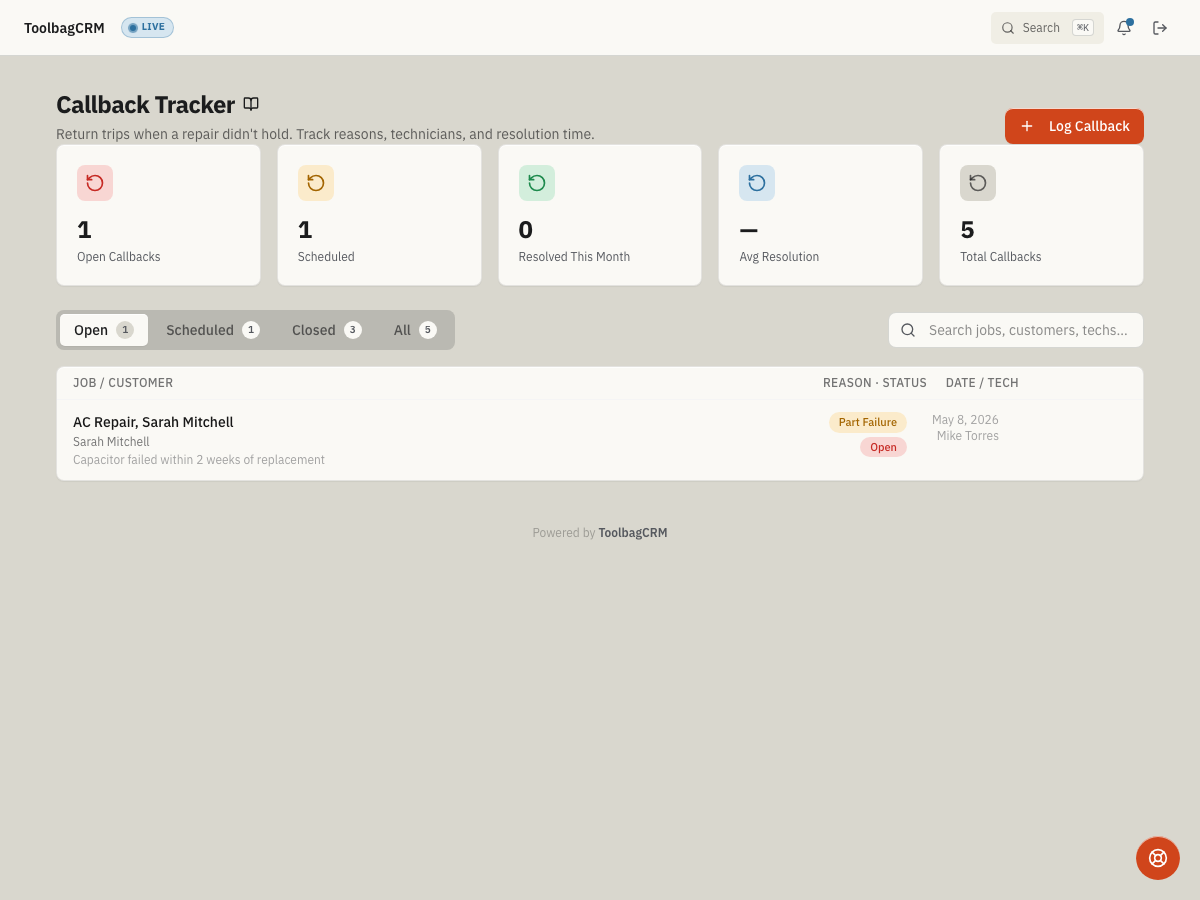
Open Callback Tracker from the main navigation after the plugin is enabled in Settings → Features.
When to use Callback Tracker
Use this plugin when your office needs a consistent place to track:
- warranty or workmanship return visits,
- repairs that did not hold,
- incomplete work that needs a second trip,
- customer-requested follow-up after a job, and
- quality trends by reason, technician, or resolution time.
Callback Tracker is best for work that is connected to a previous job and needs an operational follow-up, not for general customer notes or brand-new service requests.
Before you start
- Make sure Jobs are being used for the original work your team performs.
- Enable Callback Tracker in Settings → Features.
- Decide which callback reasons your team should use consistently: part failure, installation error, incomplete work, warranty work, customer request, weather damage, or other.
- Tell dispatchers when a callback should become a new paid job versus a warranty or redo visit.
Log a callback
Select Log Callback to record the return trip. The form captures the original job title, optional customer name, callback reason, details about what went wrong, the original technician, the callback technician, and the reported date.
To log a callback:
- Open Callback Tracker.
- Select Log Callback.
- Enter the original job title so the office can identify the work being revisited.
- Add the customer name when it helps dispatch or management recognize the callback.
- Choose the most accurate Reason and add a short Reason Detail.
- Add the original technician and callback technician when known.
- Save the callback.
Review open and scheduled callbacks
The top of the page shows summary cards for open callbacks, scheduled callbacks, callbacks resolved this month, average resolution time, and total callbacks. Use these cards during dispatch or operations review to spot quality issues before they become repeat customer problems.
Use the status tabs to focus the list:
- Open shows callbacks that still need action.
- Scheduled shows return trips that have been planned.
- Closed shows resolved and declined callbacks.
- All shows the full callback history.
Use search when you need to find a callback by job, customer, or technician.
Resolve or decline a callback
When a return trip is completed, use the row actions to resolve the callback and add resolution notes. Resolution notes should be short and factual: what was fixed, whether parts were replaced, and whether the customer was notified.
If the team decides the issue is not a callback, decline it instead of deleting the record. Declining keeps a record that the customer reported an issue and that the office reviewed it.
Tips
- Review open callbacks at the start of each dispatch meeting.
- Keep reason details specific enough to be useful later: “capacitor failed within two weeks” is better than “part issue.”
- Use consistent reason categories so monthly quality trends are meaningful.
- Resolve callbacks promptly after the return trip so average resolution time stays accurate.
- If a callback reveals billable additional work, create or update the related job instead of overloading the callback note.
Troubleshooting
The Log Callback form will not save
The Reason field is required. Choose one of the listed reasons before saving. If the form still will not save, check that the original job title is filled in — the system needs enough information to link the callback to the original work.
Search returns no results
Search matches against the original job title, customer name, and technician name. If a callback exists but does not appear, try a shorter search term or switch to the All tab to remove the status filter.