
Time Off
Time Off helps managers collect PTO requests, review pending days away, and keep dispatch from double-booking technicians who are out.
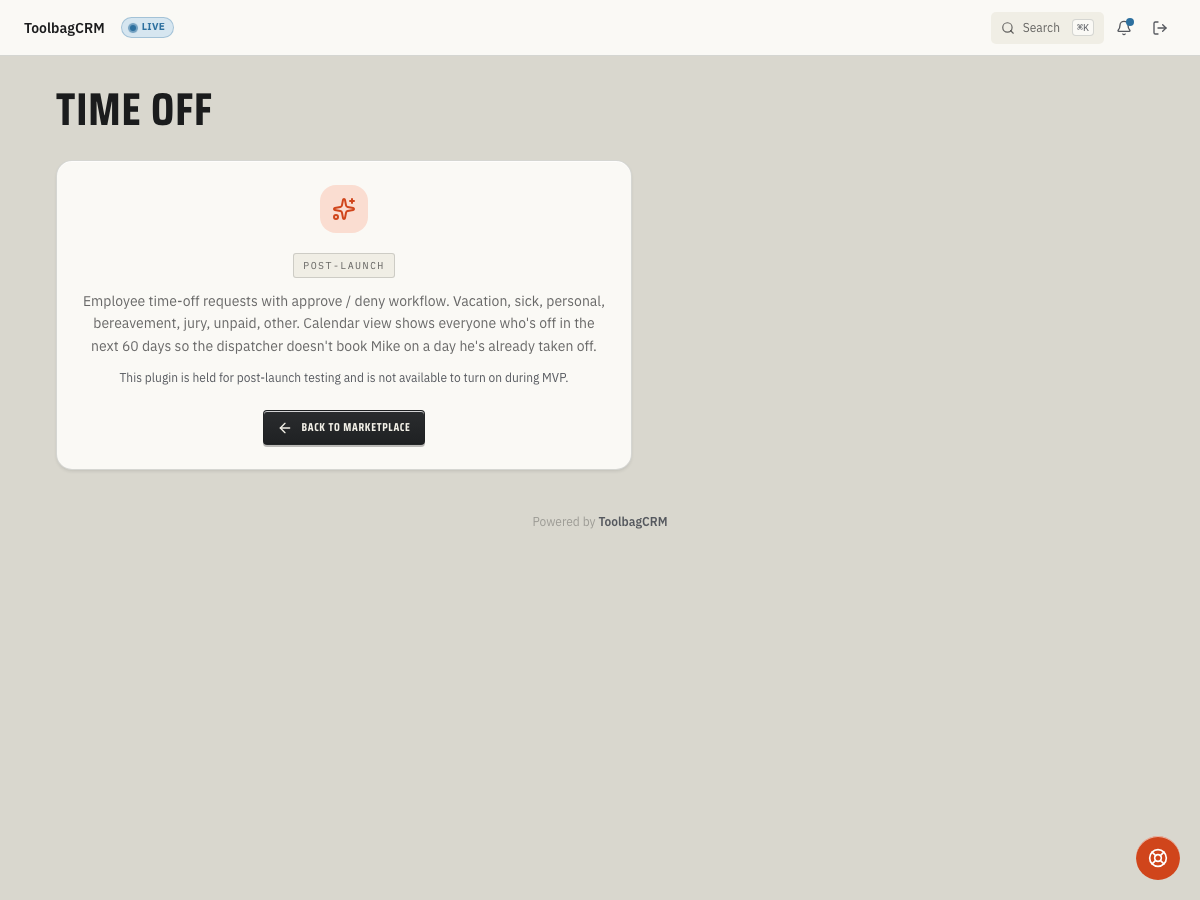
Not available to turn on right now. Time Off is held for post-launch rollout and cannot be enabled from Settings → Features during the current release. The workflow below describes how the plugin works once it ships so you know what to expect — administrators cannot self-serve enable it yet.
When to use this
Use Time Off when your office needs a shared place to track vacation, sick time, personal days, bereavement, jury duty, unpaid time, and other absences before they affect the field schedule.
It is especially useful when dispatchers or office managers need to answer:
- Who has a request waiting for approval?
- Who is already approved to be out today or later this week?
- How many approved days have been logged?
- Which requests should be approved, denied, or removed before building the schedule?
Before you start
- Time Off is not yet available to enable — it is held for post-launch rollout, so there is nothing to turn on in Settings → Features yet.
- Make sure team members are already set up, because each request is tied to a team member.
- Decide who on your team should be allowed to approve, deny, and delete requests once the plugin is released.
- Decide whether requests should need manager approval, how much advance notice is required, and which blackout dates should reject requests.
Request time off
- Open Time Off from the ToolbagCRM navigation.
- Select Request Time Off.
- Choose the Team Member.
- Pick the request Type: Vacation, Sick, Personal, Bereavement, Jury, Unpaid, or Other.
- Enter the Start Date and End Date.
- Add optional notes for the approver, such as coverage details or a reason.
- Select Submit Request.
New requests start as Pending until a manager approves or denies them. If manager approval is turned off in Time Off setup after launch, new requests are approved automatically when submitted.
Review requests
Use the summary cards and tabs at the top of the Time Off page to focus the list:
- Pending highlights requests waiting for a manager.
- On Leave Today shows approved requests that overlap today.
- Upcoming shows approved future time off.
- Days Approved (lifetime) totals approved days currently tracked in ToolbagCRM.
The request table shows the team member, type, date range, day count, status, notes, and available actions.
Approve, deny, or delete a request
For a pending request, managers can choose Approve or Deny from the request row. Denied requests can include an optional reason, which helps the requester understand the decision.
Use Delete only when the request was created by mistake or should no longer be tracked. For normal manager decisions, approve or deny the request instead of deleting it.
Settings
When the plugin is released, administrators with Time Off write access can open Time Off setup from the plugin settings link. The setup page includes:
- Annual PTO allowance (days): stores the annual allowance reference for each team member. Balance tracking is planned later, so this value is informational today.
- Require manager approval: when turned off, new requests are approved automatically instead of landing in Pending.
- Advance notice (days): rejects requests that start too soon. Set it to
0to allow same-day requests. - Blackout dates: one
YYYY-MM-DDdate per line. Any request that overlaps a blackout date is rejected.
Tips
- Review pending requests before building the weekly schedule.
- Ask employees to include coverage notes when the absence affects active jobs.
- Keep approval permissions limited to managers or dispatch leads.
- Use consistent request types so reporting stays easy to scan.
- Add holiday shutdowns and other no-PTO days as blackout dates once setup is available.
Troubleshooting
Time Off is not available to enable
This is expected right now. Time Off is held for post-launch rollout, so the Open Settings button does not lead to a working toggle yet — there is no enable action available during the current release.
The list is empty
An empty list usually means no one has submitted a request yet, or the current tab is filtering the list. Switch back to All, then create the first request with Request Time Off after the plugin is available.
A team member is missing from the request form
Time Off uses the team member list. Add or reactivate the person in the team area first, then return to Time Off and create the request.
A request is rejected by policy
Check the Time Off setup rules. Requests can be rejected when they do not meet the advance-notice requirement or when the date range overlaps a blackout date.