
Tips (Coming Soon)
Coming Soon: Tips is a public-preview plugin and is not generally available in live ToolbagCRM accounts yet. Accounts without the active Tips workspace will see a coming-soon placeholder, so this guide describes the planned workflow rather than an active production screen.
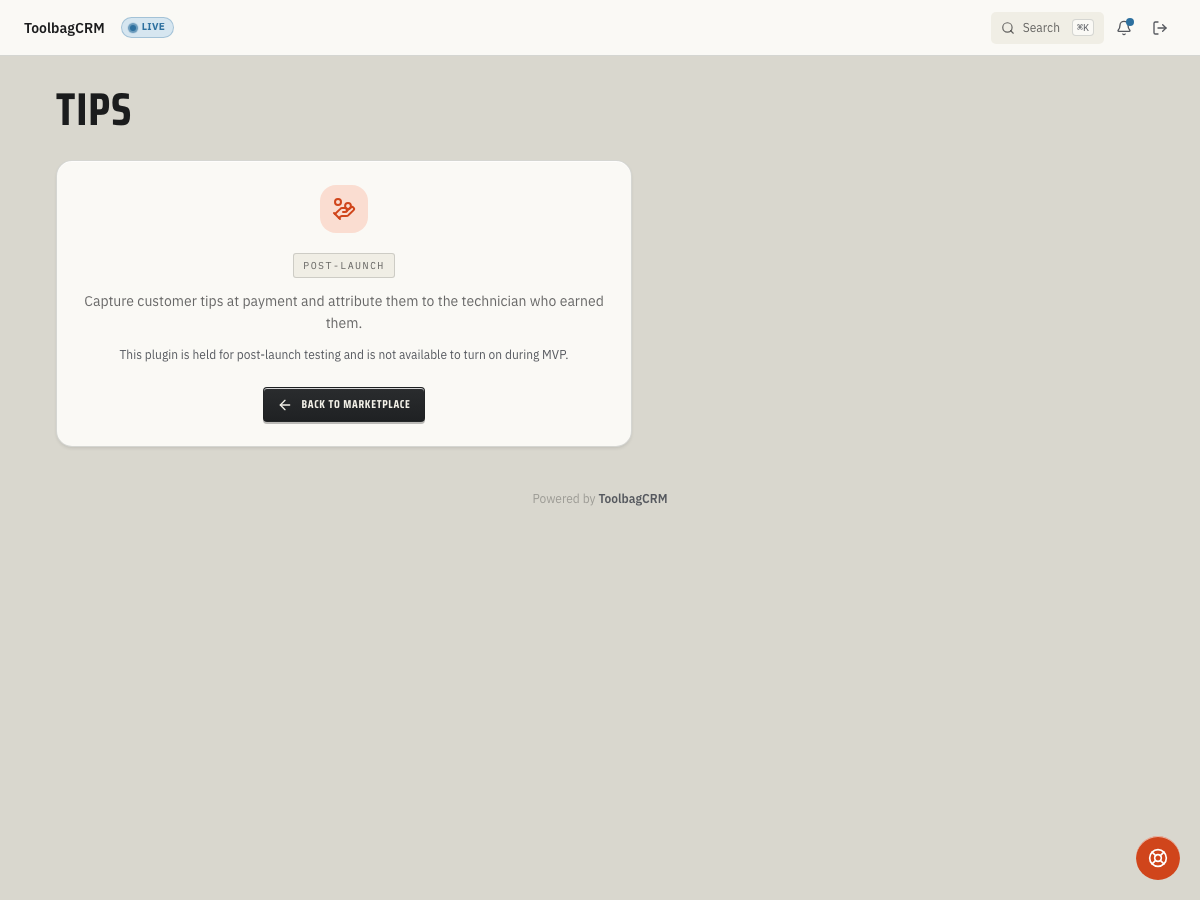
Tips is planned to help teams collect customer gratuities after a job or payment and attribute each tip to the technician who earned it.
When to use this
Use Tips when you want a customer-friendly way to invite gratuities without tracking them in a spreadsheet. It is meant for businesses where field staff may receive optional customer tips after completed work, such as cleaning, junk removal, pest control, pool service, appliance repair, or other technician-led jobs.
The planned workflow keeps each tip tied back to the job, customer, and recipient technician so office staff can review activity and technicians can see their earned tip totals.
Before you start
Because Tips is still coming soon, confirm the plugin is available for your account before promising the workflow to customers or technicians.
You will also need:
- Team records for the technicians who may receive tips.
- Payment processing enabled for your account.
- Clear internal rules for who can send tip requests, review tip history, and reconcile payouts.
- Customer-facing messaging that explains tips are optional.
Planned workflow
Once released, the workflow is expected to follow this shape:
- A team member creates a tip request from a job, customer, and recipient technician.
- ToolbagCRM generates a customer-facing tip link for that request.
- The customer opens the link, which marks the request as viewed when the link is valid.
- The customer enters a tip amount through the payment flow.
- ToolbagCRM records the transaction against the same job, customer, and technician.
- Office staff can review tip requests, transaction history, and technician tip balances.
The planned request lifecycle includes statuses for Pending, Viewed, Tipped, Declined, and Expired. Tip links expire, and customer tip pages are marked no-index so search engines should not index them.
Payment and payout notes
Tips should be reconciled like money movement, not like a simple note on a job. Tip amounts must be greater than zero, and each transaction records a processing fee and net-to-technician amount.
New tip transactions stay pending until a real payment charge is verified. Do not count a tip as earned or paid out until payment processing confirms the charge succeeded.
Tips
- Configure the tip policy before creating requests. The TipPolicy Mode setting controls whether tips are active. Set it to Optional or OptInPerJob — if the mode is Disabled, no tip requests will fire automatically after job completion.
- Resend expired links instead of creating duplicate requests. Tip links expire after the configured LinkExpiresAfterHours window (default 72 hours). If a customer says the link no longer works, use the Resend action on the original request rather than creating a second request for the same job.
- Let technicians opt out if they prefer. Individual technicians can set their TechProfile TipEnabled flag to off, which skips the tip prompt for any job they are assigned to. Use this for staff who do not want to receive gratuities rather than disabling tips company-wide.
- Watch the processing fee before reconciling payouts. The default PassToTech fee strategy deducts the Stripe processing fee (2.9% + $0.30) from each tip. The technician sees the net amount, not the full tip. If you prefer the business to absorb that cost, change the strategy to PartnerAbsorbs in settings.
- Do not count tips as earned until the charge succeeds. New tip transactions stay in a Pending state until payment processing confirms the charge. Treat a Pending transaction as uncollected money — only Succeeded transactions should factor into payout calculations or technician balance reports.
- Use the per-job tip status pill to track activity at a glance. Each job's detail page shows a tip status indicator — Request Sent, Tipped $25, or Declined — so office staff can see tip activity without leaving the job context.
Troubleshooting
I only see a Coming Soon screen
That is expected while Tips remains in public preview. The active workspace is not generally available yet, so keep using Jobs, Team, and Payments as the source of truth until your account shows the full Tips workflow.
A customer says their tip link does not work
When the workflow is available, expired links or links for inactive accounts should show that the tip link is no longer available. Create a fresh request only after confirming the job, customer, and technician are still correct.
The amount is rejected
Tip amounts must be greater than zero. If the payment provider also rejects the transaction, treat the tip as uncollected until the charge is verified.