
DOT Compliance (Idea)
Idea stage: DOT Compliance is a concept and is not available to turn on yet. This guide describes planned behavior and may change before release.
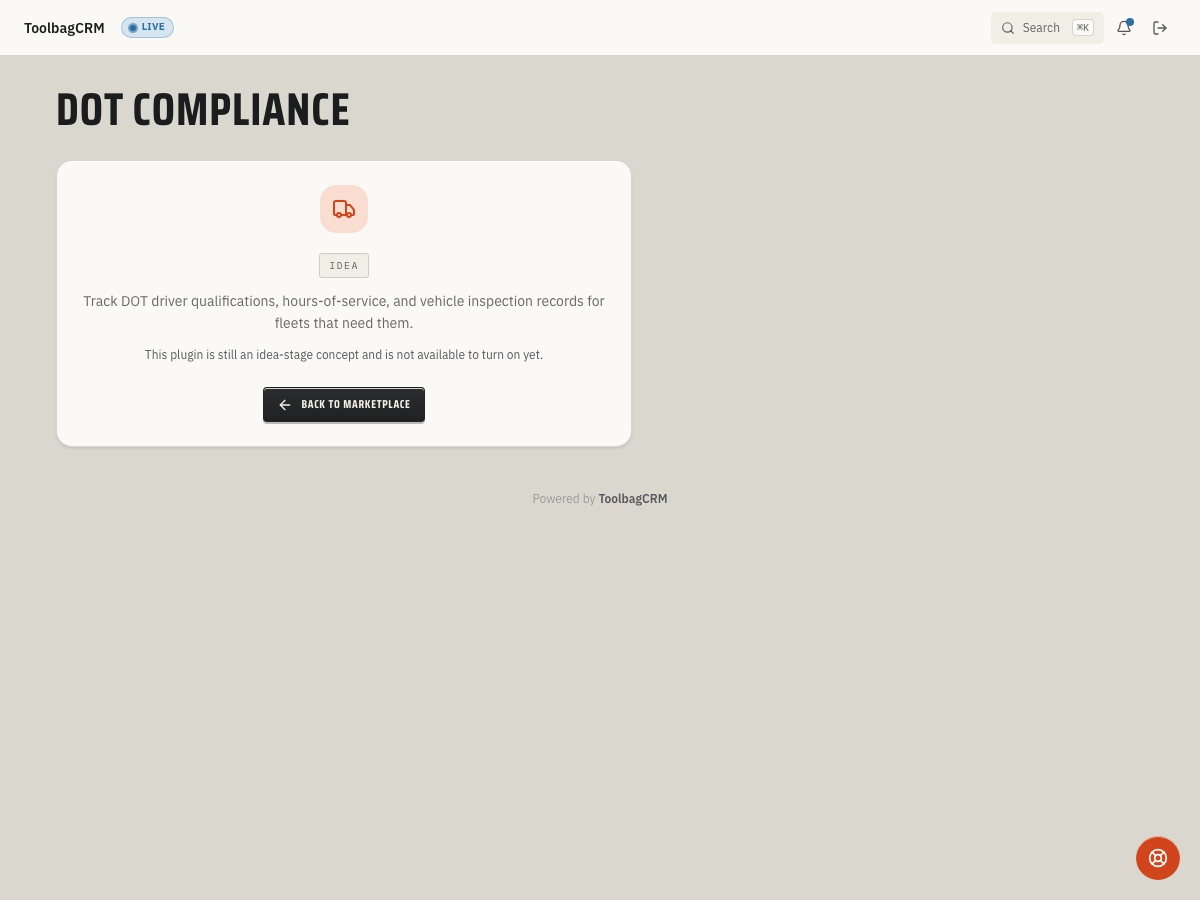
DOT Compliance helps commercial fleet operators meet Federal Motor Carrier Safety Administration (FMCSA) requirements by tracking vehicle inspections and driver hours-of-service (HOS) logs inside ToolbagCRM. Record pre-trip and post-trip inspections, log defects, and maintain daily driver duty-time breakdowns — all tied to your existing team and vehicle records.
When to use this
- Your fleet must comply with DOT inspection and hours-of-service regulations.
- You want a single place to record, search, and audit vehicle inspections and driver duty logs.
- You need to track which team member performed each inspection and when.
Before you start
- Confirm the plugin is included in your plan.
- Prepare this step for rollout; DOT Compliance is not available to enable while it remains at the idea stage.
- The Team plugin must be available — DOT Compliance links inspections and HOS logs to team members.
- If you plan to tie inspections to specific vehicles, make sure your vehicle records exist in your approved vehicle-tracking workflow.
Vehicle inspections
Record an inspection for any vehicle in your fleet. Each inspection captures:
| Field | Description |
|---|---|
| Vehicle | The vehicle being inspected (required). |
| Inspection type | One of: PreTrip, PostTrip, AnnualDoT, or PreventiveMaintenance. |
| Result | Pass, FailMinor, FailMajor, or OutOfService. |
| Inspection date | The date the inspection was performed. |
| Odometer miles | Optional mileage reading at the time of inspection. |
| Checklist | A structured checklist of items inspected (stored as JSON). |
| Defects noted | Free-text description of any defects found. |
The system records which team member performed the inspection automatically.
Inspection types explained
- PreTrip — standard driver walk-around before a trip begins.
- PostTrip — inspection after a trip is completed.
- AnnualDoT — the annual DOT inspection required by FMCSA.
- PreventiveMaintenance — scheduled maintenance inspection tied to service intervals.
Inspection results
- Pass — no issues found.
- FailMinor — defects noted that do not prohibit operation.
- FailMajor — significant defects that should be repaired before the vehicle returns to service.
- OutOfService — the vehicle is unsafe to operate and must be repaired before it can be driven.
Hours-of-service (HOS) logs
Track each driver's daily duty time to stay within FMCSA HOS limits. Each log entry captures:
| Field | Description |
|---|---|
| Driver | The team member (driver) this log belongs to (required). |
| Log date | The date this HOS entry covers. |
| On-duty minutes | Total time on duty but not driving (loading, unloading, inspections, etc.). |
| Driving minutes | Time spent behind the wheel. |
| Sleeper minutes | Time spent in the sleeper berth. |
| Off-duty minutes | Minutes spent off duty. |
| Notes | Optional notes about the day's activities. |
TIP
The four duty-time categories (on-duty, driving, sleeper, off-duty) should add up to 1440 minutes (24 hours) for a complete log day.
Planned workflow
The planned DOT Compliance workflow is expected to work like this:
- Prepare this step for rollout; DOT Compliance is not available to enable while it remains at the idea stage.
- Record inspections — after a driver completes a walk-around, log the inspection type, result, and any defects.
- Record HOS logs — at the end of each day (or shift), create an HOS entry for the driver with duty-time breakdown.
- Review and filter — list inspections filtered by vehicle, and list HOS logs filtered by driver.
- Audit — use the stored records to demonstrate compliance during DOT audits or internal reviews.
TIP
Since this plugin is still at the idea stage, the exact UI steps may change before general availability. Use these rollout notes to prepare your inspection and driver-log process before the active workspace is enabled.
Tips
- Record inspections at the time they are performed — do not batch-entry old inspections unless you are backfilling historical data.
- Use the Defects field to document exactly what was found; vague entries like "issue noted" are less useful during an audit.
- If an inspection result is OutOfService, make sure the vehicle is flagged and removed from dispatch until it is repaired.
- For HOS logs, record all four duty-time categories even if some are zero — incomplete logs may not satisfy audit requirements.
- Keep vehicle records current so compliance checks use the right equipment and driver assignments.
Troubleshooting
I only see the idea-stage page
DOT Compliance is not generally available yet. Your account may show the idea-stage placeholder until ToolbagCRM enables the active workspace for your plan.
An inspection cannot be saved
ToolbagCRM requires a vehicle before an inspection record can be created. Choose the vehicle first, then select the inspection type, result, date, and any defects or odometer notes.
An HOS log cannot be saved
ToolbagCRM requires a driver before an hours-of-service log can be created. Pick the team member who drove that day and enter the on-duty, driving, sleeper, and off-duty minute totals before saving.