
Drip Campaigns
Drip Campaigns help your team create repeatable email and SMS follow-up sequences for customers. Use them for post-job review requests, win-back reminders, new-customer welcomes, and other touchpoints that should happen the same way every time.
Open Drip Campaigns from the main navigation after the plugin is enabled in Settings → Features.
What you can track
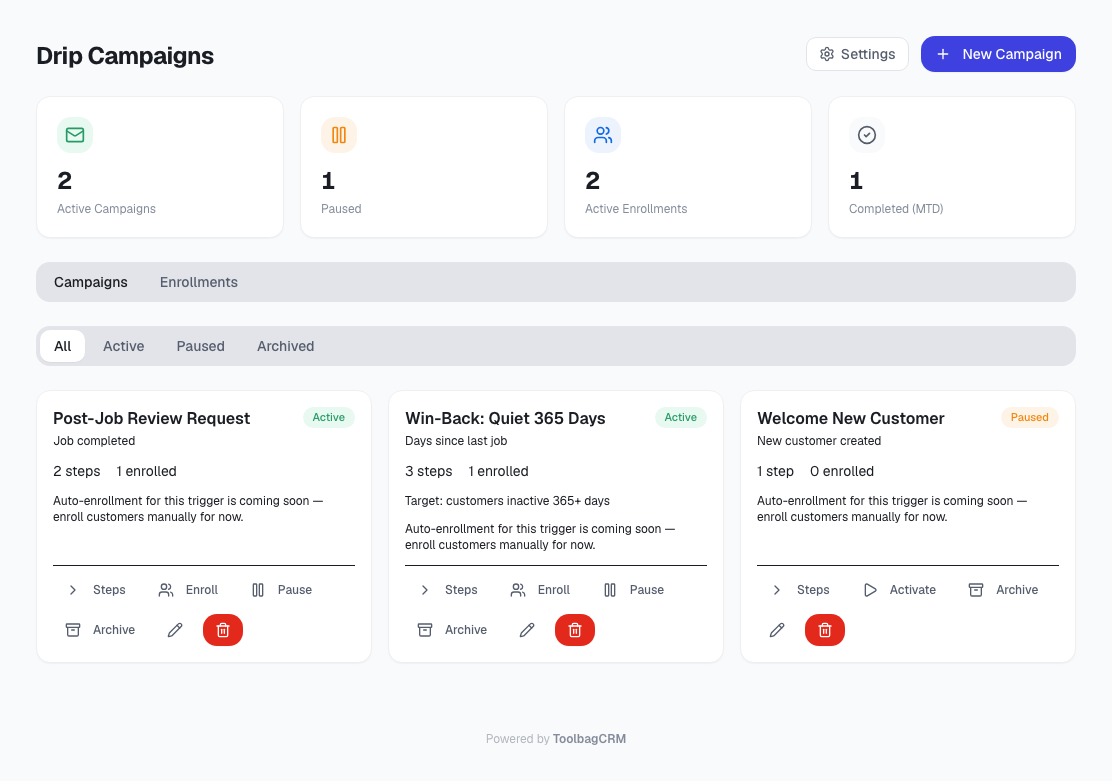
The Drip Campaigns page has two main tabs:
- Campaigns — build and manage the follow-up sequences your team uses.
- Enrollments — see which customers are currently moving through a campaign, which step is next, and whether a sequence has completed or been cancelled.
The dashboard cards show active campaigns, paused campaigns, active enrollments, and enrollments completed this month.
Create a campaign
- Open Drip Campaigns.
- Select New Campaign.
- Add a clear campaign name, such as
Post-Job Review RequestorWin-Back: Quiet 365 Days. - Add an optional description so your team knows when to use it.
- Choose a trigger:
- Manual enrollment
- Job completed
- Quote sent
- Invoice paid
- New customer created
- Days since last job
- If you choose Days since last job, enter the number of inactive days.
- Save the campaign.
Campaigns can be Active, Paused, or Archived. Pause a campaign when you want to temporarily stop using it. Archive it when it should no longer be offered for new follow-up work.
Add campaign steps
Each campaign needs one or more steps. A step defines what message should go out and how long ToolbagCRM should wait before that step is due.
- On a campaign card, select Steps.
- Select Add Step.
- Choose Email or SMS.
- Enter the delay in days.
- For email steps, add a subject line.
- Add the message body.
- Save the step.
Steps are shown in order, with their message type, delay, subject when applicable, and a preview of the message body.
Enroll a customer
Enrollments connect a customer to a campaign.
- Find an active campaign.
- Select Enroll.
- Choose the customer.
- Add an optional note for internal context.
- Save the enrollment.
ToolbagCRM prevents the same customer from being actively enrolled in the same campaign twice. If the customer is already active in that campaign, the page will show an error instead of creating a duplicate.
Manage enrollments
Use the Enrollments tab to filter and review follow-up progress.
Enrollment statuses are:
- Active — the customer is still moving through the campaign.
- Completed — the campaign has no remaining steps for that customer.
- Cancelled — future steps were stopped.
For an active enrollment, you can:
- Advance it to the next step. If there are no more steps, advancing marks the enrollment completed.
- Cancel it and add an optional reason, such as
Customer opted outorJob cancelled.
Cancelling stops future steps. It does not change any previous follow-up that already happened.
Tips for contractors
- Start with one simple campaign, such as a two-step review request after completed jobs.
- Keep SMS messages short and use email for longer instructions.
- Use the description field to explain when the campaign should be used.
- Pause seasonal campaigns instead of deleting them, so you can reuse them later.
- Review active enrollments weekly to catch customers who need manual follow-up.
If the page says the plugin is disabled
Open Settings → Features and enable Drip Campaigns. The plugin depends on customer records, so make sure the Customers feature is also available for your account.