
Jobs
Jobs are the work orders that track every service visit from first contact through completion. A job connects a customer, scheduled visits, assigned team, invoices, and all the activity around getting the work done.
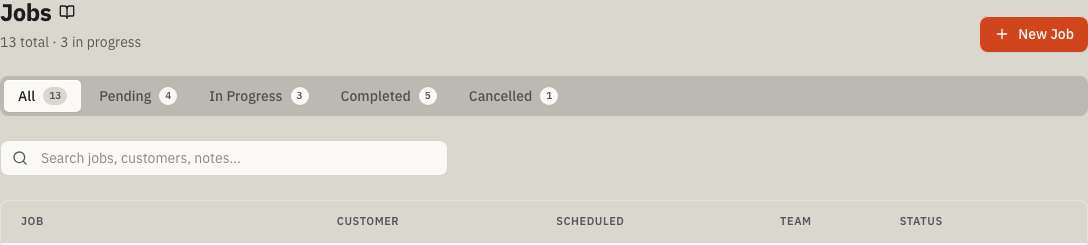
Open Jobs from the main navigation.
When to use Jobs
Use Jobs when your team needs to:
- Track work from request through completion.
- Schedule visits and assign technicians.
- See which jobs are pending, in progress, completed, or cancelled.
- Link invoices, quotes, checklists, and materials to a single work order.
The job list
The job list shows every job in your account with a header displaying the total count and how many are currently in progress.
Status tabs
Filter the list by status: All, Pending, In Progress, Completed, or Cancelled. Each tab shows a count badge.
Search
Search by job title, customer name, notes, or description. ToolbagCRM searches the full matching job set before returning a page of up to 100 results.
What each row shows
- Job title — the name of the work.
- Customer name — clickable link to the customer detail.
- Scheduled date and time — the next scheduled visit or older job-level scheduled start when one exists, or "--" if no visit/date is stored. New calendar work is managed as visits from Scheduling.
- Assigned team — avatar stack showing up to three team members, or "Unassigned."
- Status badge — color-coded status indicator.
Create a new job
The New Job button appears for Administrators, Dispatchers, and technicians who have been granted job-creation access. Technicians without that access can still work their assigned jobs, but they should ask an administrator or dispatcher to create new work orders.
- Click New Job.
- Use Find customer to search by name, email, or phone, then select a Customer from the dropdown (required).
- Enter a Title such as "Bathroom remodel" (required).
- Add a Description explaining what needs to be done (optional).
- Assign one or more Team Members from the multi-select field (optional). If no active team members exist yet, ToolbagCRM shows a prompt to add or invite a team member before assigning the job.
- Optional: turn on Schedule first visit now to put the new job on the calendar immediately. Choose a required Start time, add an End time if you need a custom window, and add Visit notes for crew instructions.
- Save the job.
New jobs default to Pending status. If you leave Schedule first visit now off, create the job first, then use Schedule Visit from the job detail page to put that work on the calendar. If the optional visit cannot be created, the job still saves and ToolbagCRM tells you to schedule the visit from the job detail page.
Job detail view
Click any job row to open the full job detail. The detail view includes:
Header
- Job title with a StatusSelect dropdown to change status inline: Pending, In Progress, Completed, or Cancelled.
- Created date.
- Schedule Visit link that opens Scheduling with this job selected. It appears only while the job is Pending or In Progress; completed and cancelled jobs keep their existing visit history but cannot receive another visit.
- Edit button to update the job.
Metadata grid
| Field | Content |
|---|---|
| Customer | Name linked to the customer detail page |
| Visit schedule | The next upcoming active visit date and time with a Manage visit or Manage visits link. No visits scheduled with a Schedule Visit link appears only when an open job has no scheduled visit. Completed, cancelled, and past visits stay in Scheduling/history instead of replacing the next field visit. If the job still has an older job-level date, it appears as a legacy job date until a visit is scheduled. |
| Location | The job's service location when one is attached; otherwise the customer's formatted address |
Related plugin shortcuts
When Job Checklists & Inspections or Job Costing is enabled, the job detail shows a Checklists or Job costing shortcut below the metadata grid. Each shortcut opens that plugin's workspace; select the job there when you need to review its checklist or cost records.
Assigned team
Lists each assigned team member with their avatar and display name. Click Edit on the job detail to add, remove, or replace assigned team members; the edit sheet uses the same multi-select pattern as the new job form, shows a selected-team summary, and keeps currently assigned inactive members visible with an (inactive) label so you can remove or recognize historical assignments.
Description and internal notes
- Description — the work to be done, visible to the full team.
- Internal Notes — staff-only notes displayed in a separate warning-toned card. Use these for instructions the customer should not see.
Linked invoices
Lists all invoices tied to this job with amounts, invoice numbers, due dates, and status badges. A summary footer shows total invoiced, total paid, and outstanding balance.
Click New Invoice in this section's header to create an invoice for the job's customer without leaving the job detail. The dialog pre-fills the Customer and Linked job from the job you're viewing; the customer stays locked so the invoice remains on the right account, but you can change Linked job to No job attached if the charge should be customer-only. Enter a description and amount, and the invoice saves as a Draft.
Documents & Photos
When the Documents & Photos plugin is enabled, the job detail shows a Documents & Photos card for files attached to that job. The card lists each file name, category, file type, file size, upload date, and Download action when stored content is available.
If no files are attached yet, use Add documents or Upload documents from the card to open the Documents page with the current job preselected. That keeps site photos, contracts, permits, and forms attached to the job rather than asking the office to select the job again during upload.
Customer sign-off
When Job Signature Capture is enabled, a signature pad appears on the job detail. The technician must capture the customer's signature before Complete job becomes available. Once signed, the signature image, date, and a re-capture option are displayed.
Status history
Every status change recorded for this job with timestamps and who made the change.
Flow card
The Flow card combines the current job status, recent status history, related activity, and planned next transitions. Use its primary Advance to... action when you want to move the job one normal step forward, such as Pending → In Progress → Completed. The separate Cancel job escape action stays available even after the job reaches Completed; once the job is Cancelled, the card shows no further transitions or actions.
Activity history
A chronological record of status changes, notes, payments, and other events on the job.
Job statuses
Jobs follow this status flow:
- Pending — Created but not yet started.
- In Progress — Work is actively underway.
- Completed — Work is finished.
- Cancelled — The job will not proceed but stays on record.
A future open job displays a Scheduled badge on the Jobs list, job detail, and field dashboard until its exact scheduled start. At that boundary, it displays In Progress automatically. A start with a UTC offset is honored as that exact instant; a date-only start uses the job location's time zone when available, otherwise the account time zone. A missing or invalid start does not trigger In Progress, and Completed and Cancelled remain terminal. This display does not change the saved job status, status history, available actions, or the status tab used to filter the Jobs list.
Use the StatusSelect dropdown for manual status corrections, or use the Flow card when you want the guided next-step action with a confirmation prompt and status-history record.
Before you start
- Make sure the customer record exists — the Customer field is required when creating a job, and the save button stays disabled until a customer is selected.
- Confirm the person creating the job has job-creation access. Administrators and Dispatchers can create jobs by default; technicians need an explicit create permission or an office teammate to create the job for them.
- If you want the job's first visit scheduled during creation, decide the start time before opening New Job. The optional Schedule first visit now section uses the team members assigned above, accepts an optional end time, and lets you add visit notes for the crew.
- If the job happens at a specific property or service location, keep that location's street address, city, state, and ZIP/postal code current so the job detail and weather strip show the right site.
- If you use invoicing, plan to finish jobs promptly so they flow into the invoicing workflow. A completed job is the fastest path to a draft invoice.
- Enable Documents & Photos if technicians or office staff need job photos, permits, contracts, or signed forms to appear directly on the job detail.
- Decide on a clear Title such as "Furnace tune-up" or "Bathroom remodel" — the title appears in search results, scheduling, and the customer's job history.
Tips
- Use Schedule first visit now in the New Job form when the first service window is already known; it creates the job and the first Scheduling visit in one flow.
- Schedule jobs from the Scheduling page when you need dispatch-board context, drag-and-drop planning, or a visit for an existing job.
- From a job detail page, use Schedule Visit to open Scheduling with the job already selected; this prevents accidentally scheduling the wrong customer or work order.
- Use the Visit schedule row for the next upcoming field visit. Completed, cancelled, and past visits remain available through Scheduling/history, while the job detail keeps the next active visit front and center.
- If you are already in the job edit sheet, use its Schedule Visit link instead of hunting through navigation — it opens Scheduling with the same job context.
- Check the Location row before dispatch; jobs with an attached service location show that site first, while jobs without one fall back to the customer's formatted address.
- Use the Flow card to advance a job through the normal sequence one step at a time; use Cancel job there when the job should stop but remain on record.
- Use internal notes for access codes, safety concerns, or special instructions the crew needs but the customer should not see.
- Attach job-specific files from the Documents & Photos card so technicians can download site photos, permits, or signed forms from the job they are already viewing.
- Use New Invoice on the job detail's Linked invoices section to bill for a job in one step — the customer and job are pre-filled, and you can leave the job selected or switch the dropdown to No job attached for a customer-only charge.
- Check the job history to see the full record when picking up someone else's job.
Troubleshooting
The job list says "Nothing on the schedule"
Click New Job to create the first job. If jobs existed before but the list is blank, check the search bar and status tabs — a filter may be hiding results. Click All to reset the status filter.
The New Job button is missing
Your role may not be allowed to create jobs. Administrators and Dispatchers can create jobs by default; technicians need job-creation access before the button appears. Ask an administrator or dispatcher to create the job, update your role, or grant job-creation access.
The save button is disabled when creating a job
A Customer and Title are both required. Use Find customer to search by name, email, or phone, select a customer from the dropdown, and enter a title before saving. If no customers match, try another name, email, or phone. If the customer list shows an error, check your connection and retry.
Search is not finding a job
The search bar matches job title, customer name, notes, and description. Try the customer's name if the job title is uncertain. If a status tab other than All is selected, switch to All — the job may be in a different status.
The Assigned team field is empty or disabled
Only active team members appear for new job assignments. Add or invite team members from Team first, then return to the job form or job edit sheet. If a team member was deactivated after being assigned, the edit sheet can still show that existing assignment with an (inactive) label so you can decide whether to leave it for history or remove it before saving.
I do not see a scheduled time on the new job form
Scheduling is visit-based and the first-visit fields only appear after you turn on Schedule first visit now. Leave the toggle off when you only need to create the job, then use Schedule Visit from the job detail later. Existing jobs that still show a legacy job date can be managed from the Visit schedule row once you add a Scheduling visit.
I cannot save with Schedule first visit now turned on
The Start time is required when Schedule first visit now is on. If you enter an End time, it must be after the start. Either choose a valid service window or turn the toggle off, save the job, and schedule the visit later from the job detail page.
The job saved but the first visit did not
The job record is kept even if the optional visit cannot be created. Open the job detail and click Schedule Visit to add the service window manually; use the same team assignment and visit notes you intended to add from the new job form.
I do not see the Documents & Photos card
The card only appears when the Documents & Photos plugin is enabled. Open Settings → Features or the Marketplace to enable Documents & Photos, then reopen the job detail. If the card appears but is empty, use Add documents to upload files with this job preselected.
Complete job is disabled
When Job Signature Capture is enabled, the customer must sign before the job can be completed. Select Capture customer signature in the completion dialog, collect the signature in the Customer sign-off section, then reopen the completion dialog.
I do not see every status as a Flow action
The Flow card shows the next normal status as the main action rather than every possible future status. For example, a Pending job advances to In Progress before Completed. A Completed job has no normal advance action, but Cancel job remains available until the job is already Cancelled.
A job was created by mistake
Job records are retained to preserve their customer, visit, invoice, document, and activity history, so the edit panel does not include a delete action. Change the job status to Cancelled and add an internal note explaining the mistake. If the work belongs to another customer, create a new job for the correct customer instead of trying to move the original record.